If you're searching for "Clay MCP", you're asking one of two things: does Clay have an MCP server? or how do I connect Clay to an AI assistant via the Model Context Protocol?
✅ Clay has an official MCP server. Details in the setup section below.
What Is MCP?
Model Context Protocol (MCP) is an open standard developed by Anthropic that lets AI assistants — like Claude — connect to external tools, APIs, and data sources in a standardised way.
Before MCP, every AI integration required bespoke tooling: custom prompts, custom API wrappers, and custom glue code to pass context back and forth. MCP replaces that with a common interface: the AI asks the MCP server for data or actions, the server returns structured results, and the AI uses them to answer your question or complete a task.
In plain terms: MCP is how you give an AI assistant live access to Clay — not just knowledge about it, but real, up-to-date data from your account.
What a Clay MCP Integration Does
Once Clay is connected via MCP, your AI assistant can:
- Read live data — pull records, metrics, activity, and status directly from Clay
- Take actions — create, update, or log records based on your instructions
- Cross-reference context — combine Clay data with other connected tools mid-conversation
The key difference from a standard chatbot: the assistant is not working from training data or memory. It is reading your actual Clay instance, in real time.
Practical Clay MCP Use Cases
Live prospect lookups
Ask the assistant to look up a company or contact in Clay mid-conversation and return enriched data: firmographics, signals, and contact details.
Outreach personalisation at scale
Pull signal data from Clay via MCP and have the assistant generate personalised first lines or talking points for each prospect.
ICP fit scoring from chat
Describe your ICP; the assistant queries Clay and returns a scored list of accounts that match your criteria.
Clay MCP: Real Configuration & Setup (as of 2026)
Clay ships an official, first-party MCP server — this is not a community wrapper around the Clay API. It is built by Clay, it is the same server your reps hit inside Claude and ChatGPT, and it is the layer that reframes what Clay is: Ops builds the workflow once, reps run it from chat.
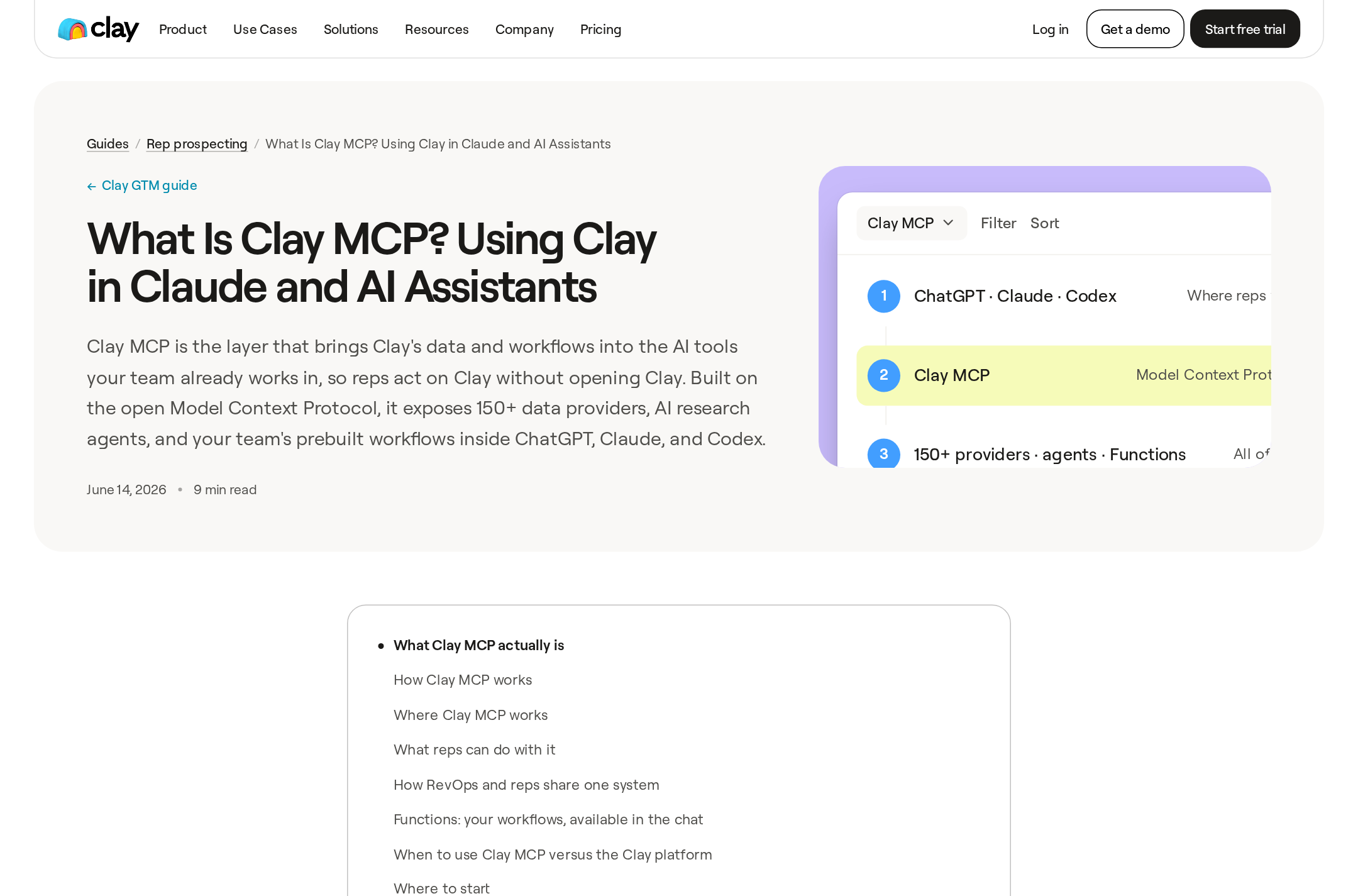
Clay's own framing: the AI tool is the interface, MCP is the bridge, and Clay's providers and Functions are what it exposes.
The critical thing to understand first: Clay MCP exposes verified capabilities, not a table
This is where every generic "Clay MCP" guide goes wrong. Clay MCP does not give the assistant free rein over your tables. An admin explicitly enables what surfaces:
| What the assistant can reach | Who turns it on |
|---|---|
| Clay-managed functions — common enrichment and research jobs Clay provides | Available by default |
| Your team's custom Functions — your own Clay logic | Admin: Enable for MCP per function |
| Clay's GTM database searches — people and companies | Available by default |
| Audiences / first-party CRM data | Enterprise only, via two workspace toggles |
Clay's docs are blunt about the boundary: "The AI tool can only call Clay tools and Functions that a workspace admin has explicitly enabled — it cannot browse tables, view raw workspace data, or access anything outside of what enabled Functions return."
If your team's mental model is "Clay MCP reads my tables," you will be confused for a week. It reads Functions you have published, plus Clay's own search surface.
Adding the server (and the permissions model that surrounds it)
Clay's admin surface lives at Settings → MCP users. The minimum viable setup is deliberately small — an invite and a credit budget:
- Settings → Team → invite each rep. Set their permission type to Sales Rep. That role is MCP-only access: they cannot see the Clay UI, tables, API keys, or workflows.
- Settings → MCP users → Set default limit to establish a workspace-wide credit budget before reps start, because the default applies automatically to everyone who connects.
- Functions tab → open a function → toggle Enable for MCP, and give it an actionable name.
- (Enterprise only) Configure Audiences controls if reps need first-party CRM data.
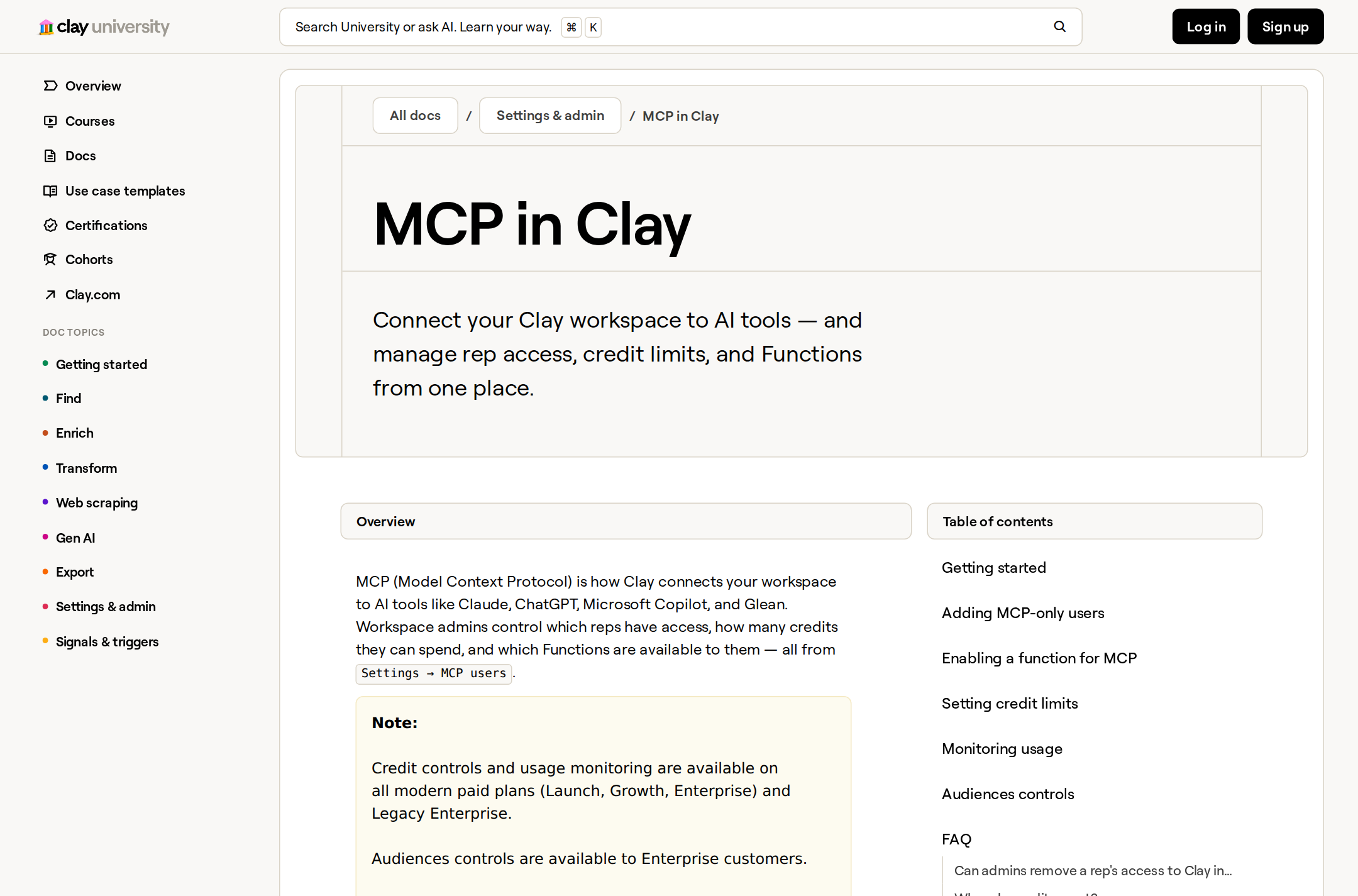
Clay University: MCP access is a permission type, not a separate product — and the credit budget is set before anyone connects.
There is also a shortcut: Settings → MCP users → Invite users opens an invite dialog with Sales Rep pre-selected. Useful when everyone you are adding is MCP-only, and the one thing to double-check if a rep also needs the Clay web app.
Credit limits, and the reset that surprises people
Credit controls exist on all modern paid plans (Launch, Growth, Enterprise) and Legacy Enterprise. The mechanics matter:
- Credit spend resets on the 1st of each month at midnight UTC. Not on a rolling 30 days.
- A default limit applies to every new MCP user on first connect; a per-user override replaces it for one rep.
- Reps showing No limit have neither — worth auditing, because "No limit" is the default-absent state rather than a deliberate grant.
- When a rep hits their limit, further actions are hard-blocked until the reset. They cannot run enrichments or invoke Functions. An admin raising the per-user limit restores access immediately.
- MCP usage also rolls into the main Settings → Credit Usage dashboard alongside every other workspace credit consumer.
There is no MCP surcharge. Clay states it plainly: if a function that finds someone's email and phone costs 12 credits in a Clay table, it costs 12 credits when a rep triggers it from chat. Same credits, different door.
Functions: the unit that makes output consistent
A Function is a reusable Clay workflow an admin builds once, turns on with Enable for MCP, and gives an actionable name. After that, every rep calls the same vetted workflow by name instead of each writing their own prompt and getting their own answer. That is the difference between three reps producing three different account briefs and three reps producing the one your ops team trusts.
Three setup details that silently break Functions:
- The function must have an enrichment or output column. Toggling MCP and setting inputs alone returns nothing — Clay's docs call this out explicitly, and it is the most common "why is my Function empty?" cause.
- Set a real name and description. That is what reps see when browsing available functions. "Company enrichment waterfall" and "Outbound email generator" are the examples Clay gives.
- Avoid names that collide with Clay's built-in tools — "find contacts," "enrich company." The AI tool may invoke the default instead of yours, and the failure looks like your Function being ignored rather than a naming conflict.
Also seen in the wild: "Failed to update integration settings" when toggling a Function for MCP. Clay's documented recovery is to hard-refresh the page, then recreate the function under a different name if it persists.
What a self-hosted agent actually gets (and what it doesn't)
Two distinct surfaces ship under the Clay name, and confusing them wastes time:
- Clay MCP (for AI assistants) — the connector above, available in Claude, ChatGPT, Codex, Microsoft Copilot, and Glean. Interactive, OAuth-based, tied to a human's workspace membership.
- Clay's Public API +
clayCLI — for your own applications, backend jobs, queues, and internal tools, authenticating with a Clay API key in theclay-api-keyheader. Keys are created from Settings → Account → API keys (beta), and Clay's own guidance is to keep keys server-side — never in browser code, mobile apps, public repos, logs, or analytics tools.
The gap that matters for OpenClaw-style agents: the agent plugin requires a coding-agent host with a shell (Claude Code, Codex, Cursor), and Clay says explicitly it doesn't work in general-purpose chat apps that can't run the CLI. So a self-hosted agent has a genuine choice to make, and it is not the same choice a rep makes:
- Want a human in the loop? Point at the MCP endpoint. OAuth, Functions by name, interactive result views.
- Want an unattended cron job? Go through the Public API with a server-side key. Rate limits are per-workspace,
429carries aRetry-Afterheader plusX-RateLimit-*when available, and Clay's recommendation is explicit: prefer batch and async endpoints over tight polling loops, and add exponential backoff with jitter for concurrent requests.
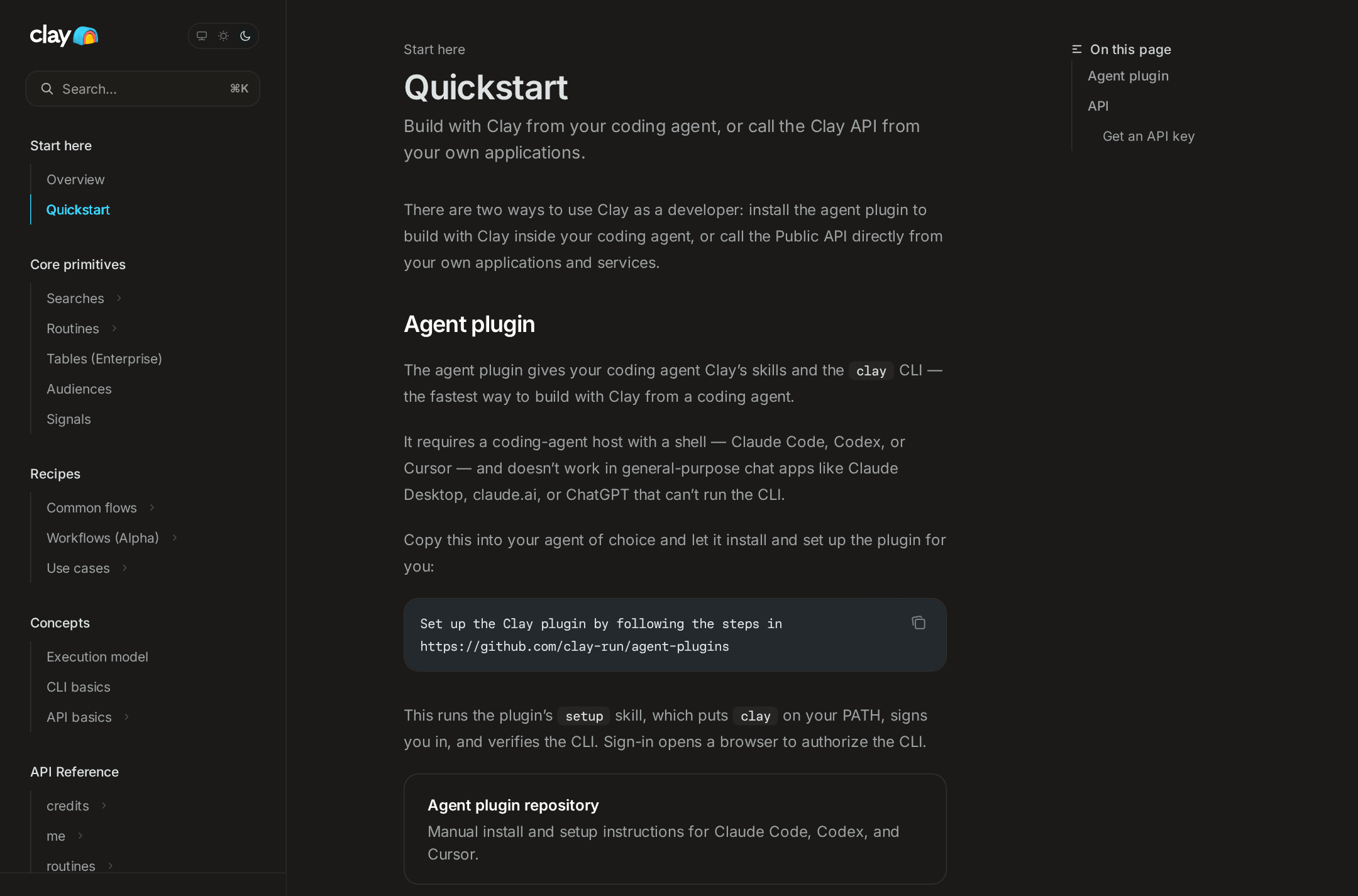
Clay's developer quickstart: the plugin path needs a coding agent with a shell; the API path is what backend jobs use.
How to Connect Clay via MCP
There are two main paths:
Option A: Use Clay's official MCP server
Clay maintains an official Clay MCP server. This is the recommended starting point — it's built and maintained by the Clay team, so it stays up to date with API changes.
Note: Official first-party Clay MCP connector for AI assistants (Claude, ChatGPT, Codex, Copilot, Glean) — OAuth, interactive. An admin controls what surfaces via Settings → MCP users: permission type, per-rep credit budgets, and per-Function 'Enable for MCP'. A separate Public API +
clayCLI with server-side API keys is the path for unattended/batch jobs.
What the server exposes:
- Clay-managed functions
- admin-enabled custom Functions
- GTM database searches (people & companies)
- Audiences / first-party CRM data (Enterprise)
What you'll need:
- An MCP-compatible client (Claude Desktop, OpenClaw, or another host)
- Clay credentials configured per the server's setup guide
This path gives you the most control but requires you to handle client configuration and credential management yourself.
Option B: Use Cody (OpenClaw-based, managed)
Cody is built on OpenClaw and supports MCP-compatible integrations out of the box. You connect Clay once from the Cody dashboard — no server to run, no code to write — and Cody handles authentication, context passing, and write-back actions with appropriate guardrails.
Cody works where your team already operates: Slack, Telegram, or the web chat. The Clay connection is available to your entire team without each person setting up their own MCP client.
Want Clay Connected to AI Without Running Your Own MCP Server?
Cody gives your team a Clay AI assistant in Slack, so people can search Clay tables, inspect enrichment status, compare account signals, and prioritise outbound work without wiring API keys or building table-query workflow glue.
MCP vs Other AI Integration Patterns
| Approach | What it is | Tradeoff |
|---|---|---|
| MCP | Standardised protocol for live tool access | Requires an MCP server; most powerful when set up correctly |
| RAG (retrieval) | Pre-index Clay content and retrieve it | Good for static docs; not suitable for live/transactional data |
| Manual copy-paste | Paste Clay output into ChatGPT/Claude | Fast to start; breaks for anything recurring or at scale |
| Custom API wrappers | Bespoke integration code per tool | Full control; high maintenance overhead |
MCP wins when you need live data from Clay and want to avoid rebuilding integrations as APIs change.
Common Mistakes
- Using training data when live data is needed — if the AI doesn't have an MCP connection, it will answer from memory, which is often outdated or wrong for account-specific questions
- No write-back guardrails — MCP can write to Clay, so it's worth adding an approval step for any action that modifies records
- Too many tools exposed at once — give the AI access to the Clay actions it actually needs; a scoped connection is easier to reason about and audit
- Skipping structured outputs — ask the AI to return structured JSON or clear fields when writing back to Clay; free-form output is harder to validate
Clay-Specific Pitfalls (the ones that cost money)
- Admins cannot revoke an individual MCP connection — this is documented, expected behaviour, not a bug. The MCP users page will not let you remove a rep's OAuth token. To actually block access you either remove the rep from the workspace entirely or set their credit limit to 0, which hard-blocks further actions without removing them. If your offboarding checklist says "revoke in Clay," it is incomplete.
- A rep who connects before accepting the workspace invite lands in their personal workspace. This is Clay's #1 support scenario. The fix is not a reconnect loop: have them disconnect from the AI tool, accept the invite, then reconnect and select the company workspace. If the invite expired, resend it from Settings → Team.
- "Table" is a loaded word in Clay MCP. Ask for a single contact's email and Clay says no table is created by default. Click Open in Clay, and a table is created in your workspace. Ops teams that audit for surprise tables should know which action causes which.
- Result pages cap at 100. Clay returns results in groups of 20, with Load more to page through — up to 100 results total. Broad queries do not fail loudly; they truncate. Include the company domain (
rippling.com), not just the name, and be specific about title, seniority, and location. - Sending outreach from chat does not automatically use your Sequencer. By default the AI tool has no access to Sequencer. If you want sends to route through it, that has to be a Function that uploads the person to Sequencer and is enabled for MCP — otherwise you are directing the assistant to Gmail or another connected mailbox.
- Coverage in the chat connector is a subset of Clay's full provider catalogue. The connector pulls from a subset of Clay's 200+ providers. If you need a data point that isn't showing up, the documented answer is not "retry harder" — it is add a Function for it and enable it for MCP, or drop into
app.clay.comwith the same account. - Credit burn is the real operational risk, and MCP makes it easier to trigger. The whole point of the connector is that reps act quickly in plain language — which also means a vague request can fire an enrichment waterfall that would have been deliberate in the table UI. Set the workspace default credit limit before reps connect, not after the first invoice.
- Use MCP for rep-scale work and the platform for volume. Clay's own guidance: the connector is for 1–20 contacts, exploratory research, and individual emails; move to the Clay platform for 20+ contacts, complex automated workflows, and deep CRM syncs. The tell that a workflow has outgrown chat is repetition — if a rep types the same prompt over and over, that belongs in a Function or a table.
Clay MCP vs. the Clay Public API
The split is the same one that works elsewhere: MCP when a human is asking, API when nothing is watching.
Use Clay MCP for in-the-moment prospecting — "find the VP of Sales at stripe.com and research the account" — where the value is that context carries from finding a contact, to researching the account, to drafting the email, without the rep leaving the conversation. The interactive result view (filter to US contacts, enrich further, draft from the research) is the part you cannot replicate with a raw API call.
Use the Public API / clay CLI for scheduled and batch work: nightly enrichment runs, scoring pipelines, and anything that feeds a backend job or queue. It gives you server-side keys, JSONL batch uploads for large runs, webhooks when a routine finishes, and a proper 429/Retry-After contract instead of an interactive session.
Neither for anything you would not let a new hire run unsupervised — Clay credits are real money, and a destructive or expensive workflow reached through chat has no confirmation step built in.
If you are comparing outbound and revenue-data integrations more broadly, see our Apollo MCP and HubSpot MCP guides — Apollo is the enrichment-first database, HubSpot is the official remote CRM MCP. Clay is the one where the MCP surface is deliberately narrower than the product, and where the admin controls (permission type, Function toggles, per-rep credit budgets) are as much part of the setup as the endpoint is.
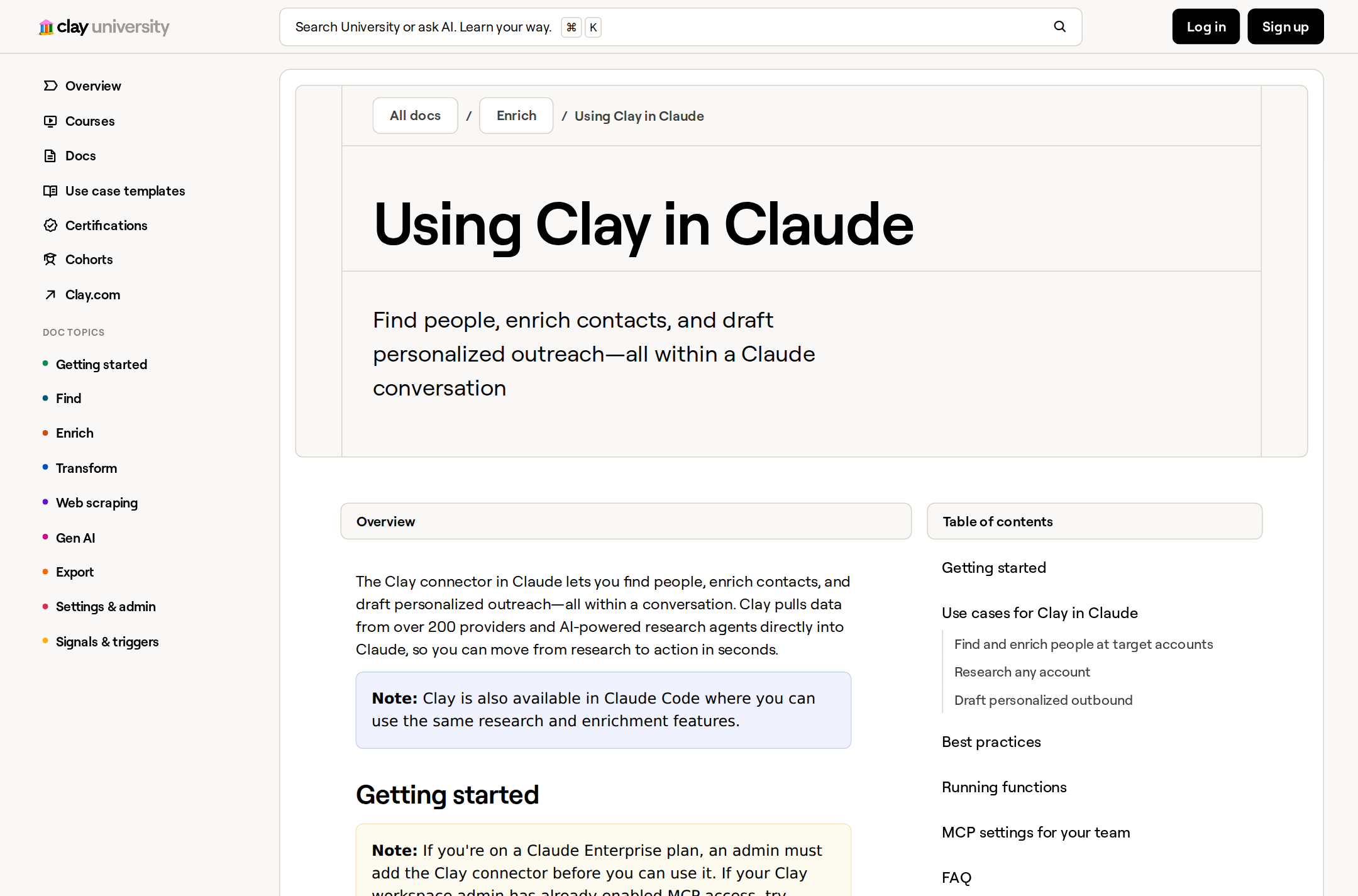
Clay University: reps invoke ops-built Functions by name, and What functions do you have? is the documented way to discover them.
Related MCP Guides
Want the full workflow picture? See: Clay AI Automation and How to Connect Clay to OpenClaw.