If you're trying to use GitLab with ChatGPT, the real question usually isn't "can these two technically work together?" It's how to make ChatGPT useful inside a GitLab workflow without getting vague, generic output back.
That's the useful framing.
ChatGPT is strongest when you give it the right context, a clear job, and a structured output format. GitLab brings the operational context. When the two are used well together, you get faster triage, better summaries, cleaner drafts, and more consistent decisions.
GitLab Ships a Real MCP Server — Here Is What ChatGPT Can Actually Reach
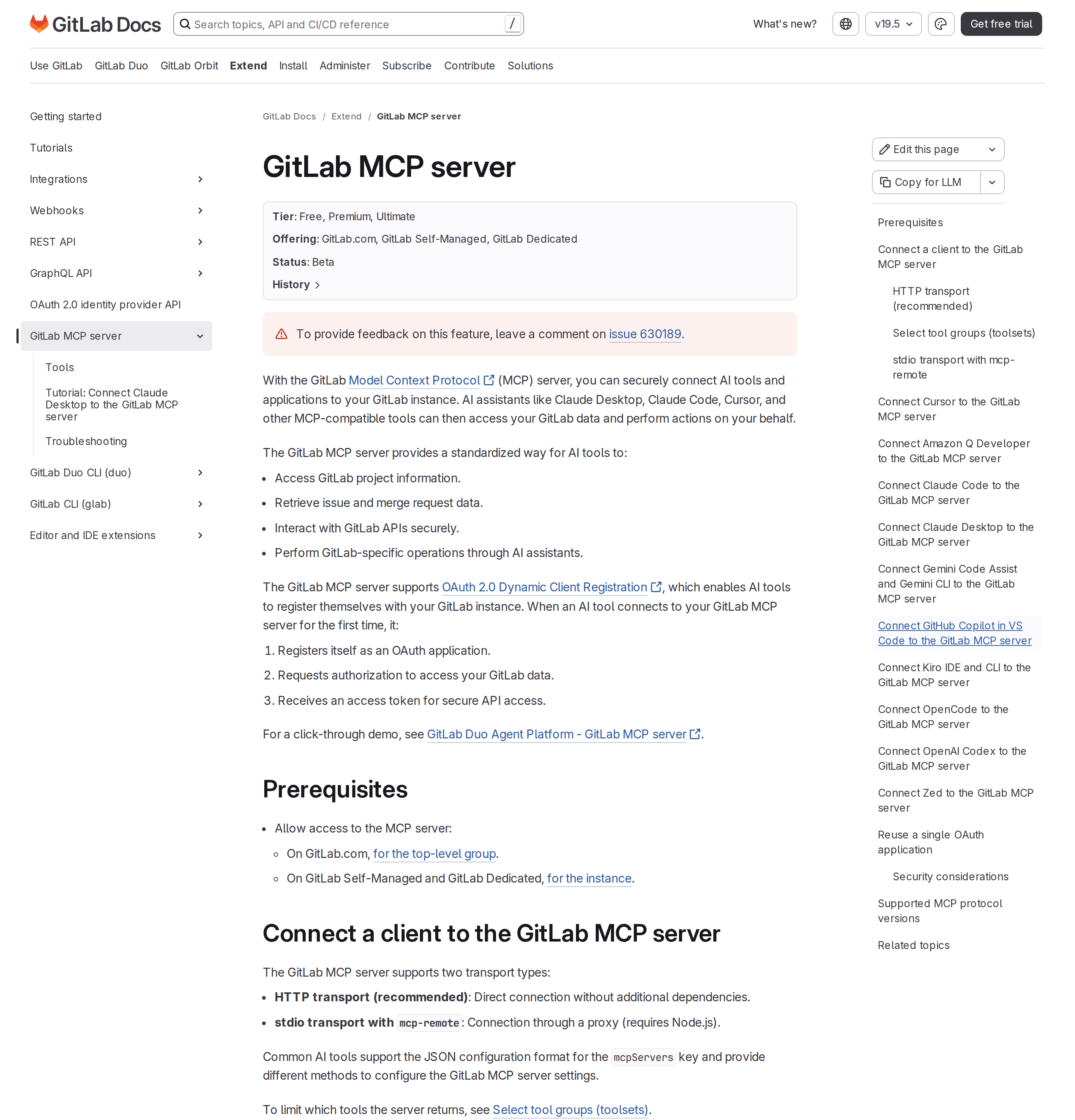
Most "GitLab + ChatGPT" guides stop at paste your diff into the chat. That is fine for a one-off, but it leaves out the thing that actually changed: GitLab now runs its own Model Context Protocol server at https://<your-gitlab-host>/api/v4/mcp, and any MCP-capable client can register itself against it. That endpoint is the same one GitLab documents for Claude Code, Cursor, Copilot, Codex, OpenCode, Kiro, and Zed.
The status line matters: GitLab labels this server Beta. It started as an experiment in GitLab 18.3 behind the mcp_server and oauth_dynamic_client_registration feature flags, moved to beta in 18.6 (flags removed), and in GitLab 19.2 it moved from Premium to Free as a separate setting. If you last looked at GitLab MCP in 2025 and decided it was paywalled, that decision is out of date.
Two transports, and only one of them is the good one
GitLab documents both:
| Transport | Configuration | When to use it |
|---|---|---|
| HTTP (recommended) | {"type": "http", "url": "https://gitlab.com/api/v4/mcp"} |
Default choice. No Node.js dependency, direct connection, works with clients that accept a headers key |
stdio via mcp-remote |
{"command": "npx", "args": ["-y", "mcp-remote", "https://gitlab.com/api/v4/mcp"]} |
Legacy clients that only speak stdio. Adds a proxy process and a Node.js 20+ dependency |
GitLab's own docs describe HTTP as the recommended path for exactly one reason that matters in practice: the stdio bridge is where the header-escaping bug lives (see the pitfalls section below).
Registering ChatGPT against your GitLab instance
GitLab supports OAuth 2.0 Dynamic Client Registration (RFC 7591). The first time a client connects, GitLab registers it as an OAuth application on your instance, asks for authorization, and issues an access token. GitLab's official client list names Claude Code, Claude Desktop, Cursor, Amazon Q Developer, Gemini Code Assist and Gemini CLI, GitHub Copilot in VS Code, Kiro, OpenCode, OpenAI Codex, and Zed.
ChatGPT is not on that list. That is the honest framing, and it is worth being blunt about it because nearly every competing page implies otherwise. What you actually have in ChatGPT is the custom connector / MCP source path: ChatGPT supports remote MCP servers over HTTP with OAuth, so pointing it at https://<your-gitlab-host>/api/v4/mcp is possible — but GitLab documents and tests a specific client list, and ChatGPT sits outside it. Treat ChatGPT as an HTTP-transport MCP client that is not officially certified, and expect to diagnose problems GitLab's docs will not describe.
A prerequisite that is easy to miss
Before any client can connect, someone with the right role must allow access to the MCP server:
- GitLab.com: enabled for the top-level group, not per project
- GitLab Self-Managed / Dedicated: enabled at the instance level
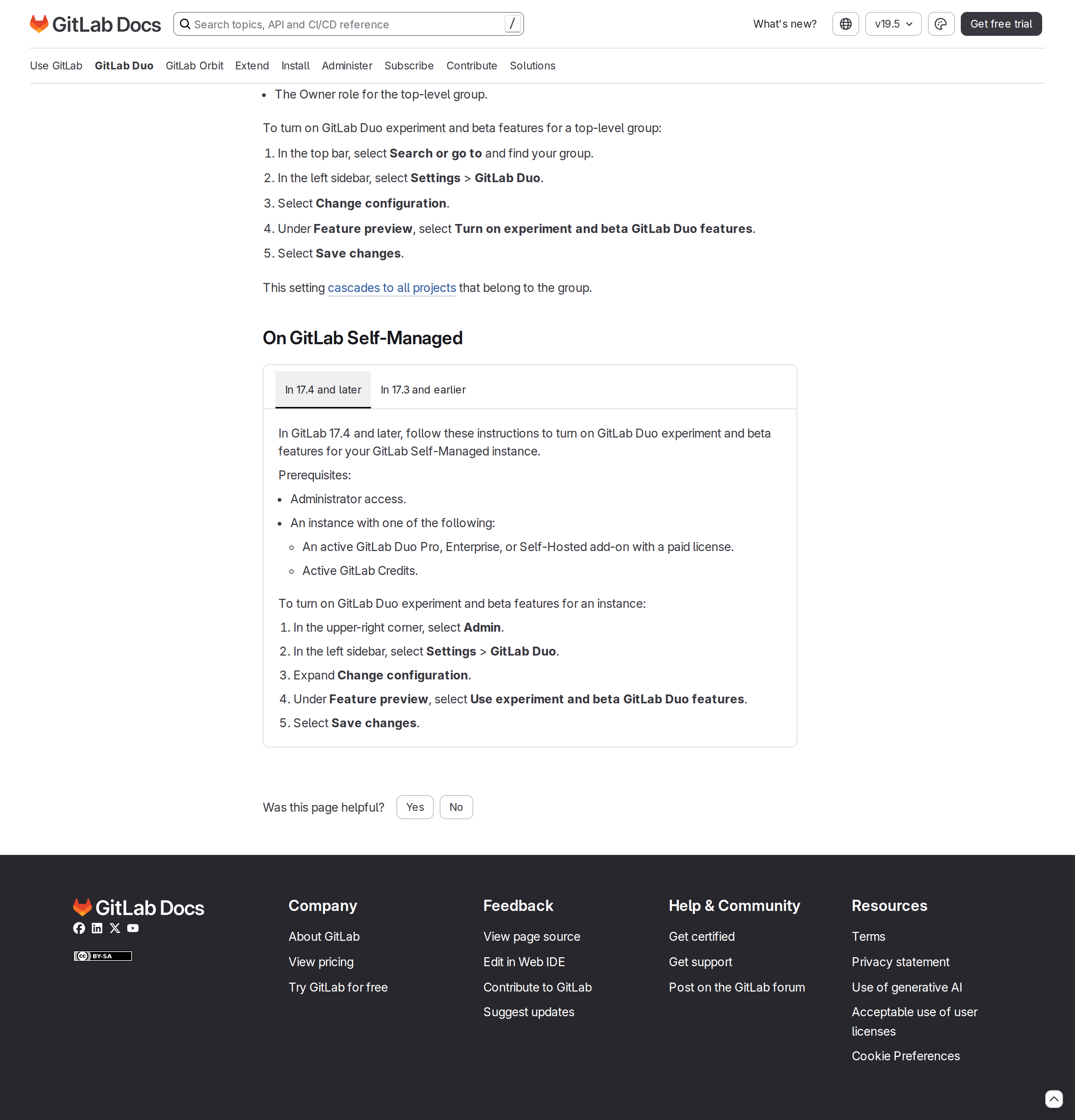
On a self-managed install this is an administrator setting. If you are an engineer on a self-hosted GitLab and the connector silently fails, this is the first thing to check — and if your instance is locked to Always off for GitLab Duo, an administrator is the only person who can change it.
Control What the Server Exposes With Toolsets
This is the part most guides skip entirely, and it is the most useful governance lever on the page.
The GitLab MCP server groups its tools into toolsets, selected with HTTP headers:
| Toolset | Included by default | What it covers |
|---|---|---|
meta |
Yes | Always-core server metadata |
merge_requests |
Yes | Merge request read/write |
work_items |
Yes | Issues and work items |
repository |
Yes | Project and repository data |
ci |
Yes | Pipelines and CI |
duo_agent_platform |
No (opt-in) | Duo Agent Platform |
wikis |
No (opt-in) | Project wikis |
code_security |
No (opt-in) | Security findings |
Set X-Gitlab-Enabled-Mcp-Server-Toolsets to a comma-separated list and the server returns only those groups:
{
  "mcpServers": {
    "GitLab": {
      "type": "http",
      "url": "https://gitlab.com/api/v4/mcp",
      "headers": {
        "X-Gitlab-Enabled-Mcp-Server-Toolsets": "core,work_items"
      }
    }
  }
}
Three behaviours from GitLab's docs that are genuinely load-bearing:
- Toolset names are case-insensitive (
ci,CI,Ciall work), but an unrecognised toolset name returns a 400 error — a typo does not silently degrade, it breaks the connection. - Set
allto get every toolset including opt-in ones. Useful for evaluation, reckless for a production agent. - The union trap: if you set both
X-Gitlab-Enabled-Mcp-Server-ToolsetsandX-Gitlab-Enabled-Mcp-Server-Tools, you get the union of both lists, not the intersection. GitLab states this plainly: "Setting both headers never returns fewer tools than either header alone." If you are trying to narrow the tool surface for a cautious rollout and you set both headers thinking you are being extra safe, you have actually widened it.
There is also a tool-name prefix header, X-Gitlab-Mcp-Server-Tool-Name-Prefix, added in GitLab 18.11. Truncated at 32 characters. It matters if you connect more than one GitLab instance or run GitLab alongside another MCP server that also exposes a get_merge_request-style tool.
Real GitLab + ChatGPT Workflows (With Prompts That Work)
1. Morning review-queue triage
"Using GitLab MCP, list every merge request assigned to me that is not a draft, is older than 5 days, and has requested changes. For each: title, author, how many days since the last commit, whether the pipeline passed on the latest commit, and what the single blocking comment is. Sort by days waiting."
The value here is not the list — it is the join across MR state, pipeline status, and review comments that normally means three clicks per MR.
2. Pipeline failure forensics
"Using GitLab MCP, find every pipeline that failed on the main branch in the last 48 hours. For each failure, give me the failed job name, the project, the first error line in the log, and whether this same job failed in the previous 7 days. Group by job name so I can see which failures are systemic."
Systemic-vs-flaky is the distinction engineers make by hand and never write down. Asking for the 7-day recurrence explicitly is what turns a status list into a diagnosis.
3. Release-blocker rollup
"Using GitLab MCP, for the milestone 'v2.4' list all open issues, mark each as blocker / non-blocker based on whether it carries the 'blocker' label, then list every merged merge request for that milestone. Tell me which open blockers have no corresponding merge request yet — those are the ones with no work in flight."
The last clause is the useful one. It finds the gap between planned and started, which is exactly where releases slip.
4. Explain a change you did not write
"Using GitLab MCP, read merge request !4312 and its diff. Summarise what it changes in two paragraphs for someone who knows the codebase but not this area, list every file touched grouped by module, and flag anything that looks like it could break a public interface. If the diff is too large to read reliably, say so instead of guessing."
The honest out-clause matters: diffs are large, and an assistant that guesses about a diff it could not read is worse than one that says "too large".
5. Issue-to-standup in one pass
"Using GitLab MCP, pull every issue I moved to 'In Review' or 'Done' since Monday, and every issue still open that mentions my name in a comment this week. Turn that into a standup update: what moved, what is blocked, what needs a decision from someone else."
GitLab-Specific Pitfalls
1. The OAuth application is per-instance, and one client does not cover another.
GitLab's "reuse a single OAuth application" section is specific: the redirect URI registered on the OAuth application must exactly match the redirect URI the client sends, and "a single shared OAuth application cannot serve MCP clients that use different redirect URIs." If your team uses two different MCP clients, you need two shared applications. Set the scope to mcp and clear the Confidential checkbox.
2. Pre-registered applications do not enforce PKCE.
GitLab accepts code_challenge and code_challenge_method, but does not require them for pre-registered apps. For a locally-run agent, verify your client is actually sending PKCE parameters rather than assuming it.
3. The clientId is not a client allowlist. GitLab says this directly: "GitLab does not verify which MCP client application presents the clientId. If you create an OAuth application for a specific MCP client, any other MCP client that supports pre-registration could use the same clientId." The clientId chooses which OAuth application, not which software may connect. Mitigate with per-user authorization and least-privilege, not with clientId secrecy.
4. Every user still authenticates as themselves — which is good and also surprising. Users who authenticate with a shared client ID "must still complete the OAuth authorization with their own GitLab credentials" and "can access only the data they are permitted to." The common misread of "the AI can't see private repos" is really a permissions inheritance question, and GitLab's answer is that it inherits the user.
5. Windows + mcp-remote corrupts the toolset header.
GitLab documents this specifically: on Windows, spaces inside args are not escaped when npx is invoked, which corrupts the header value. The fix is to move the value into an environment variable and omit the space after the colon:
{
  "mcpServers": {
    "GitLab": {
      "command": "npx",
      "args": ["-y", "mcp-remote", "https://gitlab.com/api/v4/mcp", "--header", "X-Gitlab-Enabled-Mcp-Server-Toolsets:${GITLAB_TOOLSETS}"],
      "env": { "GITLAB_TOOLSETS": "core,work_items" }
    }
  }
}
6. Do not pin mcp-remote.
GitLab's docs state plainly: "Do not pin mcp-remote to a specific version. Pinning was a workaround for how the OAuth scope was requested, and the server now defaults that scope." Pinning is now the thing that causes problems rather than the thing that prevents them.
7. Prompt injection is your responsibility, and GitLab says so.
Verbatim from the docs: "You're responsible for guarding against prompt injection when you use these tools. Exercise extreme caution or use MCP tools only on GitLab objects you trust." In practice this means issue descriptions, MR comments, and commit messages are all untrusted input. An assistant with merge_requests and work_items write access, reading a comment an outside contributor wrote, is a real attack surface.
8. Protocol versions are negotiated, and "newest" is not always what you get.
The server negotiates in the initialize request. It supports 2025-03-26, 2025-06-18, and 2025-11-25. If a client asks for 2026-07-28, GitLab accepts it in the request but answers with 2025-11-25, because the stateless features of that version are not implemented yet. A client that assumes it negotiated its requested version will misbehave in confusing ways.
9. Beta means beta.
GitLab 19.5 added toolset selection behind the disabled-by-default mcp_toolsets flag. If your instance does not have it on, the toolset headers are not available to you — check your instance version before filing a bug against a header that was never going to work.
10. Your GitLab PAT is a different thing entirely.
The MCP server issues its own OAuth token. Your personal access token and api scope still matter for the REST path (https://gitlab.com/api/v4, project IDs vs URL-encoded namespaces), but do not paste a PAT into an MCP configuration expecting it to be used — and if you are driving an unattended job, the PAT path is the one that has a stable answer for non-interactive auth.
Which Route Should You Take?
| Your situation | The right path |
|---|---|
| You want GitLab context inside ChatGPT, manually, today | Copy-paste the diff or issue — zero setup, zero risk |
| You want live GitLab reads inside ChatGPT | MCP server over HTTP with the toolset header narrowed to what you need |
| You want an unattended job (nightly sweep, weekly rollup) | REST API + a personal access token + a skill file — the MCP OAuth flow is interactive |
| You are on self-managed GitLab | Confirm the MCP server is allowed at instance level first, then expect an admin conversation about firewall rules |
| You want the team asking these questions from Slack without a ChatGPT tab | Cody — GitLab integration built in |
Related Reading
- How to Use GitHub with ChatGPT — the sibling guide, and GitHub's MCP story is different
- How to Use Jira with ChatGPT — for teams whose delivery context lives in Jira
- How to Use Linear with ChatGPT — the issue tracker angle
- Connect GitLab to OpenClaw — the DIY, self-hosted integration guide
- How to connect GitLab to OpenClaw — step-by-step connector walkthrough
What "GitLab with ChatGPT" Usually Means
In practice, teams tend to use ChatGPT with GitLab in one of four ways:
- Summarising activity, records, conversations, or changes from GitLab
- Classifying items such as tickets, leads, tasks, issues, or opportunities
- Drafting replies, updates, reports, documentation, or next steps
- Reasoning over context to suggest priorities, actions, or likely issues
The key is to avoid treating ChatGPT like magic. It needs the relevant GitLab context in the prompt - and it works best when you tell it exactly what good output looks like.
Good Use Cases for GitLab + ChatGPT
1. Turn raw GitLab context into a useful summary
Paste or pipe in the relevant records, notes, messages, or metrics from GitLab, then ask ChatGPT to extract only what matters: key changes, risks, blockers, patterns, or action items.
2. Standardise messy workflows
If your team handles similar decisions repeatedly inside GitLab, ChatGPT can apply the same rubric every time: classify, explain briefly, and return a structured next step.
3. Draft faster without starting from zero
Use ChatGPT to produce first drafts grounded in the GitLab context - support replies, internal updates, status summaries, sales follow-ups, or operating notes.
4. Create reusable prompt-driven operating procedures
Once you find a prompt that works well for GitLab, save it as a repeatable workflow so the whole team gets more consistent output.
A Simple Setup Pattern
A practical way to use ChatGPT with GitLab looks like this:
- Pull the right context from GitLab
- Give ChatGPT one clear task
- Ask for a structured response
- Have a human review anything customer-facing or high-risk
That last point matters. ChatGPT is useful for acceleration, but for anything sensitive - customer communication, financial interpretation, account changes, or production actions - keep a human in the loop.
Copy-Paste Prompts for GitLab
Summary prompt
You are helping me work inside GitLab. Summarise the context below into 5 bullets: what changed, what matters, what is blocked, and what needs action next. If anything is unclear, say what is missing.
Classification prompt
Review this GitLab item and classify it into the best category. Return JSON with: category, confidence, rationale, and next_action. Keep rationale under 50 words.
Drafting prompt
Use the GitLab context below to draft a concise response. Keep it specific, avoid made-up details, and list any assumptions separately.
Executive brief prompt
Turn this GitLab activity into a short update for leadership: what happened, why it matters, current risks, and recommended next steps.
Where This Breaks Down
Most GitLab + ChatGPT workflows fail for predictable reasons:
- Too little real context is provided
- The prompt asks for too many things at once
- The output format is vague
- The team expects ChatGPT to know live GitLab data it has not actually been given
- No review step exists for important actions
The fix is usually simple: give better source context, narrow the task, and require a schema or fixed structure in the response.
If You Want This Embedded in the Workflow
You can absolutely use ChatGPT manually with exported GitLab context. That works well for one-off tasks and prototyping.
But if you want the workflow to feel operational - available to the team, connected to live systems, repeatable, and embedded where work already happens - you usually want something more integrated.
Want GitLab-Style Workflows Without Manual Prompt Copy-Paste?
Cody comes with GitLab integration built in. Connect it once, then ask about merge requests, failing pipelines, release blockers, and issue context directly from Slack without wiring GitLab auth, API clients, or proxy logic yourself.
Related ChatGPT Guides
Need a more automation-focused angle instead? See: GitLab AI Automation.
More GitLab + AI Resources
- Cody AI Assistant for GitLab — Cody's dedicated GitLab integration features
- Connect GitLab to OpenClaw — complete DIY integration guide