If you're trying to use Google Workspace with ChatGPT, the real question usually isn't "can these two technically work together?" It's how to make ChatGPT useful inside a Google Workspace workflow without getting vague, generic output back.
That's the useful framing.
ChatGPT is strongest when you give it the right context, a clear job, and a structured output format. Google Workspace brings the operational context. When the two are used well together, you get faster triage, better summaries, cleaner drafts, and more consistent decisions.
ChatGPT's Native Google Workspace Connector: The Official Path
Since August 2025, ChatGPT has offered a native Google app connector — a first-party integration that lets you connect Gmail, Google Drive, and Google Calendar directly inside ChatGPT. As of June 15, 2026, this connector expanded to include Google Drive file actions, BigQuery queries, and Google Meet scheduling, all surfaced through the same OAuth flow.
What You Can Do With the Native Connector
In ChatGPT, go to Settings → Apps and connect Gmail, Google Drive, and Google Calendar. Each connects via OAuth and brings its own set of actions:
| App | What ChatGPT Can Do |
|---|---|
| Gmail | Read, search, and summarize emails; draft replies; find conversations by sender, date, or topic |
| Google Drive | Search files by name or content; read Docs, Sheets, and Slides; create new Docs; summarize documents |
| Google Calendar | List upcoming events; find open slots; create and update meetings; check availability |
| Google Meet (via Calendar, June 2026) | Schedule Meet calls as part of calendar events |
| BigQuery (June 2026) | Run queries against your BigQuery datasets from ChatGPT conversations |
How to Set It Up
- In ChatGPT: Go to Settings → Apps, find "Google Drive" / "Gmail" / "Google Calendar," click Connect
- Authenticate: Sign in with your Google account. For Workspace orgs, this may trigger an admin approval flow
- Workspace Admin (if applicable): In the Google Admin console, find the ChatGPT/OpenAI OAuth app and mark it as Trusted, or approve individual OAuth scopes
- Start using: Ask ChatGPT to "summarize my last 5 unread emails" or "find the Q3 budget spreadsheet in Drive"
Admin tip: Starting June 15, 2026, new actions (Drive file ops, BigQuery, Meet) require additional OAuth scopes. If your workspace auto-enables new actions, these become available immediately. If not, an admin must approve the new scopes in Google Admin console → API controls.
Google Workspace MCP Servers: The Programmatic Path
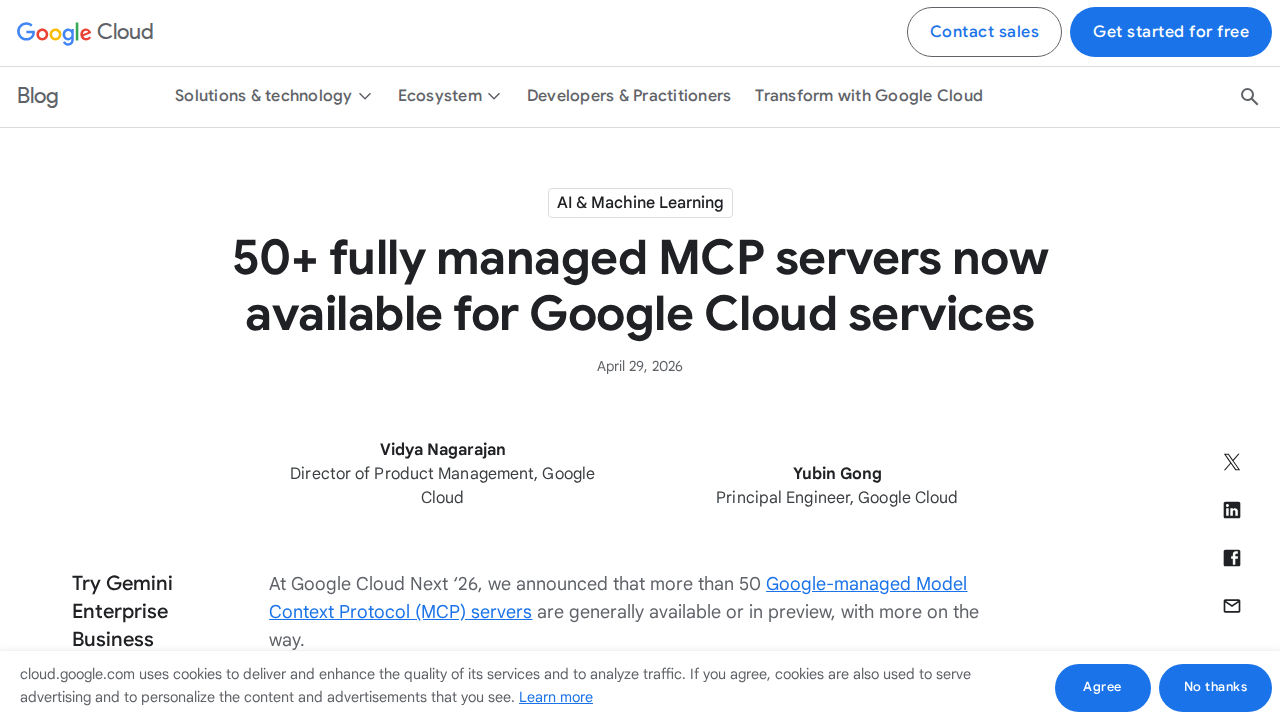
In December 2025, Google announced official Google-managed MCP servers — remote, production-hosted endpoints that let any MCP-compatible AI client (Claude, ChatGPT, Cursor, Gemini CLI, etc.) control Google Workspace products over a standardized protocol. At Google Cloud Next '26 (April 2026), Google announced 50+ managed MCP servers are now generally available.
Workspace MCP Servers Available
Each Google Workspace product gets its own dedicated MCP server:
| MCP Server | Service to Enable | What Agents Can Do |
|---|---|---|
| Gmail MCP | gmailmcp.googleapis.com |
Read, search, and draft emails; manage labels and threads |
| Drive MCP | drivemcp.googleapis.com |
Search, read, create, and manage files and folders |
| Docs MCP | docsmcp.googleapis.com |
Read and create documents |
| Sheets MCP | sheetsmcp.googleapis.com |
Read and write spreadsheet data |
| Slides MCP | slidesmcp.googleapis.com |
Read and create presentations |
| Calendar MCP | calendarmcp.googleapis.com |
List, create, and manage events |
| Chat MCP | chatmcp.googleapis.com |
Read and send messages in Google Chat spaces |
| People MCP | people.googleapis.com |
Access directory and contact information |
Setting Up Workspace MCP for ChatGPT
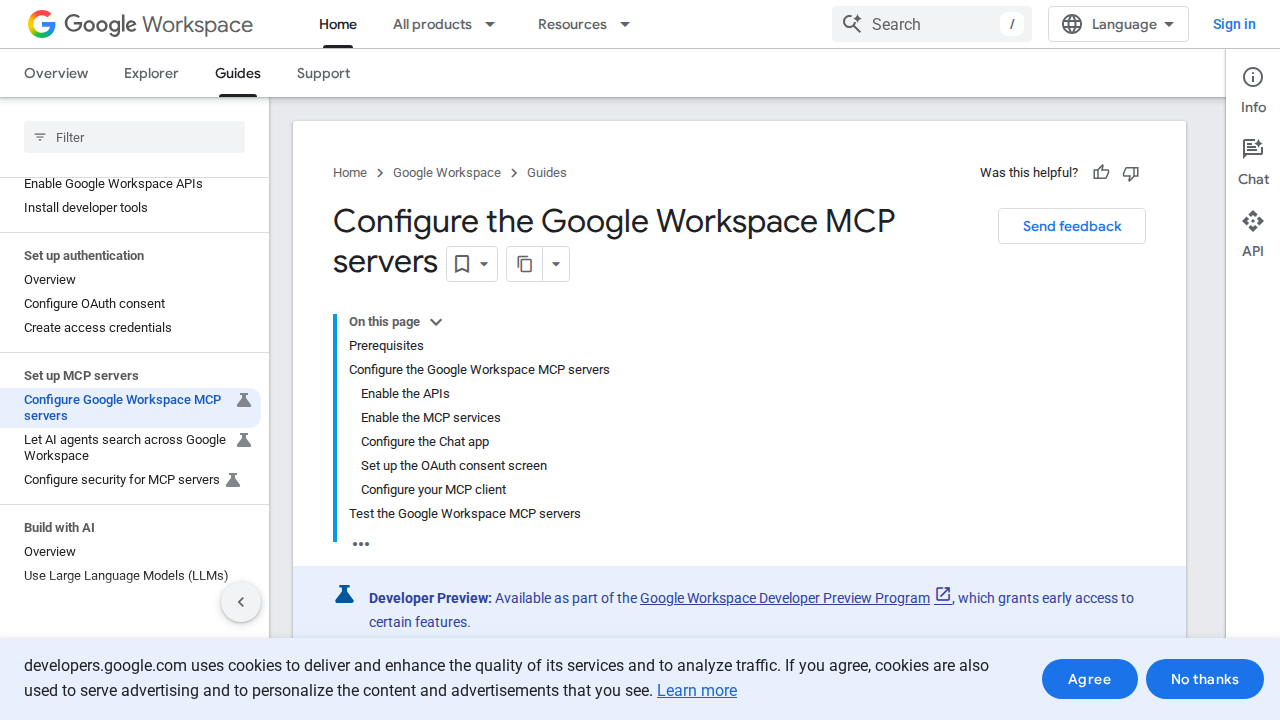
To connect ChatGPT to Google Workspace through MCP:
- Enable the APIs in Google Cloud Console:
gmail.googleapis.com,drive.googleapis.com,docs.googleapis.com,sheets.googleapis.com,slides.googleapis.com,calendar-json.googleapis.com,chat.googleapis.com,people.googleapis.com - Enable MCP services:
gmailmcp.googleapis.com,drivemcp.googleapis.com, etc. (each product has its own MCP service) - Create an OAuth 2.0 Client ID in Google Cloud → APIs & Services → Credentials
- Configure the OAuth consent screen — set scopes for the products you want your agent to access
- Add the MCP endpoint to ChatGPT's MCP configuration following ChatGPT's MCP connection flow
Important: MCP servers inherit your Google account permissions. If you can't access a file in Drive, your AI agent can't either. This is a security feature — not a bug.
Third Option: No-Code Connectors (Zapier / Make / n8n)
If you don't want to configure MCP servers or your Workspace admin hasn't approved the ChatGPT Google app, you can still connect Google Workspace to ChatGPT through automation platforms:
- Zapier: Has Google Workspace triggers (new email, new spreadsheet row, new calendar event) that can fire ChatGPT prompts and write results back
- Make (Integromat): Deeper module support for Gmail, Drive, Sheets, and Docs
- n8n: Self-hosted option with an MCP bridge template that exposes Google Workspace to ChatGPT's MCP interface
The trade-off: these platforms sit between ChatGPT and Google Workspace, adding latency and subscription costs, but they work without admin approval or Cloud Console setup.
Real Use Cases for Google Workspace + ChatGPT
1. Morning Email Brief Without Opening Gmail
With native connector:
You: "Summarize the 10 most recent emails in my inbox. For each, tell me if they need a reply and suggest one."
ChatGPT reads your Gmail, extracts the key points from each thread, and flags action items. You get a 2-minute scan of your inbox without the cognitive load of switching contexts.
2. Meeting Prep from Calendar + Drive
With native connector:
You: "I have a meeting with the marketing team in 30 minutes. Find the latest campaign report in Drive and summarize the key numbers I should know."
ChatGPT checks your Calendar for the upcoming event, searches Drive for the relevant document, and gives you a briefing note you can walk into the meeting with.
3. Bulk Document Analysis
With MCP or connector:
You: "Read all the Q2 status reports in the 'Quarterly Reviews' Drive folder. Tell me which projects are behind schedule and what the common blockers are."
Instead of opening 12 Docs manually, ChatGPT reads them all, extracts the status signals, and gives you a synthesized summary.
4. Scheduling Assistant
With native connector + Calendar:
You: "Find a 45-minute slot next week when both I and sarah@company.com are free. Add a meeting called 'Q3 planning sync' and attach the agenda from Drive."
ChatGPT checks availability, creates the event, and links the agenda document.
5. Google Sheets as a Data Source for Analysis
With MCP or connector:
You: "The 'Pipeline Tracker' sheet tracks our sales pipeline. Which deals are stalled — no activity in the last 2 weeks and value over $10K?"
ChatGPT reads the Sheet, performs the filtering, and returns a targeted list. No spreadsheet formulas required.
Google Workspace + ChatGPT Pitfalls (We Actually Tested These)
1. Workspace Admin Approval Is the #1 Blocker
The native Google app connector triggers an OAuth consent flow that, in Workspace orgs, often gets blocked by default. Your admin must either mark the OpenAI app as "Trusted" or manually approve each scope. Without admin buy-in, the "Connect" button does nothing useful.
2. Drive Search Isn't Google Search
ChatGPT's Drive connector searches by filename and indexed content, but it doesn't have Google's full web-search ranking magic. A file named "budget-final-v3-revised-REAL.xlsx" in a deeply nested folder may not surface unless your query is precise. Structure your Drive folders and naming conventions before relying on AI search.
3. OAuth Scope Explosion (June 2026)
The June 2026 update added scopes for BigQuery, Google Meet, and Drive file operations. If your Workspace admin approved the old scopes but not the new ones, users hit authorization errors silently. ChatGPT shows an error; Google doesn't explain which scope is missing. The fix: admins need to re-approve the updated OpenAI app in Google Admin → API controls.
4. MCP Server vs Connector: Different Permission Models
- Native Connector: Data stays within ChatGPT's infrastructure. OAuth means ChatGPT acts on your behalf with your credentials
- MCP Server: Your agent talks directly to Google's API. This is more flexible (works with Claude, Cursor, etc.) but you manage your own OAuth flow and token refresh
Choose the connector if you're a single ChatGPT user. Choose MCP if you're building custom AI agents that need programmatic Workspace access.
5. Sheets as a Database Will Break
ChatGPT's connector and MCP tools treat Sheets as documents, not databases. If your "database" has merged cells, inconsistent formatting, or data validation rules, ChatGPT will misinterpret it. For reliable AI-driven data queries, move structured data to BigQuery (which ChatGPT now supports natively) before connecting.
6. There's No "Undo Send" for AI Actions
When ChatGPT creates a Calendar invite, sends a draft email, or writes to a Sheet, it happens immediately through the API. There's no 30-second undo window like in Gmail's UI. Always review AI-generated actions before confirming — especially for email drafts that go to external recipients.
Which Path Should You Choose?
| Scenario | Best Path |
|---|---|
| I just want ChatGPT to read my Gmail and Calendar | Native Google App Connector — one-click OAuth |
| I'm a Workspace admin setting this up for my team | Connector + Admin Approval flow — review scopes in Admin console |
| I'm building custom AI agents that need Workspace access | Google MCP Servers — programmatic, cross-client compatibility |
| I want no-code automation between Workspace and ChatGPT | Zapier / Make / n8n — triggers and actions without API config |
| I need to analyze BigQuery data in ChatGPT conversations | Native Connector (June 2026+) — BigQuery actions are now built in |
What This Looks Like on the Current Cody Page
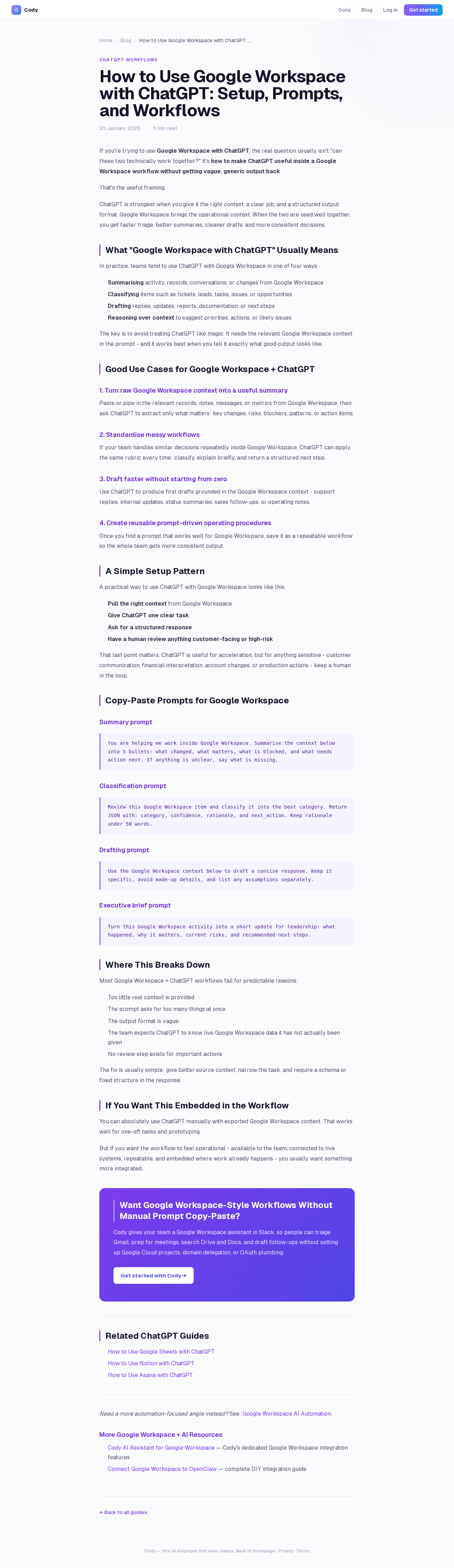
The page as it exists today on agentcody.ai covers the fundamentals — what the integration means, how to think about ChatGPT + Workspace together, and general use case patterns. The content above adds the specific connector setup, MCP server configuration, and real-world pitfalls that turn "Google Workspace with ChatGPT" from a vague idea into something you can actually set up today.
For more technical MCP configuration details, see the official Google Workspace MCP docs and OpenAI's Google App FAQ.
Looking for a more automation-focused angle? See: Google Workspace AI Automation for workflow-specific guides.
What "Google Workspace with ChatGPT" Usually Means
In practice, teams tend to use ChatGPT with Google Workspace in one of four ways:
- Summarising activity, records, conversations, or changes from Google Workspace
- Classifying items such as tickets, leads, tasks, issues, or opportunities
- Drafting replies, updates, reports, documentation, or next steps
- Reasoning over context to suggest priorities, actions, or likely issues
The key is to avoid treating ChatGPT like magic. It needs the relevant Google Workspace context in the prompt - and it works best when you tell it exactly what good output looks like.
Good Use Cases for Google Workspace + ChatGPT
1. Turn raw Google Workspace context into a useful summary
Paste or pipe in the relevant records, notes, messages, or metrics from Google Workspace, then ask ChatGPT to extract only what matters: key changes, risks, blockers, patterns, or action items.
2. Standardise messy workflows
If your team handles similar decisions repeatedly inside Google Workspace, ChatGPT can apply the same rubric every time: classify, explain briefly, and return a structured next step.
3. Draft faster without starting from zero
Use ChatGPT to produce first drafts grounded in the Google Workspace context - support replies, internal updates, status summaries, sales follow-ups, or operating notes.
4. Create reusable prompt-driven operating procedures
Once you find a prompt that works well for Google Workspace, save it as a repeatable workflow so the whole team gets more consistent output.
A Simple Setup Pattern
A practical way to use ChatGPT with Google Workspace looks like this:
- Pull the right context from Google Workspace
- Give ChatGPT one clear task
- Ask for a structured response
- Have a human review anything customer-facing or high-risk
That last point matters. ChatGPT is useful for acceleration, but for anything sensitive - customer communication, financial interpretation, account changes, or production actions - keep a human in the loop.
Copy-Paste Prompts for Google Workspace
Summary prompt
You are helping me work inside Google Workspace. Summarise the context below into 5 bullets: what changed, what matters, what is blocked, and what needs action next. If anything is unclear, say what is missing.
Classification prompt
Review this Google Workspace item and classify it into the best category. Return JSON with: category, confidence, rationale, and next_action. Keep rationale under 50 words.
Drafting prompt
Use the Google Workspace context below to draft a concise response. Keep it specific, avoid made-up details, and list any assumptions separately.
Executive brief prompt
Turn this Google Workspace activity into a short update for leadership: what happened, why it matters, current risks, and recommended next steps.
Where This Breaks Down
Most Google Workspace + ChatGPT workflows fail for predictable reasons:
- Too little real context is provided
- The prompt asks for too many things at once
- The output format is vague
- The team expects ChatGPT to know live Google Workspace data it has not actually been given
- No review step exists for important actions
The fix is usually simple: give better source context, narrow the task, and require a schema or fixed structure in the response.
If You Want This Embedded in the Workflow
You can absolutely use ChatGPT manually with exported Google Workspace context. That works well for one-off tasks and prototyping.
But if you want the workflow to feel operational - available to the team, connected to live systems, repeatable, and embedded where work already happens - you usually want something more integrated.
Want Google Workspace-Style Workflows Without Manual Prompt Copy-Paste?
Cody gives your team a Google Workspace assistant in Slack, so people can triage Gmail, prep for meetings, search Drive and Docs, and draft follow-ups without setting up Google Cloud projects, domain delegation, or OAuth plumbing.
Related ChatGPT Guides
Need a more automation-focused angle instead? See: Google Workspace AI Automation.
More Google Workspace + AI Resources
- Cody AI Assistant for Google Workspace — Cody's dedicated Google Workspace integration features
- Connect Google Workspace to OpenClaw — complete DIY integration guide