Notion already holds team docs, meeting notes, specs, project trackers, and internal wikis. A dedicated Notion AI assistant lets your team query that context from Slack, pull the right page or database details, and turn scattered workspace knowledge into useful answers and updates.
How OpenClaw Integrations Work
OpenClaw is a self-hosted AI assistant that runs on your own server — typically an EC2 instance — and connects to Slack. It uses Claude under the hood to process requests. Out of the box, OpenClaw doesn't ship with pre-built connections to third-party tools. Instead, integrations are built using the skills system: markdown files in ~/.openclaw/skills/ that give Claude instructions for a particular domain, combined with HTTP tool calls to any API you expose to it.
In practice, adding a real integration means: getting API credentials from the third-party service, building or configuring a small proxy/endpoint that OpenClaw can call, and writing a skill file that tells Claude how to use it. For some tools this is an afternoon of work. For others — like Notion — it's considerably more involved.
Connecting OpenClaw with Notion: Step by Step
Step 1: Create a Notion Internal Integration
Go to notion.so/my-integrations and create a new integration. Give it a name, associate it with your workspace, and choose the capabilities it needs (read content at minimum). You'll get an Internal Integration Token — this is your API key.
Step 2: Share Pages With the Integration
Unlike some APIs, Notion requires you to explicitly share each page or database with your integration. Go to any page, click the ... menu → Connections → and add your integration. The integration can only access pages and databases it's been explicitly connected to.
Step 3: Build the Proxy and Skill File
The Notion API has endpoints for searching (/search), reading pages (/pages/{id}), and querying databases (/databases/{id}/query). Build a proxy around the queries your team will use most, and write ~/.openclaw/skills/notion.md listing the key databases and pages by name and ID.
Challenges and Caveats
Full-Text Search Is Limited
Notion's API search endpoint (/search) searches page titles and top-level block content, but doesn't do full-text search within page bodies in all cases. If you're expecting your bot to find content buried deep in a long doc, it may not surface it reliably.
You Have to Share Every Page Manually
There's no way to grant the integration access to your entire workspace at once. Every database or page needs to be explicitly shared. For teams with large, complex Notion setups, this becomes a maintenance task as new content is created.
Rich Block Types Don't Translate Well
Notion's API returns blocks as structured JSON — tables, toggles, callouts, etc. Your proxy or skill needs to handle the translation of complex block types into readable text for Claude. Simple paragraphs are fine; embedded databases, synced blocks, and complex layouts need extra handling.
Notion + OpenClaw in 2026: The MCP Path, the REST Path, and the 2025-09-03 Trap
The template above walks you through the classic route: mint an internal integration token, share each page by hand, build a proxy, and write a skill file. That route still works and it is still the only one that runs unattended. But it is no longer the only option, and — more importantly — it is now quietly broken in one specific place if you copy the old database endpoints.
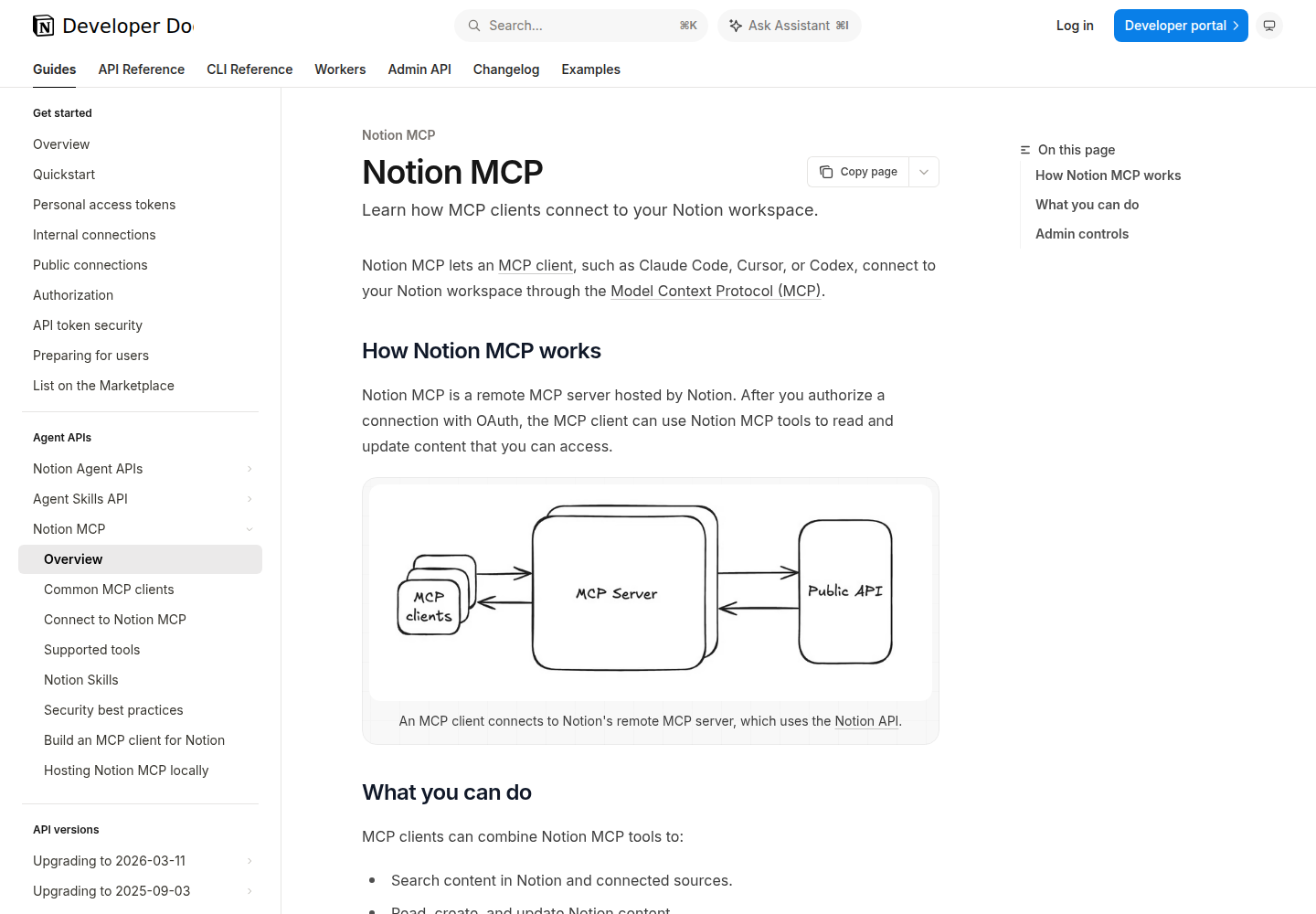
Two things changed since this page was first written:
- Notion now ships a hosted remote MCP server at
https://mcp.notion.com/mcp. It is the actively maintained server; it does OAuth, needs zero infrastructure, and exposes ~33 tools. The old open-sourcemakenotion/notion-mcp-serverpackage still exists but Notion states plainly that it is no longer actively maintained. - The Notion API's data model changed in version
2025-09-03. Databases became containers, and their schema and rows moved to a newdata_sourceobject. The old/v1/databases/{id}/queryendpoint is superseded by/v1/data_sources/{id}/query.
So before you write a single line of proxy code, decide which of the three paths below you actually need — and note that the answer is usually two of them, not one, because the MCP path is interactive-only.
| Path | What it gives you | Auth | Best for |
|---|---|---|---|
Notion's hosted remote MCP (mcp.notion.com/mcp) |
~33 tools: search, AI search, fetch content, create/update pages, query data sources, comments, users, file uploads | OAuth 2.0 + PKCE (interactive) | Interactive agent with a person present |
Open-source notion-mcp-server (local, stdio) |
Bearer-token local server, original JSON v1 APIs | Integration token | Headless/automation that must stay self-hosted |
| REST API + skill file | Full control: pagination, filters, file uploads, webhooks | Integration token | Unattended cron, bulk work, anything the MCP surface doesn't cover |
Path A: Notion's Hosted Remote MCP Server (the one-notion-recommends path)
Notion's remote server lives at a single endpoint, with an SSE fallback for clients that don't speak Streamable HTTP:
| Transport | URL |
|---|---|
| Streamable HTTP (recommended) | https://mcp.notion.com/mcp |
| Server-Sent Events (fallback only) | https://mcp.notion.com/sse |
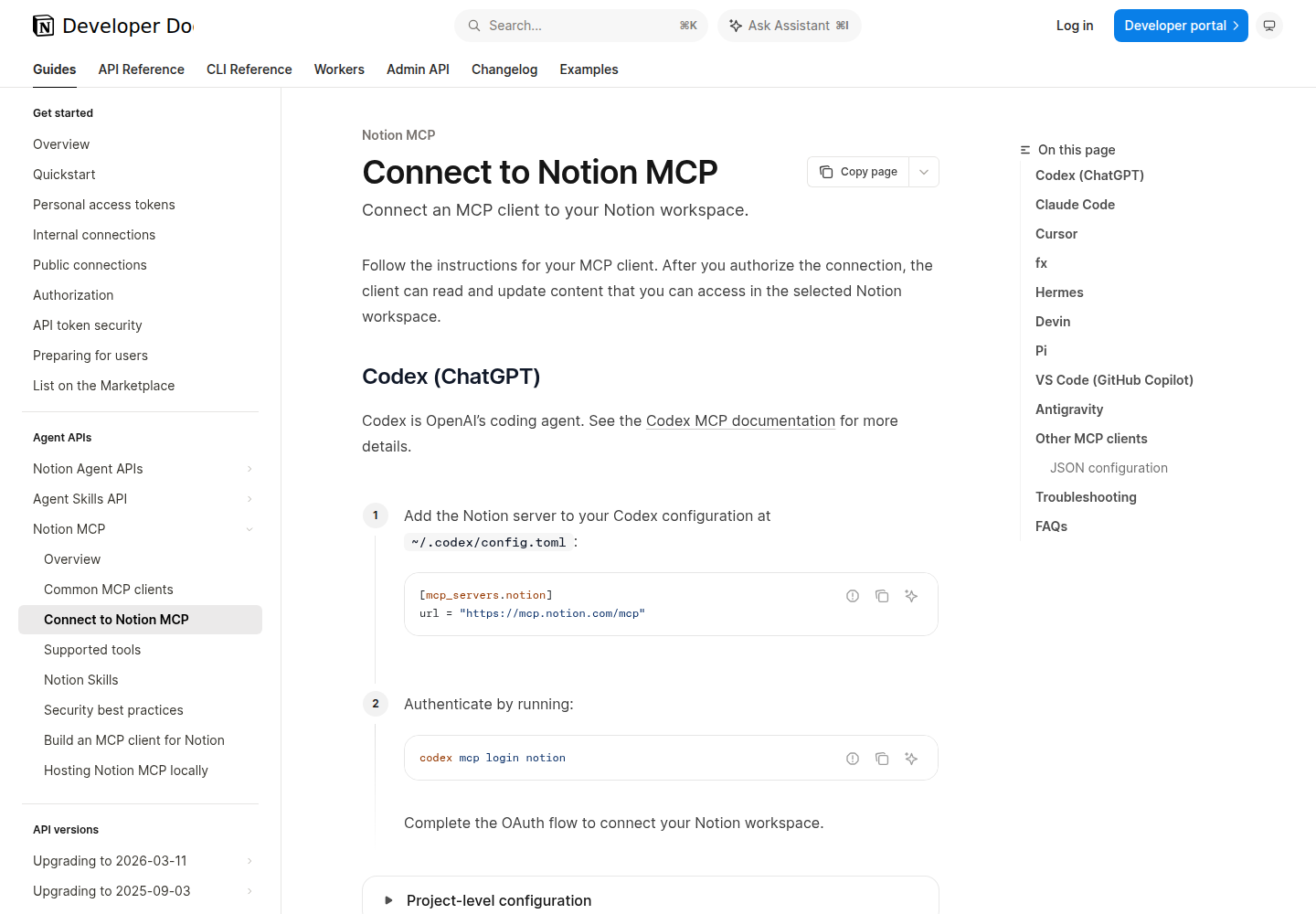
For any MCP client Notion hasn't written a per-client page for — which includes a self-hosted OpenClaw — the documented configuration is this, straight from Notion's "Other MCP clients" section:
{
  "mcpServers": {
    "notion": {
      "url": "https://mcp.notion.com/mcp"
    }
  }
}
That is a real advantage over the other vendors' MCP rollouts we've documented on this site. Notion maintains one generic remote endpoint and tells every client to point at it; you are not chasing a per-vendor whitelist or waiting to be added to a trusted-client list. If your OpenClaw deployment speaks Streamable HTTP, it connects.
If your client only supports local stdio servers, Notion's own workaround is the mcp-remote bridge:
{
  "mcpServers": {
    "notion": {
      "command": "npx",
      "args": ["-y", "mcp-remote", "https://mcp.notion.com/mcp"]
    }
  }
}
What the tool surface actually looks like
This is where Notion's server is meaningfully richer than the "search and read pages" MCP servers most tools ship. The documented tool set covers:
- Search —
notion-search(workspace search, user lookup by name/email, filters by location, creator, editor, date, content status),notion-ai-search(searches Notion and connected sources such as Slack, Mail, Calendar, Google Drive, Jira),notion-search-skills/notion-download-skill(Notion Skills as downloadabletar.gzbundles) - Read —
notion-fetch(page, database, data source, saved view by URL or ID; pass the special idselfto discover the workspace identity and your per-plan tool access) - Write —
notion-create-pages,notion-update-page,notion-move-pages,notion-duplicate-page,notion-create-database,notion-create-folder,notion-update-data-source,notion-create-view,notion-update-view - Query —
notion-query-data-sources(includingmode: "view"to read exactly the rows a saved view shows),notion-query-meeting-notes - Files —
notion-create-file-upload(20 MiB single-part),notion-create-attachment(inline UTF-8 ≤ 200 KiB, or a direct public HTTPS URL ≤ 5 MiB free / 50 MiB paid),notion-download-attachment - Collaboration —
notion-create-comment,notion-get-comments,notion-get-users,notion-get-teams - Custom Agents —
notion-spawn-session,notion-send-message-to-session,notion-wait-session,notion-get-session-status,notion-list-agents,notion-get-async-task
Two behaviours in that list are worth knowing before you build a workflow on them:
notion-fetchwith idselfis the routing oracle. It returns acurrent_tool_accessmap telling you, per tool, whether it isavailable,available_with_limit,upgrade_required, ornot_enabledon the workspace's plan. Notion's own docs tell you to call it before a content search and check theai_searchentry — if it isn'tavailable, usenotion-searchinstead ofnotion-ai-search. Build that check in, or your agent will hand users an upgrade prompt at the worst moment.- Large pages come back truncated, and that is normal. If a page is too big, the response sets
truncated: truewithunknown_block_ids(up to 50 subtree roots). Fetch those IDs individually. Anobject_not_foundon retry means permission, not failure.
The hard limit: no unattended OAuth
Notion's docs answer this directly, and the answer is no:
"Can I use Notion MCP without interactive authorization?" — "Not yet. Notion MCP currently requires you to complete the OAuth authorization flow. We're working on support for non-interactive authorization for automated workflows."
So if you want a scheduled OpenClaw job — a nightly stale-page sweep, a Monday meeting-notes rollup — the hosted MCP server cannot do it on its own. This is the single most important fact on this page, and it is why the other two paths below still exist in 2026.
If you do need to build your own MCP client against it, the requirements are: OAuth 2.0 Authorization Code flow with PKCE, Streamable HTTP (or SSE fallback), token refresh handling, and secure credential storage. Notion supports Dynamic Client Registration (RFC 7591), so you don't have to pre-register an app — discover the OAuth server via /.well-known/oauth-protected-resource and /.well-known/oauth-authorization-server, register with token_endpoint_auth_method: "none", and store the returned client credentials.
Path B: The Open-Source Local Server (bearer token, works with cron)
makenotion/notion-mcp-server is the original Notion MCP implementation. Notion has explicitly deprioritised it — "We are prioritizing, and only providing active support for, Notion MCP (remote)" — but it still has two properties the hosted server doesn't:
- It authenticates with a bearer token (your integration token), not an interactive OAuth dance.
- It runs locally, on your own box, alongside your OpenClaw instance.
If you want an OpenClaw job that reads and writes Notion without a human present, this — or Path C — is where you land. Set NOTION_TOKEN to your integration secret, run it over stdio (default) or Streamable HTTP (--transport http). Note the tool naming changed with the data-model shift: if you hardcoded post-database-query, it is now query-data-source, and database_id became data_source_id.
Path C: REST API + Skill File (the path that never breaks)
Build a small proxy over the Notion REST API and write ~/.openclaw/skills/notion.md listing your key databases, data sources, and pages by name and ID. This is more work up front and it is the only path that gives you:
- Full pagination control. Notion list endpoints return
next_cursor; a proxy can loop and hand Claude a complete set instead of "the first 100 rows." - Bulk operations that the MCP surface doesn't expose.
- Webhooks, so OpenClaw can react to Notion changes instead of polling.
- Version pinning — you set the
Notion-Versionheader explicitly.
Pin that header. This is the part that bites people:
curl https://api.notion.com/v1/data_sources/<DATA_SOURCE_ID>/query \
  -H "Authorization: Bearer $NOTION_TOKEN" \
  -H "Notion-Version: 2025-09-03" \
  -H "Content-Type: application/json" \
  -d '{ "filter": { "property": "Status", "select": { "equals": "Blocked" } } }'
Notion ships breaking changes between API versions, and anything older than 2025-09-03 is on the deprecated database model. Pin the exact version you tested against and read the upgrade guide before bumping it.
The 2025-09-03 data model change, in one section
If you have any Notion code written before September 2025, this is the migration you have to do, and it is the reason old tutorials silently fail.
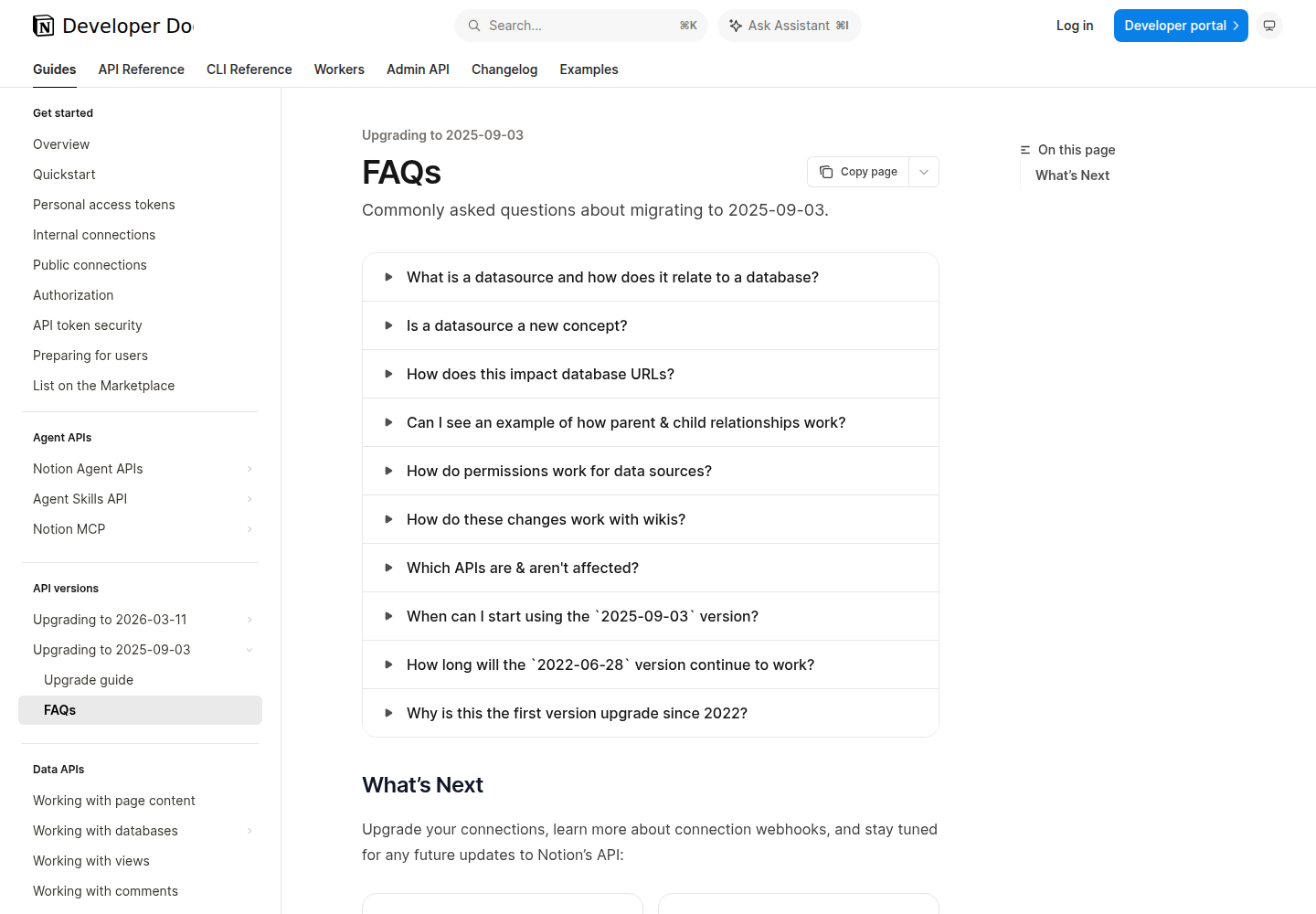
A database is now a container. The schema and rows live in one or more data sources underneath it.
- Database object —
parentis{"type": "page_id", ...}; it now carries adata_sourcesarray of{id, name}. - Data source object —
parentis{"type": "database_id", ...}; carriesdatabase_parent. - Page (row) —
parentis{"type": "data_source_id", ...}.
Three consequences for an OpenClaw integration:
/v1/databases/{id}/query→/v1/data_sources/{id}/query. Most of your existing database operations move to the/v1/data_sourcesfamily. The/v1/databasesfamily now describes the container.- The data source ID is not in the URL bar. In a Notion link like
.../248104cd477e80fdb757e945d38000bd?v=148104cd..., the first ID is the database and the second is the view. The data source ID lives in a separate dropdown. Your skill file needs to record it explicitly, or your agent will pass a database ID to a data-source endpoint and get a confusing error. - Permissions are still database-level. Access is granted at the database, not per data source — so every data source in a database inherits the same access. You cannot share "only the customers view."
Five workflows that actually earn their keep
These are written as prompts you can hand to OpenClaw, not as marketing copy. Substitute your real data source IDs.
1. Blocked-work triage across every project data source
Query the "Projects" data source for items where Status = Blocked.
For each one, fetch the page and summarise: owner, days blocked, and the
most recent comment. Group them by owner and post a single Slack message.
The MCP version of this is notion-query-data-sources → notion-fetch → notion-get-comments. The REST version is /v1/data_sources/{id}/query plus /v1/blocks/{id}/children for the comment thread. Note the MCP path is capped by plan: view mode is always available, but querying any number of data sources requires Business/Enterprise with Notion AI — other plans get metered single-data-source access.
2. "Where did we decide this?" — answer with a citation, not a vibe
Search Notion for "pricing model decision". Return the two most relevant
pages with their last-edited date and verification state. Quote the exact
paragraph that answers it — don't paraphrase.
This is the workflow that justifies notion-ai-search: it searches Notion and the sources connected to the workspace (Slack, Mail, Calendar, Google Drive, Jira) in one call. But it requires Notion AI, and an admin can exclude it from a connection's tool list — in which case the tool and its ai_search entry simply vanish. Always check notion-fetch self first and fall back.
One trap: unified AI-search results omit verification. If verification state matters — and for a decision log it does — fetch the Notion result with notion-fetch before trusting it. Connected-app results (the Slack ones) cannot be fetched with notion-fetch at all.
3. Nightly stale-page sweep (headless — Path B or C only)
Every night at 02:00, query the "Content Calendar" data source for pages
whose Last Edited is older than 60 days and Status is "In Progress".
Add a comment tagging the owner: "Stale >60d — still in progress?"
Report the count to #content-ops.
This is the canonical headless job and it is exactly what the hosted MCP cannot do, because there is nobody to click Allow at 02:00. Build it on the integration token (Path B/C). Also respect the rate limits — see the pitfalls below, because a 60-day sweep is exactly the shape of job that trips them.
4. Meeting notes → owned action items
Fetch the "Meeting Notes" data source for this week. For each note, extract
action items with an owner. Create one page per action item in the "Tasks"
data source with Owner, Due Date, and a link back to the source note.
notion-query-meeting-notes exists for exactly this. The failure mode is not the extraction, it is the parent: a new row must be created with parent: {"type": "data_source_id", ...}, and if you send a database ID instead you get a validation error that reads like a permissions problem. Also decide deliberately whether action items go in as pages (queryable, ownable) or as blocks inside the note (fast, but invisible to your tracker).
5. Weekly rollup written by the agent, published to Notion
Collect completed items from "Tasks" this week plus key decisions from the
"Decision Log". Write a single page under "Weekly Reports" titled with the
ISO week. Include links to every source page. Do not publish without
showing me the draft first.
Note the last line. Notion writes are immediate and unversioned — there is no "publish" step and no diff to review. Either stage the draft somewhere else first, or make the agent's write scope narrower than its read scope.
Notion-specific pitfalls that will actually cost you time
These are the ones we hit; they are not generic "secure your API keys" advice.
1. object_not_found almost always means "not shared," not "doesn't exist." The integration token grants access only to pages and databases explicitly connected to it via ... → Connections. A 404 from Notion's API is the standard symptom of an unshared parent, and — critically — sharing a parent page does not always cascade the way you expect to every child, so a newly created child can be invisible even when it "lives inside" a shared parent. When an agent reports a page missing, check the share graph before you debug the query.
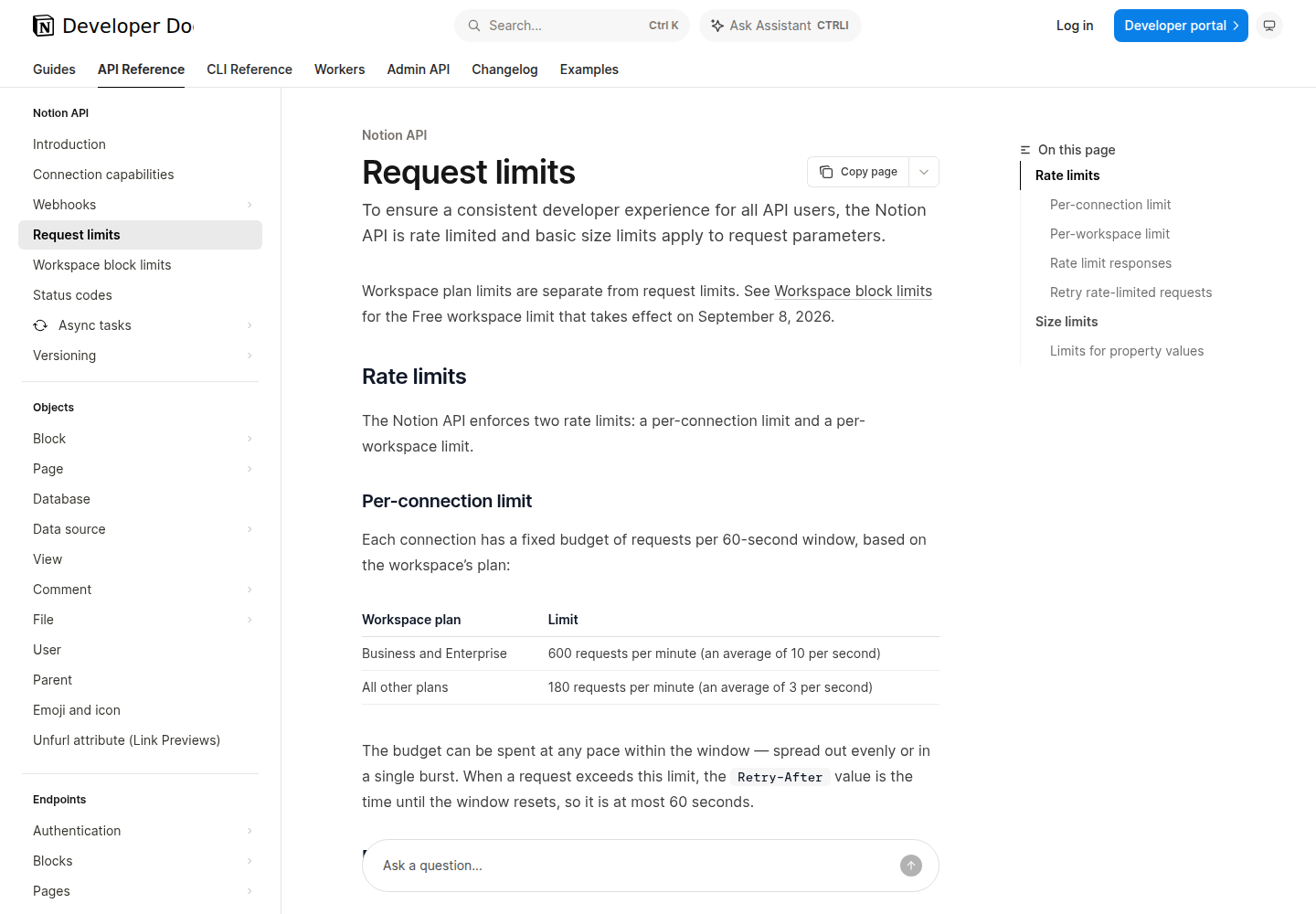
2. The rate limits are two-layered and both are per-60-second windows. A per-connection limit (600 req/min on Business/Enterprise, 180 req/min — about 3/sec — on all other plans) and a separate per-workspace limit shared across every connection that scales with the plan. Because the second one is shared across connections, you can be throttled while every individual connection is comfortably under its own ceiling. The Retry-After on a per-connection breach is at most 60s; on a per-workspace breach it can be longer than a minute. Honour the header — don't retry on a fixed timer.
3. Search is not full-text search of page bodies. notion-search is workspace search over titles and indexed content with a short-keyword model; notion-ai-search is the semantic/connected-source one and is plan-gated. If a workflow depends on finding a sentence buried in a long doc, it depends on AI search — and therefore on Notion AI being enabled and not excluded from the connection.
4. Blocks are structured JSON; tables and toggles do not flatten to prose. Notion returns blocks as typed objects. If your proxy joins them naively, a table becomes a wall of cell values with no headers and a toggle becomes a mystery. Budget real effort for a block renderer, or accept that deep tables are out of scope for the agent.
5. MCP write scopes are broad and there is no undo. The remote server exposes page and database creation, data-source updates, view creation, and comment posting. Nothing here is staged, and deleting a page is not reversible by the agent. Treat Notion as production.
6. Workspace owners can revoke MCP connections, and the tool list can be trimmed per connection. Admin controls live in Settings → Connections, and org owners can list and revoke members' MCP connections through the Admin API. So a working integration can lose tools without your code changing — another reason to route via notion-fetch self rather than hardcoding assumptions. It also means "the agent silently stopped being able to search" is often a workspace change, not a client bug.
Related guides
- Connecting OpenClaw with Confluence — the other wiki-shaped workspace, with a very different hosted-MCP story (Cloud-only, admin-allowlisted).
- Connecting OpenClaw with Jira — for the Notion-to-Jira round-trip in workflow 4.
- Connecting OpenClaw with Google Workspace — if your team's docs are split between Notion and Drive.
- How to connect Notion to OpenClaw — the beginner walkthrough.
- How to use Notion with ChatGPT — the ChatGPT-side counterpart to this page.
Skip All of This — Use Cody Instead
Cody gives your team a Notion AI assistant in Slack, so people can search docs, summarise meeting notes, review database context, and turn workspace knowledge into clear answers and updates without hunting through Notion.
Related Guides
- Connecting OpenClaw with Confluence: A Practical Guide
- Connecting OpenClaw with Jira: A Practical Guide
- Connecting OpenClaw with Google Workspace: A Practical Guide
Need the model-flexible version? See: How to Connect Notion to OpenClaw: Setup, Models, and Workflow Guide.