If you're searching for "Zendesk MCP", you're asking one of two things: does Zendesk have an MCP server? or how do I connect Zendesk to an AI assistant via the Model Context Protocol?
⚠️ No official Zendesk MCP server yet. Community options exist — details below.
What Is MCP?
Model Context Protocol (MCP) is an open standard developed by Anthropic that lets AI assistants — like Claude — connect to external tools, APIs, and data sources in a standardised way.
Before MCP, every AI integration required bespoke tooling: custom prompts, custom API wrappers, and custom glue code to pass context back and forth. MCP replaces that with a common interface: the AI asks the MCP server for data or actions, the server returns structured results, and the AI uses them to answer your question or complete a task.
In plain terms: MCP is how you give an AI assistant live access to Zendesk — not just knowledge about it, but real, up-to-date data from your account.
What a Zendesk MCP Integration Does
Once Zendesk is connected via MCP, your AI assistant can:
- Read live data — pull records, metrics, activity, and status directly from Zendesk
- Take actions — create, update, or log records based on your instructions
- Cross-reference context — combine Zendesk data with other connected tools mid-conversation
The key difference from a standard chatbot: the assistant is not working from training data or memory. It is reading your actual Zendesk instance, in real time.
Practical Zendesk MCP Use Cases
Ticket lookup and context before replying
Before drafting a reply, the assistant fetches the ticket history and account context from Zendesk — so the draft references the right details.
Churn risk flagging
Ask the assistant to identify customers with multiple open tickets or declining activity in Zendesk, and produce a prioritised list for the CS team to review.
Macro and template generation
Have the assistant draft new macros or canned responses based on common ticket patterns it reads directly from Zendesk.
Zendesk MCP: What Actually Connects in 2026
Search "Zendesk MCP" and you get five guides answering five different questions. That is not sloppy writing — it is because Zendesk genuinely sits on both sides of the protocol, and the two directions solve opposite problems. Getting this straight before you pick a server will save you an afternoon.
Zendesk is a first-party MCP client and, so far, only an announced — not shipped — MCP server.
| Direction | Who calls whom | Documented today? | What it is good for |
|---|---|---|---|
| Zendesk as MCP client | Zendesk's own AI agents and action flows call outside servers | Yes — full Admin Center setup guide | Letting a support workflow act on your order database, Jira, or internal systems |
| Zendesk as MCP server | Claude, ChatGPT and Cursor read your tickets | No — announced at Relate 2026, early access promised for summer 2026; no setup page, no tool list as of October 2026 | Working tickets from an AI assistant |
| Third-party servers | An outside AI reads your tickets through a wrapper | Yes — open-source and hosted options | The actual working path for "Claude, read my queue" today |
| Chat-side channel | Customers ask ChatGPT questions about your Help Center | Yes — early access | Deflection before a ticket exists, not agent workflow |
Most people searching this term want the second row. Zendesk's documentation is almost entirely about the first. That mismatch is the whole confusion.
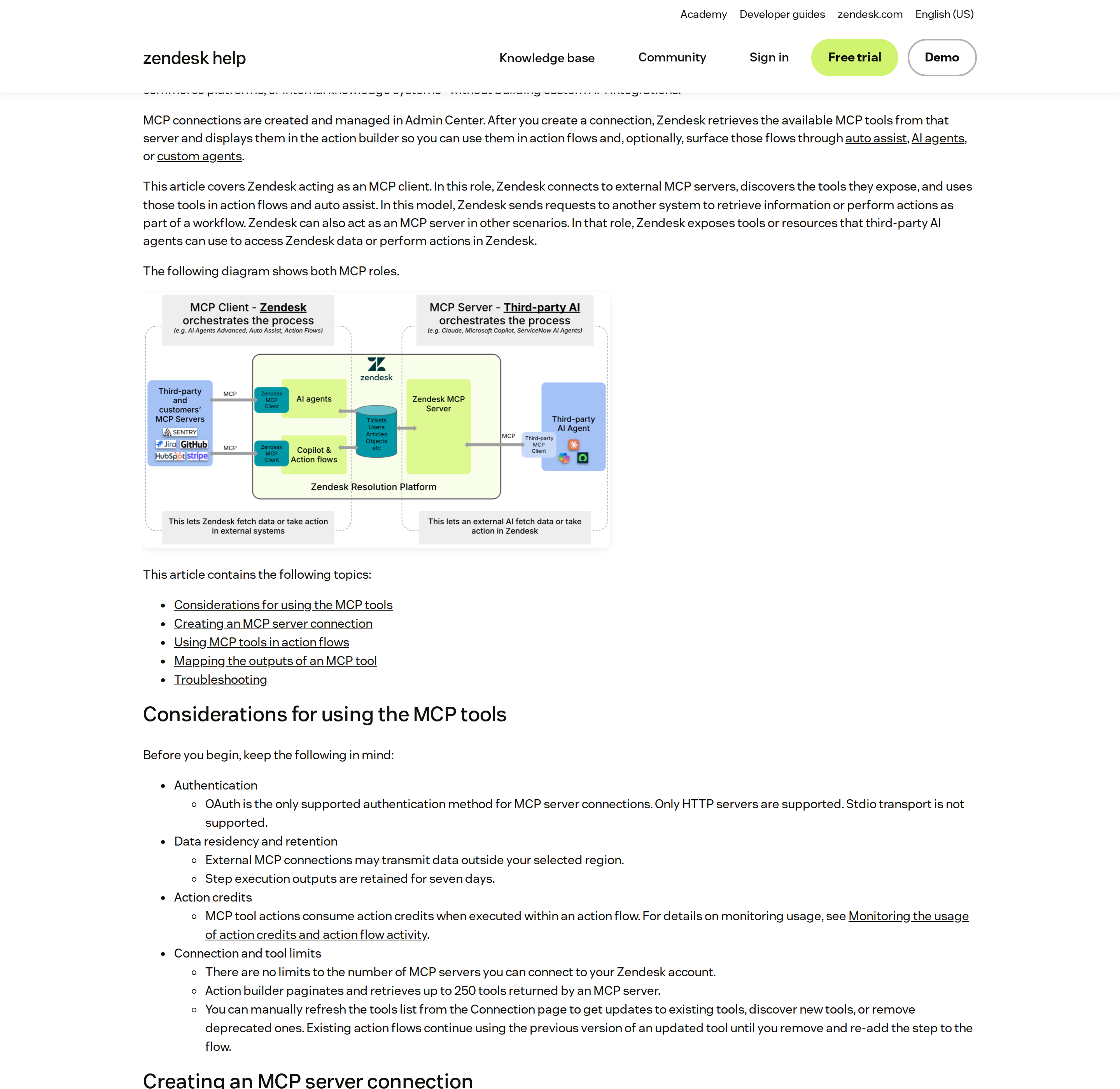
Zendesk's own MCP documentation, checked in October 2026. The "Zendesk as client" diagram at the top is the direction this article covers; the server direction gets one sentence and no setup page.
The one deadline that invalidates most Zendesk MCP guides
Nearly every Zendesk MCP setup guide still opens with "create an API token and put your email and token in a .env file." That instruction has an expiry date, and it was announced on 1 June 2026:
| Date | Change |
|---|---|
| 2026-07-28 | Tokens unused for 30 days are deactivated; new accounts can no longer create tokens |
| 2026-10-27 | No account can create a new API token, in the UI or via the API |
| 2027-04-30 | All API tokens stop working permanently |
So if you are setting this up now, set it up on OAuth. Not because it is fashionable — because the token path cannot be repeated after 27 October and dies outright next April.
There is a stronger reason than the calendar. A Zendesk API token is account-level and unscoped: whoever holds it can impersonate any user in the account, including admins. Zendesk's own API reference says exactly that. OAuth gives each person their own permissions, and comments an agent posts are authored by them. For anything an AI is going to touch, that is not a nice-to-have.
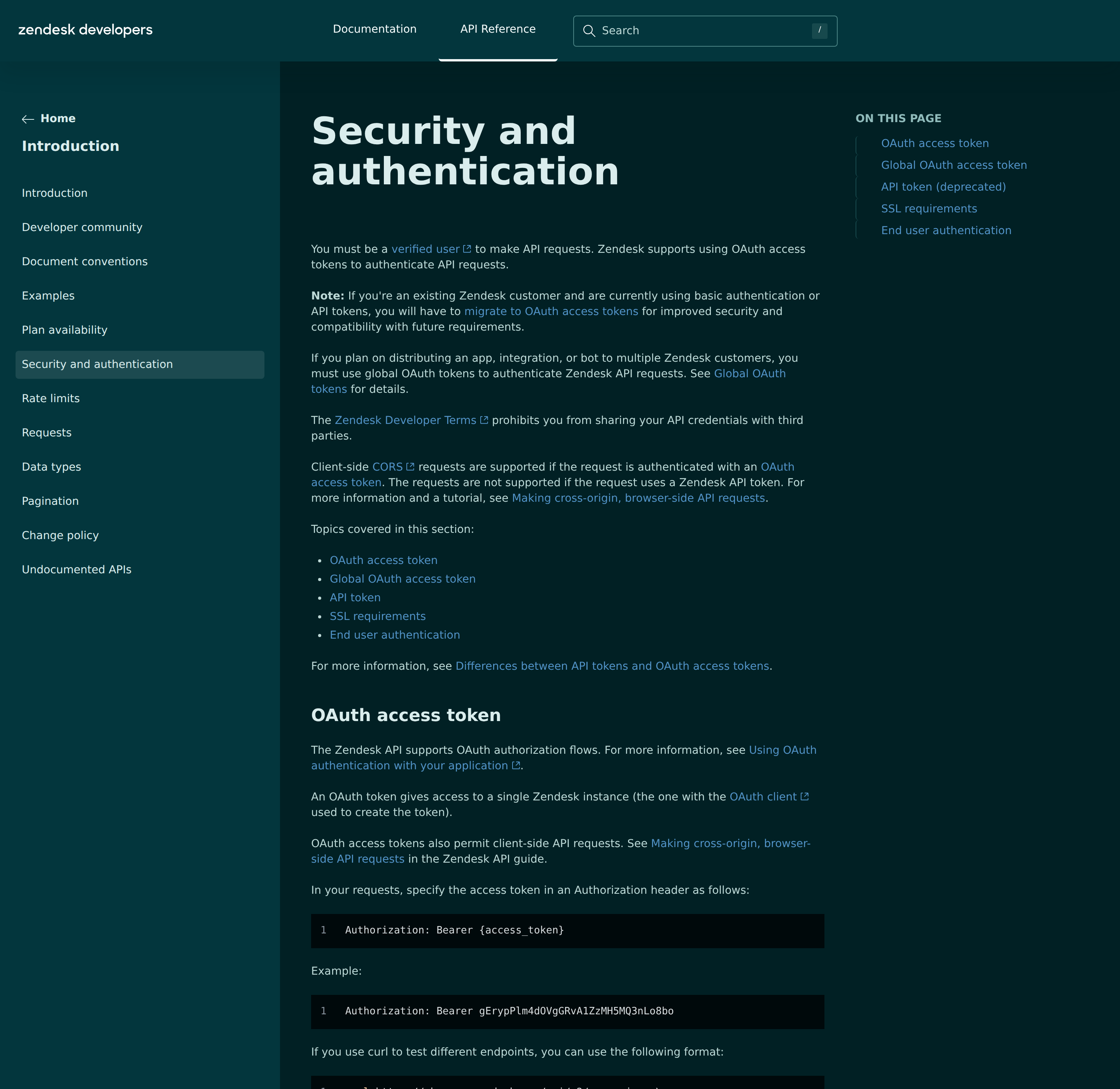
The Zendesk API authentication reference. The "API token (deprecated)" section is the loudest signal on the page, and the email/token:… Basic header it documents is what will stop working.
Zendesk as a client: what the official guide actually says
This half is fully documented and genuinely useful if you run Zendesk AI agents. The specifics, from Zendesk's article on connecting to MCP servers in action flows:
- Where: Admin Center → Apps and integrations → Connections → Add connection → Connect to an MCP server. You must be a Zendesk admin.
- Plans: any Zendesk Suite plan (Team and above) or Support Team and above. Nothing exotic.
- Transport: HTTP servers only. Stdio is not supported. This is the single most common failure — most open-source MCP servers ship as a local stdio process, and Zendesk will not connect to one.
- Auth: OAuth only. A server that wants an API key is out.
- Tool limit: Zendesk discovers up to 250 tools per server, with no cap on the number of servers. After discovery, an admin explicitly ticks which tools are allowed into the action builder — discovery is not the same as exposure.
- Callback URL: if the external service needs one, Zendesk's is
https://zis.zendesk.com/api/services/zis/connections/oauth/callback. - Cost: every tool call inside an action flow consumes action credits.
- Freshness trap: when an MCP server updates a tool's definition, existing action flows keep using the old version until you remove and re-add the step. Nothing breaks loudly; the flow just silently runs the previous contract.
- Data residency: external MCP connections may transmit data outside your selected region, and step outputs are retained for seven days.
That last row is the one to take to a security review before you enable anything.
Zendesk as a server: the honest status
Zendesk announced its own MCP server at Relate 2026 on 19 May 2026, marked "early access this summer." As of October 2026:
- There is no setup page and no tool list in Zendesk's developer documentation.
- The server does not appear on Zendesk's early access programme list.
- Claude's connector directory had no Zendesk entry at last check.
One thing does ship in early access, but it faces the other way: a server that puts your Help Center inside ChatGPT for your customers, raising a ticket when a human is needed. That is a deflection channel, not a way for your team to work tickets.
Plan as if there is no official Zendesk MCP server. Everything below runs on OAuth, so when Zendesk's own server does land, the move is a config change rather than a rebuild.
The working path today: a server that acts as you
The most active open-source server is reminia/zendesk-mcp-server — Python, Apache-2.0, moved to OAuth in its latest release. It is the reference implementation for the pattern you should copy even if you build your own.
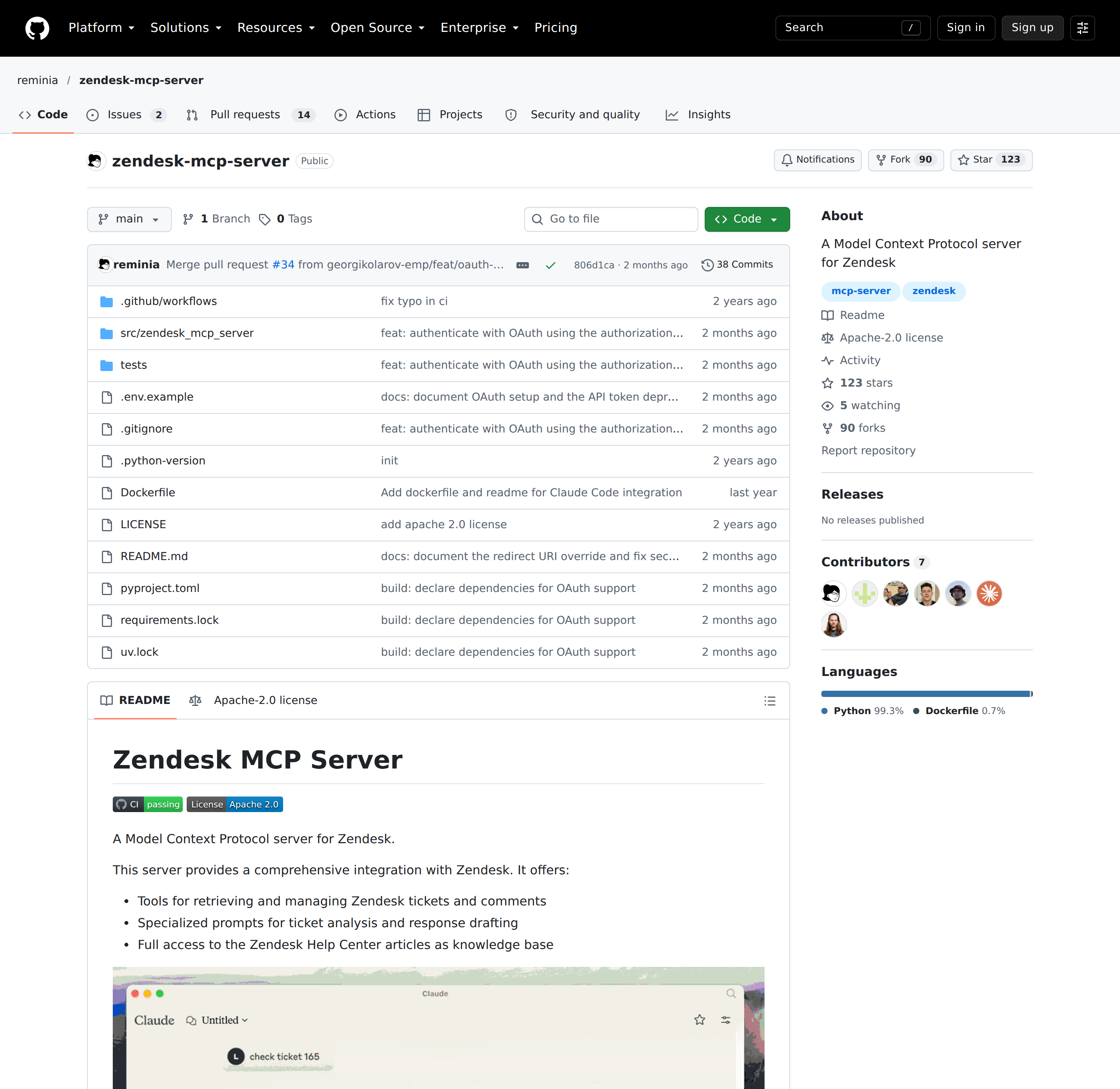
The open-source Zendesk MCP server on GitHub. Note the scope list in the README: a small, explicit ceiling rather than "everything the token can do."
Setup, in the order that actually works:
- In Admin Center, go to Apps and integrations → APIs → OAuth clients and create a Public client. Public, because the server runs on each operator's machine and has nowhere to keep a secret — it uses PKCE instead.
- Add the redirect URL
http://localhost:4567/callback, and set Allowed scopes totickets:read tickets:write ticket_attachments:read users:read hc:read. Setting allowed scopes is optional and strongly recommended: it caps what any token from this client can ever request, even if the server code later asks for more. - Copy the client's Identifier into
ZENDESK_CLIENT_ID, along withZENDESK_SUBDOMAIN. - Run
uv run zendesk-authonce. It opens a browser, you approve, tokens land in~/.config/zendesk-mcp/tokens.jsonat0600inside a0700directory. From then on the server refreshes on its own. - Point your client at the server (Claude Desktop example):
{
  "mcpServers": {
    "zendesk": {
      "command": "uv",
      "args": ["--directory", "/path/to/zendesk-mcp-server", "run", "zendesk"]
    }
  }
}
If port 4567 is taken, or the browser cannot reach this machine (remote shell, container host), use uv run zendesk-auth --manual and paste the callback instead.
Scopes are a ceiling, not a grant
This is the part that decides whether your agent is safe, and it works in both directions:
- A token can never do more than the operator who authorized it can do in the Zendesk UI. Their role, their group restrictions, their ticket access all apply.
- Zendesk accepts unrecognised scope names when issuing a token and then rejects every request with 403. A typo in
tickets:writproduces a valid-looking token that fails on every call. Thezendesk-authcommand prints the scopes Zendesk actually granted precisely so you can compare. - For a read-only agent — the right default for a reporting or triage assistant — request
tickets:read users:read hc:readand nothing else. That removescreate_ticket,update_ticket, andcreate_ticket_commentfrom the surface entirely, rather than trusting a prompt to avoid them.
Why not the client credentials flow?
It is simpler: no browser, no refresh token. But its tokens are attributed to the Zendesk user who created the OAuth client — usually an admin. Every operator would act as that one user, and audit logs and comment authorship would all point at them. Since the whole point is that each operator gets exactly their own permissions, the authorization code flow is the only one that fits. If you need fully unattended runs, the answer is a dedicated Zendesk user with a narrow role, authorized once through the same flow — not a shared admin token.
Token renewal, and the one retry that happens
Access tokens are short-lived: 30 minutes by default, 48 hours at most. The server refreshes in two situations:
- Before expiry, when the stored token is within 60 seconds of dying.
- On rejection, when Zendesk answers
401with{"error": "invalid_token"}— it fetches a new token and retries the request once.
Only invalid_token triggers a retry. A 401 or 403 caused by insufficient scope or by the operator's own Zendesk permissions is passed straight through, so permission problems keep looking like permission problems instead of auth flakiness. When the refresh token itself lapses — 90 days by default here, revoked sooner if the operator's access changes — tools fail with a message telling you to re-run zendesk-auth.
Each refresh rotates the refresh token and invalidates the previous one immediately. Two implications: the token file must be writable (a read-only Docker mount strands you on an expired token), and running the server from two clients at once needs the lock file the implementation uses, not a second copy of the token store.
Rate limits you will actually hit
Zendesk's limits are generous for reading and narrow in specific places. All are per minute:
| Plan / endpoint | Limit |
|---|---|
| Support + Help Center, Team / Growth / Professional / Enterprise / Enterprise Plus | 200 / 400 / 400 / 700 / 2,500 |
| High Volume API add-on | 2,500 (Growth+ or Support Professional+, minimum 10 agent seats) |
List Tickets with page > 500 |
50 |
Incremental exports (/api/v2/incremental/*) |
10 (30 with High Volume) |
| Executing a view | 5 per view, per agent |
| Create or update user | 5 per user |
| Export search results | 100 per account |
The two that bite AI agents are incremental exports at 10/min — the natural endpoint for "what changed since last night?" polling — and List Tickets at 50/min past page 500, which is exactly where a "go back 6 months" request lands. Design scheduled jobs around incremental exports with a backoff, not a full crawl.
Watch the response headers X-Rate-Limit and X-Rate-Limit-Remaining, honour Retry-After on a 429, and remember Zendesk reserves the right to throttle the whole account on unusual spikes regardless of your plan limit.
Five workflows that work today
1. Morning queue triage. "Pull every open ticket created in the last 18 hours, group them by requester organization, flag anything with a first-response breach, and give me the five that need a human decision first." Read-only scopes are enough. Run it before standup.
2. Draft-first replies with human send. "For ticket 48213, read the full comment thread, draft a reply in our support voice, and post it as an internal note — do not send anything public." The public flag on create_ticket_comment is the lever here: default every automated comment to internal, and let a human flip it.
3. Escalation context assembly. "Ticket 51902 just escalated. Summarize the thread, list every prior ticket from this requester in the last 12 months, and tell me whether this is a repeat of a known issue." This is the pattern where an AI genuinely beats a human: it reads 40 comments without fatigue.
4. Weekly SLA-risk report. "For each group, count open tickets past 75% of their first-response target, and show the trend versus last week." Cache the output — this is where incremental exports and their 10/min limit matter.
5. Knowledge-base gap detection. "From the last 200 solved tickets, find the recurring questions that our Help Center has no article answering." hc:read plus tickets:read; the output is a content backlog, not a ticket change.
Eight Zendesk-MCP-specific pitfalls
- Stdio does not work inside Zendesk. As a client, Zendesk only speaks HTTP + OAuth. A local
uv runornpxserver must be fronted by an HTTP wrapper before Zendesk can connect. - Docker mounts must be writable. The token file is rewritten on every refresh-token rotation; a read-only mount works until the first rotation, then fails.
- Wrong scope spelling = a valid token that 403s on everything. Zendesk does not validate scope names at issuance. Compare what
zendesk-authsays was actually granted. - Permission errors are passed through, not retried. Only
invalid_tokentriggers a retry, so a persistent 403 is a real permissions problem — check the operator's role and group membership, not the token. - Tool definitions go stale inside action flows. Refreshing the tool list in the Connection page does not update flows that already reference a tool; remove and re-add the step.
- Prompt injection lives in the ticket body. Customer-written text and Help Center articles are untrusted input reaching a model that can call
update_ticket. Keep write scopes off read-heavy agents and keep a human between a draft and a public reply. - Offset pagination has a ceiling. Deep paging is slow and rate-limited; exports are the correct tool for history, and they are capped at 10/min.
- Deletion is authority. Archive/delete operations are as available as reads to a token that has them, and there is no undo in the protocol. If an agent should not delete, do not give it a token that can.
Do you actually need MCP here?
If the goal is a support team that gets queue summaries, SLA warnings, and draft replies in Slack, wiring a raw ticket API into an assistant is the same work with none of the protocol churn. Cody connects to Zendesk and runs those workflows from chat — queue triage, SLA risk, escalation context, and drafted updates — without you maintaining an OAuth client, a token store, and a server process. See automating Zendesk with AI for the workflow view, or the Zendesk OpenClaw connection guide if you want to build the integration yourself.
Either way: set it up on OAuth, start read-only, and keep sends behind a human.
How to Connect Zendesk via MCP
There are two main paths:
Option A: Use a community MCP server for Zendesk
Zendesk does not currently maintain an official MCP server. Community-built options exist — check the MCP Registry and GitHub for the latest.
Note: Zendesk ships a first-party MCP CLIENT (action flows calling external servers), not a server. A Zendesk MCP server was announced at Relate 2026 as early access and had no setup guide or tool list as of Oct 2026. Today the working path is a third-party server (reminia/zendesk-mcp-server, Apache-2.0) or a hosted Marketplace app, authenticated with OAuth. API tokens stop being creatable on 2026-10-27 and stop working on 2027-04-30.
What you'll need:
- An MCP-compatible client (Claude Desktop, OpenClaw, or another host)
- A running MCP server process with Zendesk credentials configured
Community servers vary in completeness and maintenance quality — evaluate before deploying to your team.
Option B: Use Cody (OpenClaw-based, managed)
Cody is built on OpenClaw and supports MCP-compatible integrations out of the box. You connect Zendesk once from the Cody dashboard — no server to run, no code to write — and Cody handles authentication, context passing, and write-back actions with appropriate guardrails.
Cody works where your team already operates: Slack, Telegram, or the web chat. The Zendesk connection is available to your entire team without each person setting up their own MCP client.
Want Zendesk Connected to AI Without Running Your Own MCP Server?
Cody gives your team a Zendesk AI assistant in Slack, so people can review queues, spot SLA risk, summarise ticket context, draft replies, and surface recurring customer pain without managing API tokens or building the support workflow glue themselves.
MCP vs Other AI Integration Patterns
| Approach | What it is | Tradeoff |
|---|---|---|
| MCP | Standardised protocol for live tool access | Requires an MCP server; most powerful when set up correctly |
| RAG (retrieval) | Pre-index Zendesk content and retrieve it | Good for static docs; not suitable for live/transactional data |
| Manual copy-paste | Paste Zendesk output into ChatGPT/Claude | Fast to start; breaks for anything recurring or at scale |
| Custom API wrappers | Bespoke integration code per tool | Full control; high maintenance overhead |
MCP wins when you need live data from Zendesk and want to avoid rebuilding integrations as APIs change.
Common Mistakes
- Using training data when live data is needed — if the AI doesn't have an MCP connection, it will answer from memory, which is often outdated or wrong for account-specific questions
- No write-back guardrails — MCP can write to Zendesk, so it's worth adding an approval step for any action that modifies records
- Too many tools exposed at once — give the AI access to the Zendesk actions it actually needs; a scoped connection is easier to reason about and audit
- Skipping structured outputs — ask the AI to return structured JSON or clear fields when writing back to Zendesk; free-form output is harder to validate
Related MCP Guides
Want the full workflow picture? See: Zendesk AI Automation and How to Connect Zendesk to OpenClaw.