If you're searching for "how to connect Airtable to OpenClaw", the real question is usually not just whether the connection is possible. It's how to make Airtable usable inside an OpenClaw workflow with the right model, the right context, and the right level of control.
That's the practical framing.
OpenClaw gives you the orchestration layer: connectors, skills, tools, prompts, approvals, and the ability to run workflows where your team already works. Airtable provides the domain context. The integration becomes valuable when those two pieces are connected cleanly.
Airtable + OpenClaw: What's Actually Happening Here
When someone searches "how to connect Airtable to OpenClaw," they usually mean one of two things. Either they run OpenClaw on their own infrastructure and want their agent to reach into Airtable bases, or they use Cody (managed OpenClaw) and want to understand what's underneath. This guide covers both.
Airtable is where a lot of operational truth quietly accumulates: content calendars, launch checklists, hiring pipelines, vendor trackers, inventory sheets, and the "real" project tracker that survived three tool migrations. Connecting it to OpenClaw means your agent can answer "what's blocked on the Q3 launch," summarise a view without anyone opening a browser tab, flag rows that haven't moved in three weeks, and draft a status update — from Slack, without touching a filter builder.
The landscape here changed in a big way during 2026, and most guides haven't caught up. Airtable now ships an official MCP server at mcp.airtable.com/mcp — the same backend that powers the Airtable for ChatGPT connector. And in August 2026 it went further: the MCP server can now not just read and write records, but design bases, build interfaces, and create automations from plain-language descriptions. That's a genuinely different capability class from "read my records," and it changes what a headless OpenClaw agent can safely be asked to do.
Here's what actually works, and where the sharp edges are.
Path A: Airtable's Official MCP Server (Remote, OAuth)
Airtable runs a remote MCP server — no local process, no Docker container, no npm install. You point an MCP-compatible client at:
https://mcp.airtable.com/mcp
and authenticate over OAuth. The docs frame it around Claude, ChatGPT, Gemini, Grok, Cursor, and Perplexity, but the server speaks the standard Model Context Protocol, so any MCP-compatible client can connect — including a self-hosted OpenClaw. You aren't waiting for Airtable to "certify" OpenClaw the way some hosted assistants work.
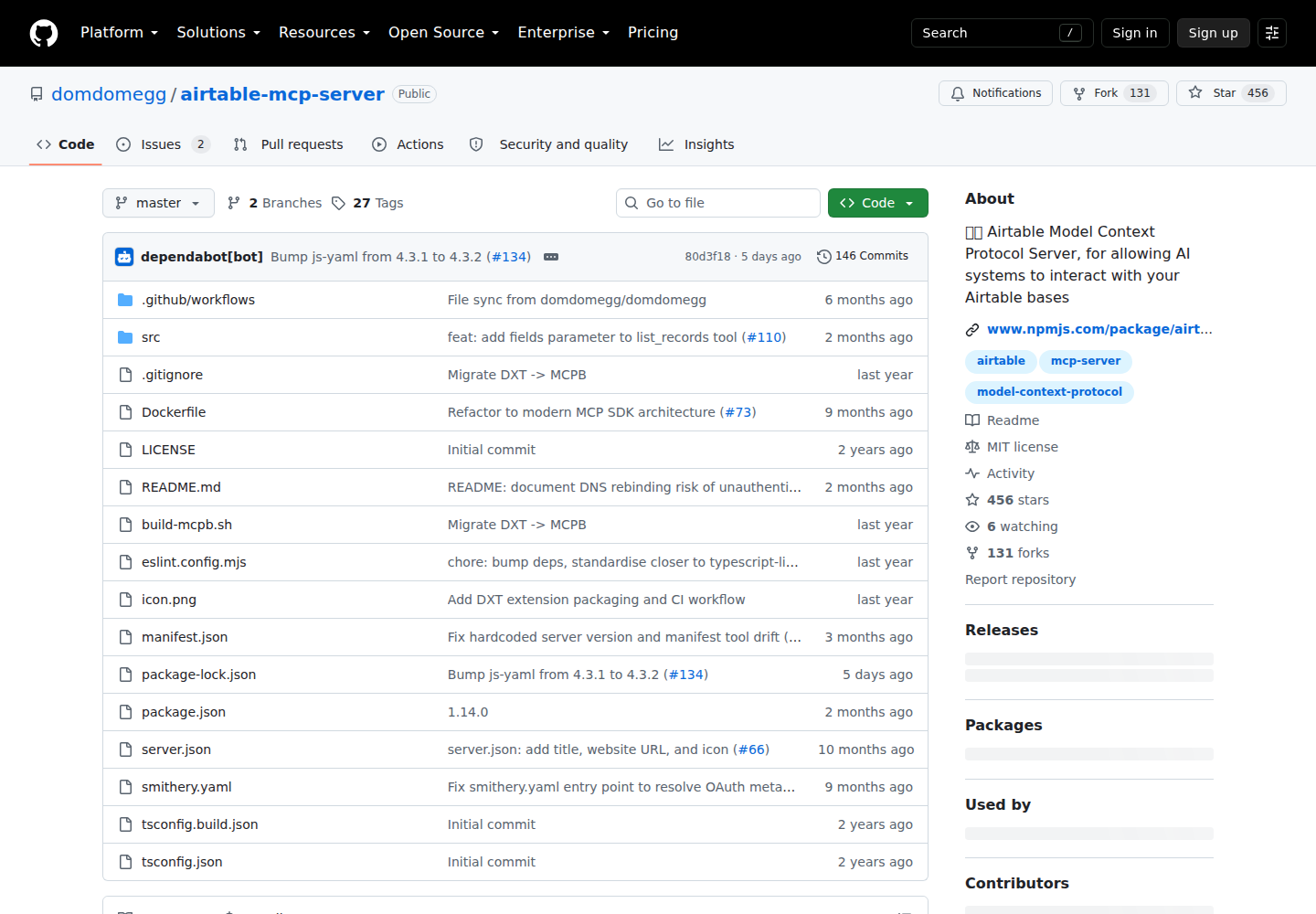
What the server exposes, in broad strokes:
- Base and table discovery — list bases, list tables within a base, inspect field schemas
- Record reads — query records, filter, sort, and page through views
- Record writes — create, update, and delete records
- Schema operations — create and modify tables and fields
- Interfaces and automations (as of the August 2026 update) — build interfaces and automations from natural language
- Workspace scaffolding — stand up a structured base from a description of the workflow
That last cluster is the part worth pausing on. "The AI can create automations" sounds like a convenience feature. In a base that runs a live process, it isn't.
Registering It in OpenClaw Gateway Config
For a self-hosted OpenClaw, register the remote server over Streamable HTTP:
{
  mcp: {
    servers: {
      airtable: {
        url: "https://mcp.airtable.com/mcp",
        transport: "streamable-http"
      }
    }
  }
}
OAuth is exchange-based, so the first connection needs an interactive approval — which is the first real constraint, and the reason many self-hosted setups end up on Path B for anything scheduled. Confirm the connection with:
openclaw mcp doctor airtable --probe
then decide deliberately which of the exposed tools you actually want callable. (More on scoping below — it matters more here than on most integrations.)
The OAuth-on-Headless Problem
This is the single most common "my Airtable + OpenClaw integration stopped working" story, and it's worth stating plainly: OAuth flows are interactive by design. They produce a token that eventually expires, and refreshing it typically involves a browser redirect. A cron job running at 06:00 has no browser.
If your Airtable work is interactive — a human asking questions in Slack, or a chat session where someone approves the connection — Path A is the right answer and it's genuinely pleasant. If your Airtable work is scheduled (a nightly stale-record sweep, a Monday digest), Path A will work right up until the token expires, and then it will fail silently at an hour when nobody is watching. That's the failure mode to design around, not to debug later.
Path B: Personal Access Token + Skill File (The Headless Path)
Airtable's REST API is stable, well-documented, and — critically — authenticates with a Personal Access Token (PAT), which is just a string you can put in a config. No browser, no redirect, no expiry dance. For OpenClaw agents doing scheduled work, this is usually the right path.
The base endpoint:
https://api.airtable.com/v0/{baseId}/{tableIdOrName}
Step 1 — create a scoped PAT. Go to airtable.com/create/tokens. Here's the part that trips people up: an Airtable token is scoped to specific bases, not your whole workspace, and you select scopes separately (data.records:read, data.records:write, schema.bases:read, and so on). This is a feature — it's how you give an agent access to the Content Calendar base without also handing it the payroll base — but you have to actually use it. The default instinct to "grant everything so it doesn't break later" is exactly backwards with Airtable.
Step 2 — collect your IDs. Bases are appXXXXXXXXXXXXXX, tables are tblXXXXXXXXXXXXXX. They appear in the URL when you open a base in the browser. An agent that doesn't know the difference between a base ID and a table ID will construct plausible-looking URLs that 404.
Step 3 — write the skill file. This is what separates an agent that can query Airtable from an agent that reliably answers questions about your Airtable. Write ~/.openclaw/skills/airtable.md with real base and table names, their IDs, the field names that matter, and the queries your team actually asks:
# Airtable Skill

## Bases
- Content Calendar — appXXXXXXXXXXXXXX (primary, read+write)
- Launch Tracker — appYYYYYYYYYYYYYY (read only)

## Key tables
- Content Calendar / "Posts" — tblXXXXXXXXXXXXXX
  - Status field: {Status} (values: Idea, Drafting, In Review, Scheduled, Published)
  - Owner: {Owner} (single collaborator)
  - Due: {Publish Date} (date)
  - NOTE: "Publish Date" has a SPACE — must be wrapped in curly braces in formulas

## Common queries
- What's blocked: filterByFormula={Status}="In Review" AND {Publish Date}<TODAY()
- Stale drafts: {Status}="Drafting" AND IS_BEFORE({Last Modified}, DATEADD(TODAY(),-21,'days'))
- This week's schedule: {Publish Date} >= TODAY()

## Rules
- Never delete a record. Set {Status}="Cancelled" instead.
- Writes need a confirmation step — show the diff before applying.

## Failure notes
- Large tables paginate at 100 records with an `offset` token — always check `offset`
- Field names with spaces need curly braces; typos return a 422, not empty results
That file is doing real work. It encodes your base IDs so the agent stops guessing, your status vocabulary so it stops inventing one, and your write guardrails so it doesn't quietly archive a half-finished campaign.
Real Use Cases for an Airtable + OpenClaw Agent
1. The Monday Content Standup
Every Monday at 09:00, the agent reads the Posts table and posts a summary to Slack:
📅 Content Calendar — Mon 14 Sep In Review (3): "Q4 pricing page" (due Wed, owner Marta), "Winter launch email" (due Tue, owner Sam), "Partners page" (due Thu, owner Marta) ⚠️ Overdue: "Case study: Northwind" — due 5 days ago, still Drafting This week: 7 scheduled, 2 published last week Stale (21+ days, no movement): "Landing page v2" — last touched Aug 12 Suggested triage: unblock the case study first — it's blocking the launch page
Under the hood that's one paginated GET with a filterByFormula — the exact query written into the skill file — plus a healthy amount of summarisation. Nobody opened Airtable.
2. "What's Blocked on the Launch?"
An interactive question, answered from live data:
You: what's blocking the Q3 launch? Agent: Three items in "Launch Tracker → Q3 Launch" are not in a done state:
- Legal review — In Progress, owner Priya, no update in 9 days
- Pricing page copy — Blocked, waiting on "Final positioning" (that item is still in Drafting)
- Partner comms — Not started, due in 4 days The pricing copy is the critical path — it's waiting on a positioning decision that hasn't been made.
The chain of "blocked" → "waiting on" is a linked-record traversal, which is the kind of thing that takes a human three clicks and a scroll.
3. A Nightly Stale-Record Sweep (Headless)
This is the one that needs Path B. At 02:00, the agent walks your active tables looking for rows that have drifted:
🔍 Stale record sweep — 14 Sep Content Calendar: 4 rows untouched 21+ days (max: 47 days) Vendor Tracker: 2 rows missing {Renewal Date} entirely Launch Tracker: 1 item overdue 12+ days with no owner assigned Suggested action: the vendor rows are a one-field fix — want me to draft the updates for review?
Scheduled, unattended, token-based auth, no browser. This is the use case that makes Path A's OAuth limitation a real problem rather than a theoretical one.
4. Drafting Updates Instead of Making Them
A write-capable agent should be a proposal agent by default:
You: mark the Northwind case study as published, it went live this morning Agent: Here's the change I'll make in Content Calendar → Posts:
- {Status}: "In Review" → "Published"
- {Publish Date}: empty → 2026-09-14
- {URL}: empty → (I don't have it — want to paste it?) Apply this?
Showing the diff before the write costs one turn and prevents the class of error where an agent "helpfully" marks eleven things published because the filter matched loosely.
5. Cross-Tool Context Stitching
Airtable rarely holds the whole story. A question like "summarise where we are with the Northwind account" pulls the CRM record, the support queue, and the Airtable launch tracker into one answer — because the agent has all three connected. Airtable is usually the piece that holds the operational state (what's done, what's blocked, who owns it), which is exactly the piece a CRM won't tell you.
Airtable-Specific Pitfalls (What Most Guides Miss)
1. Personal Access Tokens Are Base-Scoped, and That Cut Goes Both Ways
Airtable tokens don't grant workspace-wide access. You pick base by base. The upside is real least-privilege. The downside is the failure mode: a token scoped to three bases returns a 403 (or a confusing 404) on the fourth. Agents and humans alike tend to read that as "the record doesn't exist" rather than "the token can't see it." Fix: document which bases the token covers in the skill file, and treat an unexpected 403 as a scoping problem first, an existence problem second.
2. filterByFormula Is Airtable Formula Syntax, Not SQL
It looks like Excel, it behaves like Airtable, and it is neither SQL nor WHERE. Fields with spaces must be wrapped in curly braces ({Publish Date}), strings need double quotes, and date comparisons use Airtable's own functions (TODAY(), DATEADD(), IS_BEFORE()). An LLM will produce something approximately right and get a 422 back. Fix: put two or three working formulas in the skill file as reference examples. Few-shot beats explanation here.
3. 100 Records Per Page, and offset Is Easy to Drop
The API returns a maximum of 100 records per request and pages with an offset token. A naive implementation reads the first page and reports it as the whole table — which is how an agent confidently tells you there are 100 open items when there are 340. Fix: the proxy must loop on offset until it's absent, and the skill file should say so explicitly.
4. The MCP Server Can Now Build Schema — Which Is a Bigger Deal Than It Sounds
Since the August 2026 update, Airtable's MCP server can design bases, build interfaces, and create automations from natural language. That's powerful and it's also the highest-blast-radius capability in this whole guide. An automation created by an agent starts firing on whatever trigger it was given. Fix: treat schema-level and automation-level operations as explicitly gated — human-approved, ideally in an interactive session, never from a cron. Keep record reads and writes on the autonomous path and everything else on the supervised path.
5. Airtable Rate Limits Are Per-Base and Modest
Airtable enforces request limits (roughly 5 requests/second per base across the whole token, and lower on free plans). A loop that walks 40 tables will hit it, and the failure is a 429 mid-sweep rather than a clean error. Fix: batch reads with filterByFormula instead of iterating record-by-record, and add backoff to the proxy. Batch create/update accepts up to 10 records per call — use it.
6. Deleting Is Destructive and Mostly Unnecessary
DELETE removes the record. There's no recycle bin for API deletes the way there is for some tools. Meanwhile Airtable already has a perfectly good pattern for "this isn't happening": a status field. Fix: the skill file should say "never delete, set a terminal status" — one line that prevents an entire category of unhappy incident.
7. Linked Records Span Tables — and Silently Under-Return
A linked-record field returns record IDs, not the readable values, unless you ask for them. Querying a linked field naively gives you recXXXXXXXXXXXXXX strings, which is technically correct and completely useless in a Slack summary. Fix: resolve linked IDs in a second pass, or have the proxy do it — and note it in the skill file so the agent doesn't confidently print a wall of record IDs.
Decision Matrix: Which Path Should You Take?
| Scenario | Best Path | Why |
|---|---|---|
| Interactive Q&A about bases in chat | Official MCP (Path A) | Remote, no process to run, fastest to working |
| Team wants an Airtable assistant in Slack today | Path A, or Cody | No plumbing; OAuth approval once |
| Nightly/weekly scheduled sweeps | PAT + skill file (Path B) | Stable token, no interactive refresh |
| Writing to records with review before it lands | PAT + skill file + confirm step | Explicit diff-before-apply control |
| Large tables or batch updates | PAT + skill file (Path B) | Control over pagination, batching, backoff |
| Agent building bases/interfaces/automations | Interactive only, human-approved | Highest blast radius; keep it supervised |
| Self-hosting feels like the wrong use of your week | Cody | Airtable connected in minutes, no token management |
Related Pages
- How to Connect Google Sheets to OpenClaw — the other half of most teams' operational data
- How to Connect Notion to OpenClaw — the closest content/doc-shaped sibling
- How to Connect Asana to OpenClaw — if your "real" tracker is a task tool instead
- Airtable MCP — the MCP-native view of the same integration
- How to Use Airtable with ChatGPT — if you're wiring the same base into ChatGPT instead
What “Connect Airtable to OpenClaw” Actually Means
In practice, connecting Airtable to OpenClaw usually involves four layers:
- Authentication so OpenClaw can securely access Airtable
- Tooling or proxy endpoints that expose the right Airtable actions and data
- Skills/instructions that tell OpenClaw how to reason over Airtable context
- Model selection so the assistant uses the right LLM for the job
That last piece matters more than most people expect.
Which Models Can You Use?
OpenClaw is model-flexible, so a Airtable integration does not need to be tied to a single provider. Depending on your setup, teams commonly want to use:
- OpenAI models for broad reasoning, structured extraction, and tool use
- Anthropic models for writing, analysis, and long-context work
- Google models for multimodal and large-context workflows
- Other model backends if your OpenClaw environment exposes them
Model names and availability change frequently, so check your OpenClaw model catalogue rather than copying a version from a guide. The practical point is that you can connect Airtable once, then choose a supported model for each workflow.
For example:
- Use Claude for nuanced summarisation or drafting
- Use OpenAI for structured extraction, tool-heavy workflows, or general-purpose copiloting
- Use Gemini when multimodal or very large context windows matter
A Good Integration Pattern for Airtable
A strong Airtable + OpenClaw setup usually looks like this:
- OpenClaw receives a request in chat or from an automation
- It calls the right Airtable endpoint or proxy
- The selected model reasons over the returned context
- OpenClaw returns an answer, draft, classification, or action
- High-risk actions stay behind approvals or structured guardrails
That is what makes the setup operational rather than just experimental.
Step-by-Step: Connect Airtable to OpenClaw
Step 1: Create a Personal Access Token
Go to airtable.com/create/tokens and create a token. Select the scopes you need (data.records:read at minimum) and the specific bases you want the token to access. Airtable tokens are scoped to specific bases rather than your whole workspace.
Step 2: Get Your Base and Table IDs
Each Airtable base and table has a unique ID (found in the URL when viewing a base). Your proxy needs these to construct API requests. Document them in your skill file — e.g., Content Calendar base ID: appXXXXXXXX, Posts table: tblXXXXXXXX.
Step 3: Build the Proxy and Skill File
The Airtable API endpoint is https://api.airtable.com/v0/{baseId}/{tableIdOrName}. It supports filterByFormula for querying specific records. Write ~/.openclaw/skills/airtable.md with base and table names, their IDs, and the key field names Claude needs to know to filter and sort records correctly.
Model-Specific Workflow Ideas
Airtable + OpenAI
Use this when you want a strong general-purpose setup for extraction, classification, action planning, and tool-driven workflows around Airtable.
Airtable + Claude
Use this when you want better writing quality, clearer summaries, stronger nuance, and reliable long-context reasoning over Airtable data.
Airtable + Gemini
Use this when the workflow benefits from large context windows, multimodal inputs, or Google-native ecosystem alignment.
Common Mistakes
Most teams do not fail because the model is bad. They fail because:
- the Airtable connection is too thin
- the model lacks the right live context
- prompts are vague
- no structured outputs are enforced
- permissions and approvals are skipped
- one model is forced to do every job, even when another would be a better fit
The best setup is usually one integration layer, multiple model options, and clear guardrails.
Challenges and Caveats
Formula Syntax Is Airtable-Specific
Airtable's filterByFormula parameter uses Airtable formula syntax — similar to Excel but with quirks. Claude can generate these, but they may need correction. Common issue: field names with spaces must be wrapped in curly braces ({Field Name}).
Pagination with Offset Tokens
Airtable returns a maximum of 100 records per request. For large tables, results are paginated with an offset token. Your proxy needs to handle multi-page retrieval for summarisation queries.
Want Airtable Connected to OpenClaw Without Building the Whole Stack Yourself?
Cody gives your team an Airtable assistant in Slack, so people can search bases, summarise records, spot stale or missing updates, and draft tracker summaries without managing tokens, formula syntax, or Airtable API plumbing.
Related OpenClaw Guides
- How to Connect Google Sheets to OpenClaw
- How to Connect Notion to OpenClaw
- How to Connect Asana to OpenClaw
Looking for a more workflow-first angle? See: Airtable AI Automation and Airtable AI Assistant.
More Airtable Resources
- Cody AI Assistant for Airtable — Cody's dedicated Airtable integration features and benefits