If you're trying to use Amplitude with ChatGPT, the real question usually isn't "can these two technically work together?" It's how to make ChatGPT useful inside a Amplitude workflow without getting vague, generic output back.
That's the useful framing.
ChatGPT is strongest when you give it the right context, a clear job, and a structured output format. Amplitude brings the operational context. When the two are used well together, you get faster triage, better summaries, cleaner drafts, and more consistent decisions.
Amplitude's Official Remote MCP Server: The Real Way to Connect
Most "Amplitude + ChatGPT" guides still tell you to export a CSV, paste it into the chat, and hope the numbers fit in the context window. There is now a first-party alternative: Amplitude ships an official remote MCP (Model Context Protocol) server that ChatGPT, Claude, Cursor, and other MCP clients can call directly over OAuth. No proxy to build, no API key in a text file.
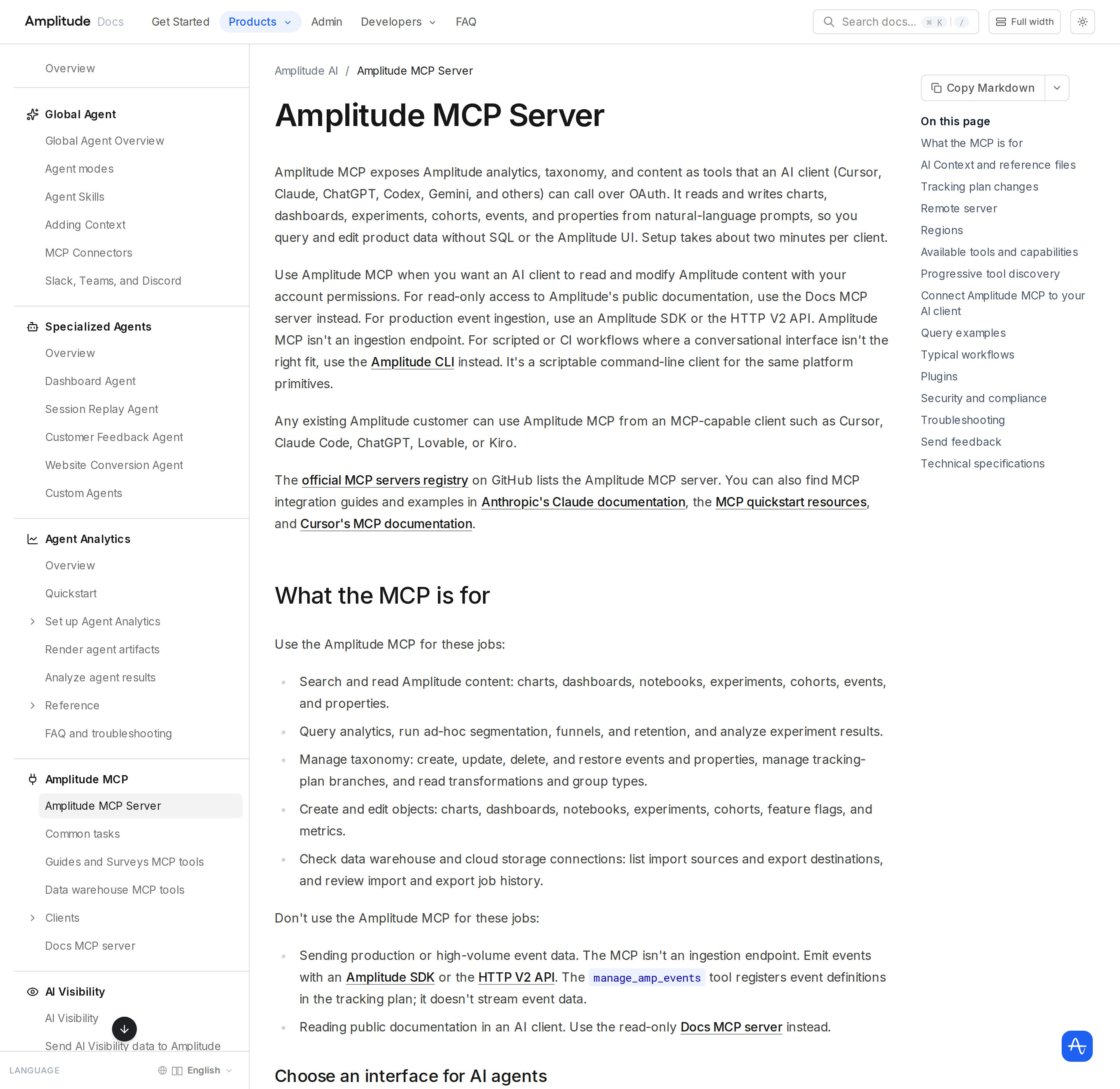
Amplitude's own framing is precise about what the server is for: it "reads and writes charts, dashboards, experiments, cohorts, events, and properties from natural-language prompts, so you query and edit product data without SQL or the Amplitude UI." Setup is roughly two minutes per client.
The remote endpoint has two regions and you pick by where your data lives, not by preference:
| Region | MCP Server URL |
|---|---|
| United States (default) | https://mcp.amplitude.com/mcp |
| EU data residency | https://mcp.eu.amplitude.com/mcp |
Transport is Streaming HTTP (remote), authentication is OAuth 2.0 with Amplitude, and any existing Amplitude customer can connect. There is also a Docs MCP server for read-only access to Amplitude's public documentation — a different thing entirely, and one of the most common points of confusion below.
The Three Interfaces (And Which One Your Agent Needs)
Amplitude documents a decision table that maps every job to the right interface. This is the single most useful thing on the page, because "just use MCP for everything" is wrong for half the jobs:
| Job | Use | Why |
|---|---|---|
| Emit production / high-volume event data | SDK or HTTP V2 API | The ingestion path — MCP does not ingest events |
| Validate taxonomy, projects, and queries | Amplitude MCP | Read, search, query, and tracking-plan tools |
| Create or edit objects (dashboards, experiments, cohorts, charts) | Amplitude MCP tools, or REST APIs in automation | MCP for conversational workflows, REST for scripted pipelines |
| Read public docs inside an AI client | Docs MCP server | Read-only and unauthenticated |
| Anything the above don't cover | Browser UI | Use the Amplitude UI for the remaining gaps |
The trap: the manage_amp_events tool registers event definitions in your tracking plan — it does not stream event data. Teams that read "manage events" and assume they've found the ingestion endpoint end up wondering why no data shows up. Amplitude states plainly that MCP "isn't an ingestion endpoint."
Setup in ChatGPT
Amplitude maintains per-client setup guides for Claude Code, Cursor, ChatGPT, Claude, Gemini CLI, Replit, Lovable, Figma Make, Kiro, and Codex CLI, plus a generic "Other clients" path for anything that supports HTTP + OAuth. The ChatGPT route:
- Use ChatGPT on a plan with developer mode / custom connectors (the same connector surface used for other remote MCP servers).
- Add a new MCP connection and paste the region-appropriate URL from the table above.
- Complete the OAuth flow, logging into exactly one Amplitude organization during authorization.
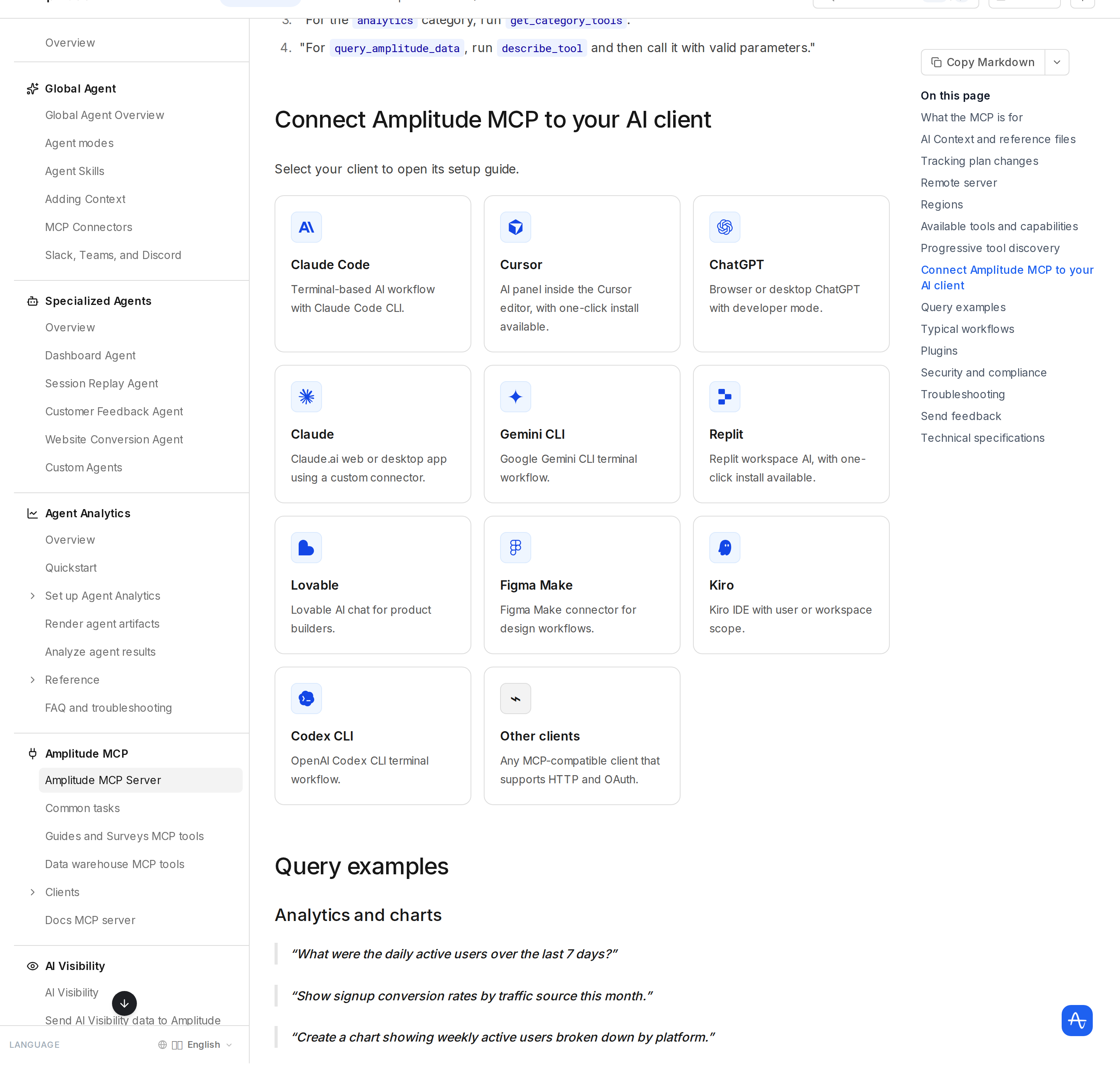
The ChatGPT tool subset is the one thing to know before you build on it. Amplitude notes that ChatGPT connects through a curated subset of roughly 25 tools because of a token cap on connected tool schemas — and that this subset excludes Session Replay tools and the progressive-discovery tools. If your workflow depends on replay analysis or on progressive tool discovery, Amplitude's own guidance is to connect with Cursor or Claude instead.
Progressive Tool Discovery (Token-Saving Mode)
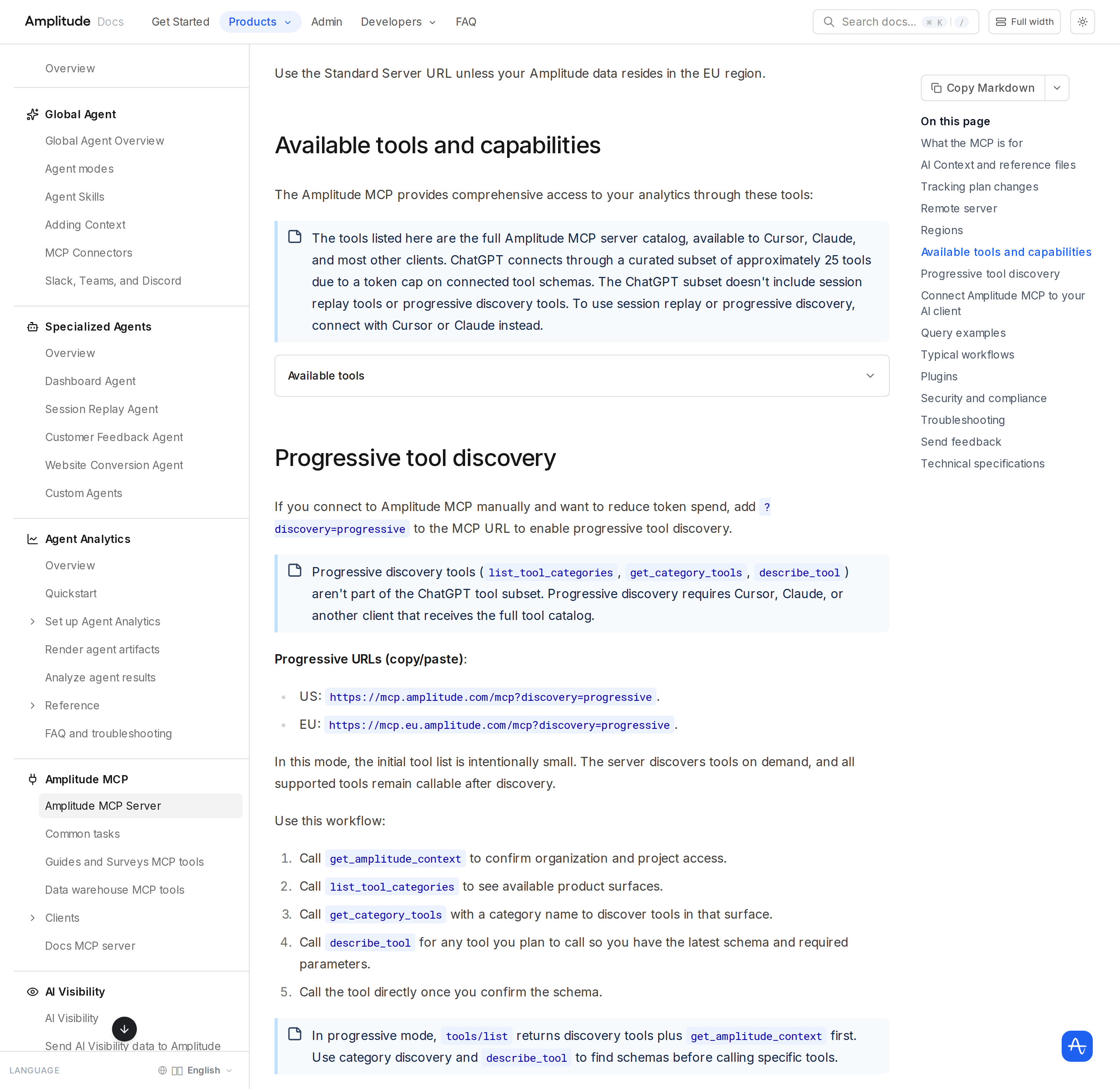
If you connect manually and want to cut token spend, append ?discovery=progressive to the MCP URL:
- US:
https://mcp.amplitude.com/mcp?discovery=progressive - EU:
https://mcp.eu.amplitude.com/mcp?discovery=progressive
In this mode the initial tool list is deliberately small and the server reveals tools on demand. The documented workflow is a fixed five-step loop:
get_amplitude_context— confirm organization and project access.list_tool_categories— see available product surfaces.get_category_tools— discover tools in a category.describe_tool— pull the latest schema and required parameters.- Call the tool directly once the schema is confirmed.
Note the overlap: progressive discovery is not in the ChatGPT subset, so this section only applies to Cursor, Claude, and other full-catalog clients.
AI Context: Make the Client Speak Your Metric Names
Before asking anything, call get_amplitude_context with a project ID. The response returns your organization and project markdown AI Context text from Amplitude's AI Controls, so the client applies your metric definitions, terminology, and business rules to later queries. Skipping this step is why agents confidently report the wrong "DAU" — your DAU, not Amplitude's guess at it.
Two configuration surfaces matter, and they behave differently:
- Text instructions (markdown in AI Controls) — returned by
get_amplitude_contextwith a project ID. Put your rules and definitions here. - Uploaded reference files (documents and spreadsheets in AI Controls) — these supplement in-product Agents, but Amplitude MCP tools do not return uploaded file contents. Anything the MCP client needs must live in text instructions.
There is also a repo-local convention: an optional .amplitude/instrumentation-agent-context.md file at your repository root, which Amplitude MCP marketplace skills such as instrument-events read during instrumentation workflows.
What the Tools Actually Cover
The full catalog spans analytics, taxonomy, experiments, session replay, guides and surveys, cohorts, metrics, and data-warehouse connections. Real query examples straight from Amplitude's docs:
- Analytics: "What were the daily active users over the last 7 days?" / "Why did this metric spike last week? [paste chart URL]"
- Dashboards: "Summarize this dashboard for my exec meeting." / "Move the funnel chart to the top of the onboarding dashboard and add a section header above it."
- Experiments: "Should we ship the new onboarding experiment? Analyze the results." / "Check on all running experiments and flag anything stale or missing metrics."
- Session Replay: "Show me session replays where users rage-clicked on the checkout page." (Claude/Cursor only)
- Taxonomy: "Create a branch called 'q3-cleanup' for tracking plan changes." / "Remove the 'page_url' property from the 'Page Viewed' event only."
Real Workflows With Prompts That Work
1. Metric-drop forensics in one thread
Instead of pulling a chart, screenshotting it, and pasting it into a chat, ask directly: "Why did weekly active users drop last Tuesday?" Amplitude's own documented example has the agent search for WAU charts, run the query, spot a 12% drop, then cross-reference experiments and deployments — landing on a session-timeout change shipped Monday evening. The agentic step that matters is the cross-reference, not the number.
2. Executive dashboard build-and-edit
"Build an executive dashboard for our product launch", then "Add a retention chart to the KPI dashboard" and "Remove the DAU chart from the overview dashboard." This is object creation and editing via MCP, which is exactly the category Amplitude says should move to REST APIs if you're scripting rather than chatting.
3. Tracking-plan cleanup without leaving the conversation
"Delete the events 'old_checkout' and 'legacy_signup' from the tracking plan", then "Restore the deleted user property 'plan_type'." Every delete is a two-step action: the first call returns a confirmation listing the affected items, project, and branch, and the client must call again with confirmed set to true. That gate exists for a reason (see the pitfalls).
4. Warehouse connection health check
"Show me the recent import jobs for my Snowflake source. Which ones failed or completed with errors?" and "Where does this project export its data, and when did each destination last succeed?" — a fast way to catch a silently broken export before anyone notices missing data downstream.
5. Cohort sync and hand-off
"Create a cohort of power users who completed 10+ sessions in the last 30 days", then "Sync my 'High-intent buyers' cohort to Iterable." Note this is the activation path, not ingestion — the cohort definition comes from MCP, the downstream sync uses your existing Amplitude integrations.
Amplitude-Specific Pitfalls
1. MCP is not an ingestion endpoint. The most expensive mistake. Amplitude SDKs or HTTP V2 handle production event data; MCP handles definitions and analysis. manage_amp_events registers a definition, it does not send an event.
2. The ChatGPT subset (~25 tools) drops Session Replay and progressive discovery. If your plan depended on replay or on token-saving discovery, the ChatGPT connection silently can't do it. Amplitude's answer is to use Cursor or Claude.
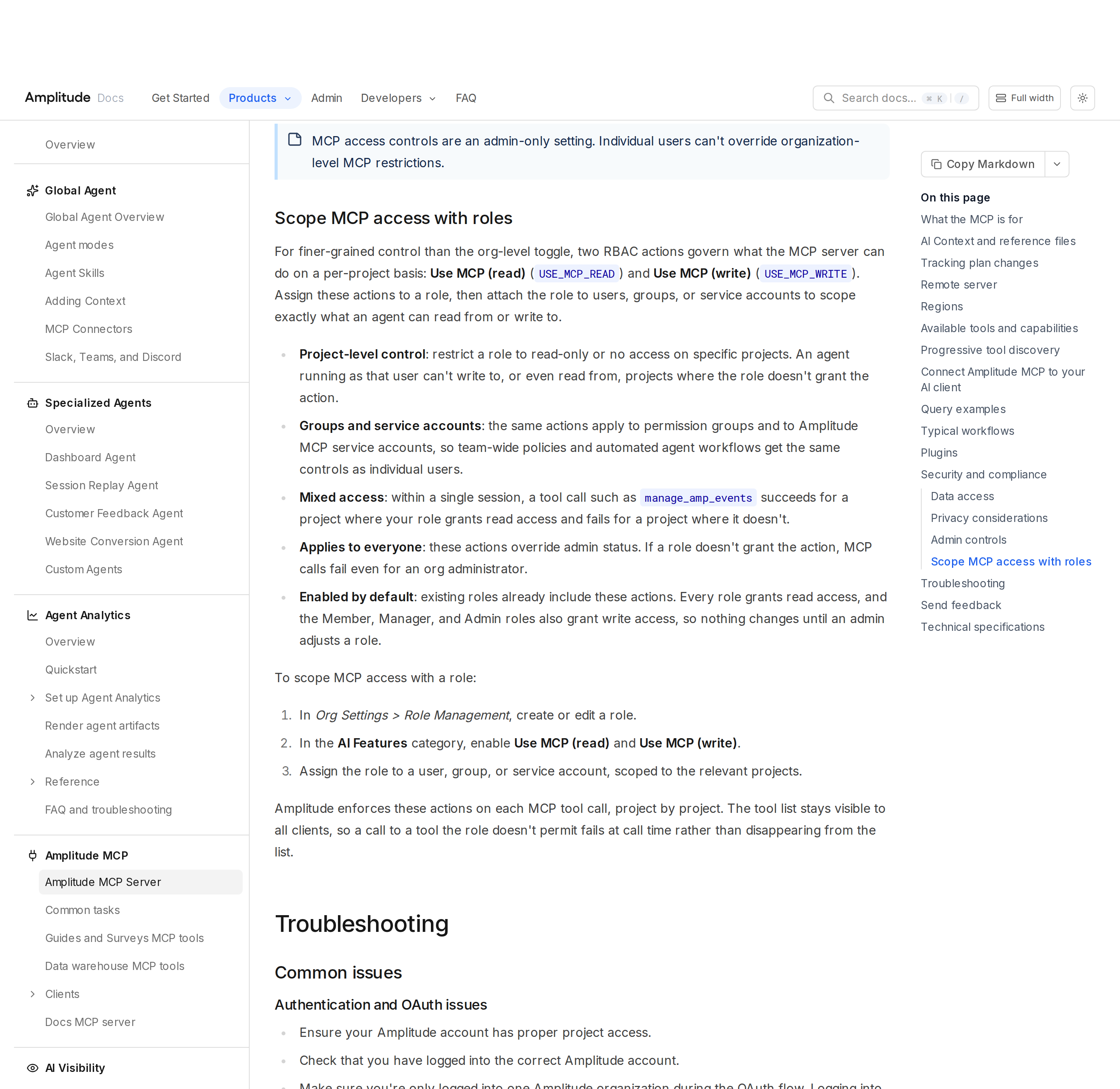
3. MCP is enabled org-wide by default. Amplitude turns MCP server access on for all users in your organization by default. Admins opt out or restrict under Settings → Content Access → MCP, and restrictions are admin-only — individual users cannot override them. Audit this before you assume a connection is safe.
4. Roles govern MCP per project, and they override admin status. Two RBAC actions — Use MCP (read) (USE_MCP_READ) and Use MCP (write) (USE_MCP_WRITE) — scope what the server can do. Existing roles already include these (every role grants read; Member, Manager, and Admin also grant write), so nothing changes until an admin edits a role. Critically: these actions override admin status — if a role doesn't grant the action, the call fails even for an org administrator. And because the tool list stays visible to all clients, a call to a disallowed tool fails at call time rather than disappearing from the list, which is confusing if you expect the tools to be hidden.
5. Deletes are destructive and branch-aware in ways you don't expect. Ingested events/properties are marked deleted and can be restored; planned items that were never ingested are removed and cannot be restored; custom and labeled events are deleted permanently. Deletes on main take effect immediately; deletes on any other branch do nothing until you merge. A plan-wide delete of a planned property removes it entirely — ask for single-event scope when you only meant to detach it from one event.
6. OAuth is multi-org hostile. Amplitude documents that logging into multiple Amplitude organizations during the OAuth flow can cause authentication issues. Log into exactly one org, and if a connection misbehaves, disconnect and re-auth.
7. Large chart truncation and dashboard filter loss. Amplitude warns that AI platforms may truncate large charts, and that querying a chart from a dashboard may use default chart settings instead of the saved dashboard filters — so a number pulled through MCP can legitimately differ from the number on your dashboard. Verify before you put it in a deck.
8. Cursor token corruption is a documented failure. If tool calls fail in Cursor, Amplitude's fix is the Command Palette → "Clear All MCP Tokens" → re-authenticate. Assuming a permissions problem here wastes an afternoon.
9. Data leaves Amplitude for the model. Amplitude states that the AI service you use (Claude, Gemini, and so on) processes your Amplitude data, and that it is not responsible for model outputs including hallucinations. That is a compliance decision, not just a technical one.
Related Cody Pages
- Amplitude MCP — the MCP-server angle for Amplitude across all clients.
- How to Connect Amplitude to OpenClaw — the self-hosted agent path.
- Connecting OpenClaw with Amplitude — workflows for running Amplitude analysis headlessly.
- Amplitude AI Automation — automation-focused workflows beyond chat.
What "Amplitude with ChatGPT" Usually Means
In practice, teams tend to use ChatGPT with Amplitude in one of four ways:
- Summarising activity, records, conversations, or changes from Amplitude
- Classifying items such as tickets, leads, tasks, issues, or opportunities
- Drafting replies, updates, reports, documentation, or next steps
- Reasoning over context to suggest priorities, actions, or likely issues
The key is to avoid treating ChatGPT like magic. It needs the relevant Amplitude context in the prompt - and it works best when you tell it exactly what good output looks like.
Good Use Cases for Amplitude + ChatGPT
1. Turn raw Amplitude context into a useful summary
Paste or pipe in the relevant records, notes, messages, or metrics from Amplitude, then ask ChatGPT to extract only what matters: key changes, risks, blockers, patterns, or action items.
2. Standardise messy workflows
If your team handles similar decisions repeatedly inside Amplitude, ChatGPT can apply the same rubric every time: classify, explain briefly, and return a structured next step.
3. Draft faster without starting from zero
Use ChatGPT to produce first drafts grounded in the Amplitude context - support replies, internal updates, status summaries, sales follow-ups, or operating notes.
4. Create reusable prompt-driven operating procedures
Once you find a prompt that works well for Amplitude, save it as a repeatable workflow so the whole team gets more consistent output.
A Simple Setup Pattern
A practical way to use ChatGPT with Amplitude looks like this:
- Pull the right context from Amplitude
- Give ChatGPT one clear task
- Ask for a structured response
- Have a human review anything customer-facing or high-risk
That last point matters. ChatGPT is useful for acceleration, but for anything sensitive - customer communication, financial interpretation, account changes, or production actions - keep a human in the loop.
Copy-Paste Prompts for Amplitude
Summary prompt
You are helping me work inside Amplitude. Summarise the context below into 5 bullets: what changed, what matters, what is blocked, and what needs action next. If anything is unclear, say what is missing.
Classification prompt
Review this Amplitude item and classify it into the best category. Return JSON with: category, confidence, rationale, and next_action. Keep rationale under 50 words.
Drafting prompt
Use the Amplitude context below to draft a concise response. Keep it specific, avoid made-up details, and list any assumptions separately.
Executive brief prompt
Turn this Amplitude activity into a short update for leadership: what happened, why it matters, current risks, and recommended next steps.
Where This Breaks Down
Most Amplitude + ChatGPT workflows fail for predictable reasons:
- Too little real context is provided
- The prompt asks for too many things at once
- The output format is vague
- The team expects ChatGPT to know live Amplitude data it has not actually been given
- No review step exists for important actions
The fix is usually simple: give better source context, narrow the task, and require a schema or fixed structure in the response.
If You Want This Embedded in the Workflow
You can absolutely use ChatGPT manually with exported Amplitude context. That works well for one-off tasks and prototyping.
But if you want the workflow to feel operational - available to the team, connected to live systems, repeatable, and embedded where work already happens - you usually want something more integrated.
Want Amplitude-Style Workflows Without Manual Prompt Copy-Paste?
Cody gives your team an Amplitude AI assistant in Slack, so people can review funnels, retention, activation, feature adoption, experiment movement, and product KPI changes without living inside dashboards and charts all day.
Related ChatGPT Guides
- How to Use Mixpanel with ChatGPT
- How to Use Segment with ChatGPT
- How to Use Google Analytics with ChatGPT
Need a more automation-focused angle instead? See: Amplitude AI Automation.
More Amplitude + AI Resources
- Cody AI Assistant for Amplitude — Cody's dedicated Amplitude integration features
- Connect Amplitude to OpenClaw — complete DIY integration guide