If you're searching for "GitHub MCP", you're asking one of two things: does GitHub have an MCP server? or how do I connect GitHub to an AI assistant via the Model Context Protocol?
✅ GitHub has an official MCP server. Details in the setup section below.
What Is MCP?
Model Context Protocol (MCP) is an open standard developed by Anthropic that lets AI assistants — like Claude — connect to external tools, APIs, and data sources in a standardised way.
Before MCP, every AI integration required bespoke tooling: custom prompts, custom API wrappers, and custom glue code to pass context back and forth. MCP replaces that with a common interface: the AI asks the MCP server for data or actions, the server returns structured results, and the AI uses them to answer your question or complete a task.
In plain terms: MCP is how you give an AI assistant live access to GitHub — not just knowledge about it, but real, up-to-date data from your account.
What a GitHub MCP Integration Does
Once GitHub is connected via MCP, your AI assistant can:
- Read live data — pull records, metrics, activity, and status directly from GitHub
- Take actions — create, update, or log records based on your instructions
- Cross-reference context — combine GitHub data with other connected tools mid-conversation
The key difference from a standard chatbot: the assistant is not working from training data or memory. It is reading your actual GitHub instance, in real time.
Practical GitHub MCP Use Cases
Query issues and PRs without leaving chat
Ask the assistant to list open issues by label, summarise a PR, or find tickets assigned to a specific person — it queries GitHub directly and returns the result.
Write tickets from conversation
Turn a Slack message or call note into a properly structured ticket in GitHub: title, description, acceptance criteria, and priority — without touching the UI.
On-call context lookup
During an incident, have the assistant pull recent deployments, open issues, and related PRs from GitHub to help narrow down root cause faster.
Release note generation
At the end of a sprint, ask the assistant to fetch merged PRs from GitHub and produce user-facing release notes grouped by theme.
GitHub MCP: Real Configuration & Setup (as of 2026)
GitHub runs an official, first-party MCP server — this is not a community wrapper. There are actually two deployment modes built on the same codebase:
| Mode | Runs where | Transport | Auth |
|---|---|---|---|
| Remote GitHub MCP Server | Hosted by GitHub | Streamable HTTP | OAuth (recommended) or PAT |
| Local GitHub MCP Server | On your machine / in Docker | stdio | PAT (GITHUB_PERSONAL_ACCESS_TOKEN) |
The remote server is the fastest path: no clone, no build, no local process. The local server (Go binary or ghcr.io/github/github-mcp-server Docker image) is what you reach for when you want the process on your own box, or when a client has no remote-MCP support.
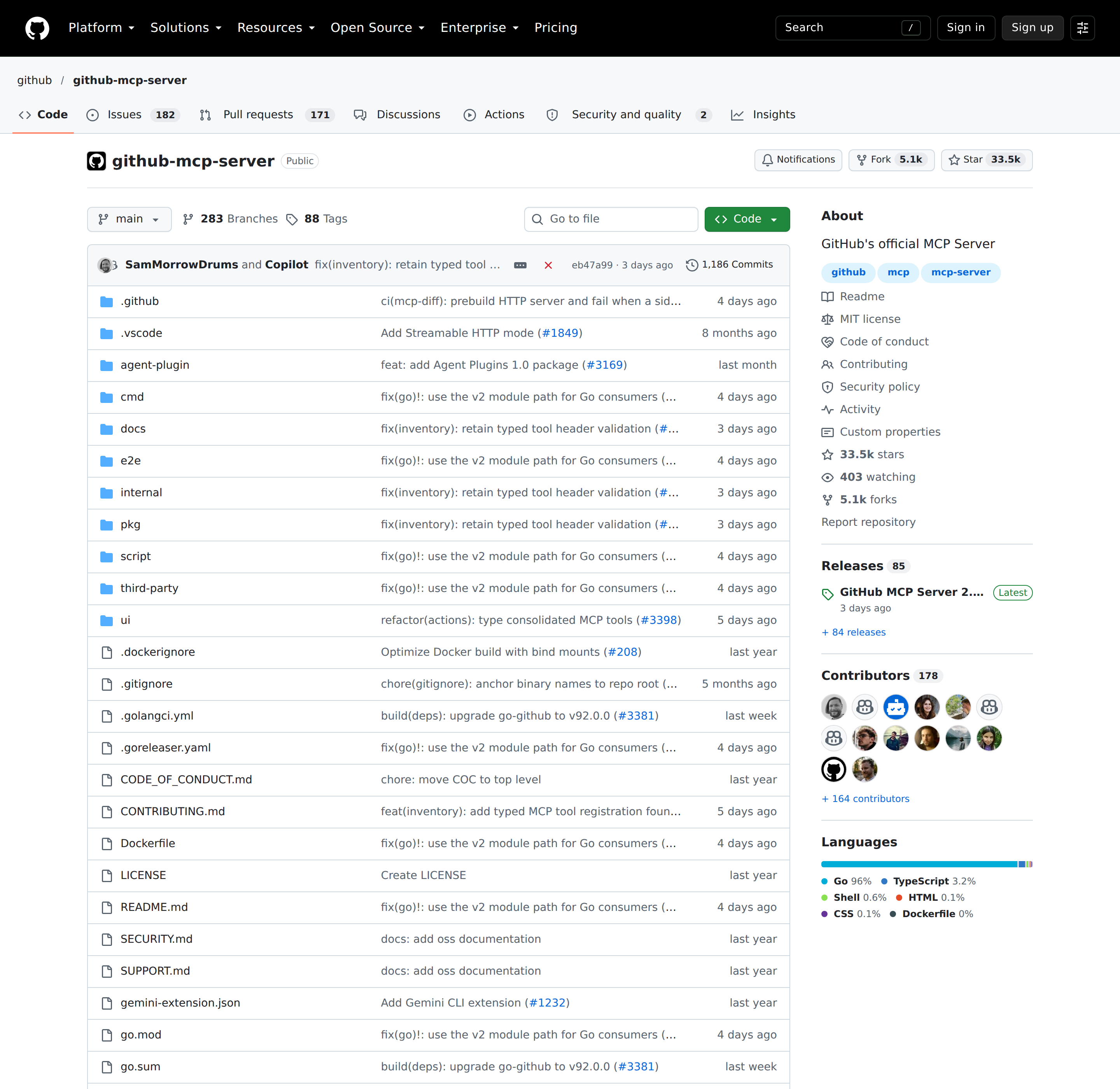
The official github/github-mcp-server repository. It is maintained by GitHub, not a third party.
If you landed here from a guide that points at the old modelcontextprotocol/servers reference implementation under src/github, that information is stale. The supported server is github/github-mcp-server.
The remote endpoint and its URL paths
The hosted server lives at a single base URL:
https://api.githubcopilot.com/mcp/
Client config is a plain HTTP MCP entry. Using OAuth (the default for interactive clients):
{
  "servers": {
    "github": {
      "type": "http",
      "url": "https://api.githubcopilot.com/mcp/"
    }
  }
}
Using a PAT instead (works in any client that can set headers, including a self-hosted agent):
{
  "servers": {
    "github": {
      "type": "http",
      "url": "https://api.githubcopilot.com/mcp/",
      "headers": {
        "Authorization": "Bearer <YOUR_PAT>"
      }
    }
  }
}
URL path modifiers are how the remote server scopes its tool surface, and they compose:
| Path | Effect |
|---|---|
/ |
Default toolset (context, repos, issues, pull_requests, users) |
/readonly |
Default toolset, writes removed |
/insiders |
Default toolset + experimental/early-access tools |
/x/all |
Every available toolset |
/x/{toolset} |
Exactly one toolset (e.g. /x/issues) |
/x/{toolset}/readonly |
One toolset, read-only |
/readonly/insiders |
Both modifiers combined |
Modifiers also stack with headers, and {toolset} in a path can only be a single toolset, never a comma-separated list — combining toolsets means using the header instead.
Toolsets: the governance lever
GitHub's server exposes ~20 toolsets (repos, issues, pull_requests, actions, code_security, dependabot, discussions, gists, git, labels, notifications, orgs, projects, secret_protection, security_advisories, stargazers, users, governance, code_quality, and the remote-only copilot, copilot_spaces, github_support_docs_search). The default set is deliberately small: context, repos, issues, pull_requests, users.
You choose the surface three ways, all equivalent:
- Local:
--toolsets repos,issues,pull_requests,actions,code_securityorGITHUB_TOOLSETS="repos,issues,..." - Remote: the
X-MCP-Toolsetsheader - Remote: the
/x/{toolset}URL path
When you have already picked the toolsets, you rarely need the extra ones — enabling only what you need reduces context size and improves tool selection.
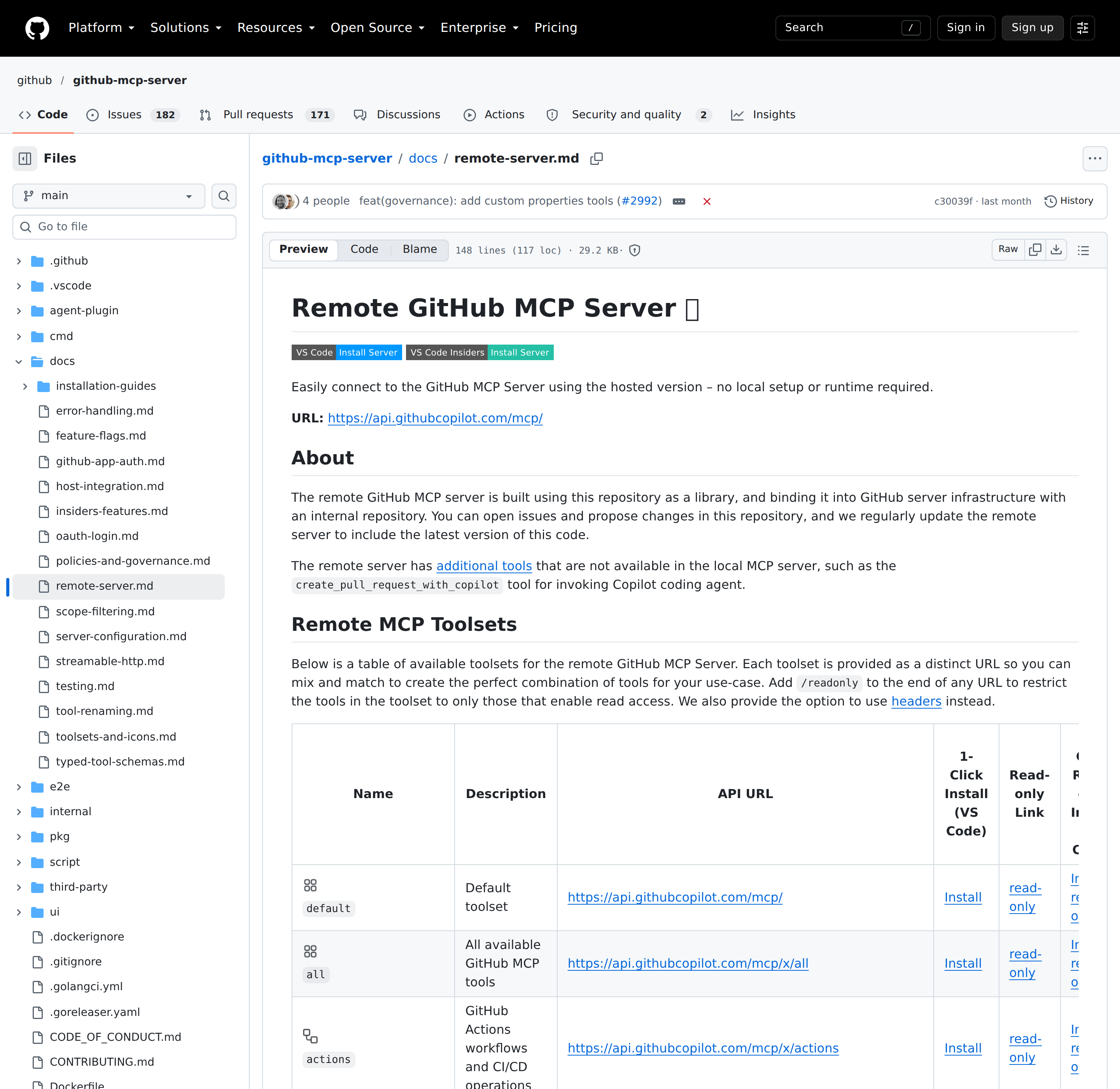
GitHub's docs/remote-server.md — each toolset is a distinct URL, and /readonly can be appended to any of them.
The remote server's headers
The remote server accepts headers that mirror the local server's flags and env vars:
| Header | Equivalent local flag / env | Purpose |
|---|---|---|
X-MCP-Toolsets |
--toolsets / GITHUB_TOOLSETS |
Comma-separated toolsets. Unknown names are silently ignored |
X-MCP-Tools |
--tools / GITHUB_TOOLS |
Comma-separated individual tools. Invalid names error at startup |
X-MCP-Readonly |
GITHUB_READ_ONLY |
Only read tools |
X-MCP-Lockdown |
GITHUB_LOCKDOWN_MODE |
Hide public issue details from users without push access |
X-MCP-Insiders |
--insiders / GITHUB_INSIDERS |
Early-access tools |
{
  "type": "http",
  "url": "https://api.githubcopilot.com/mcp/",
  "headers": {
    "X-MCP-Toolsets": "repos,issues,pull_requests",
    "X-MCP-Readonly": "true"
  }
}
The boolean headers are parsed loosely: empty, false, f, no, n, 0, or off (case and whitespace ignored) mean false; anything else means true.
When to run it locally
The local server is a Go binary (github-mcp-server) or the container ghcr.io/github/github-mcp-server. On github.com the official image already bundles app credentials, so OAuth login on first use needs no app of your own — the token is kept in memory only, and use goes through a browser-based flow with a headless/device-code fallback for machines without a browser.
Using a PAT on the local server, the Docker one-liner is:
docker run -i --rm \
  -e GITHUB_PERSONAL_ACCESS_TOKEN=<your-token> \
  -e GITHUB_TOOLSETS="repos,issues,pull_requests" \
  ghcr.io/github/github-mcp-server
GITHUB_PERSONAL_ACCESS_TOKEN takes precedence over OAuth if both are present — handy for pinning a service account, dangerous if you forgot you set it.
Headless / scheduled use
This is the part most guides skip. OAuth in a chat client is fine, but an unattended job needs a credential that does not require a browser round-trip. Two options:
- PAT — the local server's
GITHUB_PERSONAL_ACCESS_TOKEN, or the remote server'sAuthorization: Bearer <PAT>header. A fine-grained PAT scoped to the repositories you actually query is the right default; classic tokens still work but are legacy. - GitHub App installation token — the remote server can operate as the app itself via a signed JWT → installation access token (an OAuth-2.0-client-credentials-shaped flow). This is the production-automation path, because the App is installed on the org with explicit repositories and permissions.
Per GitHub's own governance doc, PATs are "user-scoped and not recommended for production automation." If a scheduled agent is going to read/write across an org, use a GitHub App.
Related Cody pages
- How to connect GitHub to OpenClaw — the API-proxy + skill-file path when you want the integration inside Cody.
- OpenClaw for GitHub — what a GitHub-connected assistant actually does day to day.
- Using GitHub with ChatGPT — the other host you may already have open.
How to Connect GitHub via MCP
There are two main paths:
Option A: Use GitHub's official MCP server
GitHub maintains an official GitHub MCP server. This is the recommended starting point — it's built and maintained by the GitHub team, so it stays up to date with API changes.
What the server exposes:
- repositories
- issues
- pull requests
- code search
- actions
- discussions
- file operations
What you'll need:
- An MCP-compatible client (Claude Desktop, OpenClaw, or another host)
- GitHub credentials configured per the server's setup guide
This path gives you the most control but requires you to handle client configuration and credential management yourself.
Option B: Use Cody (OpenClaw-based, managed)
Cody is built on OpenClaw and supports MCP-compatible integrations out of the box. You connect GitHub once from the Cody dashboard — no server to run, no code to write — and Cody handles authentication, context passing, and write-back actions with appropriate guardrails.
Cody works where your team already operates: Slack, Telegram, or the web chat. The GitHub connection is available to your entire team without each person setting up their own MCP client.
Want GitHub Connected to AI Without Running Your Own MCP Server?
Cody comes with GitHub integration built in. Connect your workspace once, then ask about stale PRs, failed Actions, release scope, issue clusters, and repo changes directly from Slack without wiring any GitHub API client yourself.
MCP vs Other AI Integration Patterns
| Approach | What it is | Tradeoff |
|---|---|---|
| MCP | Standardised protocol for live tool access | Requires an MCP server; most powerful when set up correctly |
| RAG (retrieval) | Pre-index GitHub content and retrieve it | Good for static docs; not suitable for live/transactional data |
| Manual copy-paste | Paste GitHub output into ChatGPT/Claude | Fast to start; breaks for anything recurring or at scale |
| Custom API wrappers | Bespoke integration code per tool | Full control; high maintenance overhead |
MCP wins when you need live data from GitHub and want to avoid rebuilding integrations as APIs change.
Common Mistakes
- Using training data when live data is needed — if the AI doesn't have an MCP connection, it will answer from memory, which is often outdated or wrong for account-specific questions
- No write-back guardrails — MCP can write to GitHub, so it's worth adding an approval step for any action that modifies records
- Too many tools exposed at once — give the AI access to the GitHub actions it actually needs; a scoped connection is easier to reason about and audit
- Skipping structured outputs — ask the AI to return structured JSON or clear fields when writing back to GitHub; free-form output is harder to validate
GitHub MCP-Specific Pitfalls
These are the failure modes that only show up once the server is talking to a real org.
-
Read-only is enforced in three places, and only some of them fail loudly. A write tool you explicitly request via
X-MCP-Toolsis still skipped if read-only mode is on — read-only takes priority. But an invalid toolset name inX-MCP-Toolsetsis silently ignored while an invalid tool name inX-MCP-Toolshard-errors at startup. Mix up those two and you either get a server that starts with fewer tools than you asked for, or one that refuses to boot. -
Lockdown mode is a best-effort filter, not a security boundary.
X-MCP-Lockdown/GITHUB_LOCKDOWN_MODEhides public issue details created by users without push access. GitHub's docs say so explicitly. It is also capped by the operator: if the server-side config has enabled lockdown, a client header can only enable it further, never relax it. -
The remote server is GHEC-only. Per GitHub's governance doc, remote hosting is "currently available only on GitHub Enterprise Cloud (GHEC)" and is not supported for GitHub Enterprise Server (GHES). GHES teams must run the local server (PAT auth, and your own OAuth/GitHub App if you need OAuth). For GHE.com you point the config at your instance host (e.g.
https://octocorp.ghe.com) instead ofapi.githubcopilot.com. -
Each host application needs its own registered GitHub App or OAuth App to use OAuth on the remote server. "Any host that supports remote MCP should work with PAT auth" — but OAuth is not free: the host has to have registered an app with GitHub. A self-hosted agent without a registered app can still connect, but only via PAT.
-
Org policy can block you before the server even sees the request. The
MCP servers in Copilotpolicy, when disabled, completely blocks all GitHub MCP Server access (remote and local) for governed Copilot editors, across every auth method. Third-party hosts (Claude, Cursor, Windsurf) are governed separately, by OAuth App access policies, GitHub App installation rules, and PAT policies — and PATs do not adhere to OAuth App policies or GitHub App installation controls, so a PAT can quietly step around controls you thought were enforcing. -
SSO enforcement is an overlay you will forget. For orgs/enterprises with SAML SSO, a token only works if the user had a valid SSO session when they created it. A PAT that worked yesterday returns auth failures today because the SSO session lapsed — the failure looks like a broken token, not an SSO issue.
-
Access is never wider than the token, so "the tool is broken" is usually "the token is narrow". GitHub is explicit: a user or app "cannot use an MCP server to access more resources than they could otherwise access normally via the API." A fine-grained PAT missing
security_eventsmeans thecode_securitytools return nothing, with no tool-level error explaining the scope gap. -
Rate limits are inherited, not lifted. The server is "subject to GitHub API rate limits based on authentication method" — the same 5,000 requests/hour authenticated REST ceiling, plus secondary/abuse limits. A GitHub App gets a higher ceiling than a PAT. A chatty agent fanning out across many repos is the classic way to hit the secondary limit, and the error surfaces as a 403, not a tool failure.
-
Tool names are case- and spelling-exact, and renames leave aliases behind.
get_file_contents, notgetFileContents. When GitHub renames a tool, the old name is kept as an alias for backward compatibility — so a config that "should" be broken may keep working until the alias is retired, then break all at once. -
Structured output only exists on modern protocol versions. Typed
structuredContentand output schemas on repository tools require a negotiated MCP protocol version of2026-07-28or newer. An older or unknown client silently gets the legacy text form — not an error, just a different shape — so downstream parsing that expects structured objects breaks with no protocol-level complaint.
Related MCP Guides
Want the full workflow picture? See: GitHub AI Automation and How to Connect GitHub to OpenClaw.