If you're searching for "GitLab MCP", you're asking one of two things: does GitLab have an MCP server? or how do I connect GitLab to an AI assistant via the Model Context Protocol?
✅ GitLab has an official MCP server. Details in the setup section below.
What Is MCP?
Model Context Protocol (MCP) is an open standard developed by Anthropic that lets AI assistants — like Claude — connect to external tools, APIs, and data sources in a standardised way.
Before MCP, every AI integration required bespoke tooling: custom prompts, custom API wrappers, and custom glue code to pass context back and forth. MCP replaces that with a common interface: the AI asks the MCP server for data or actions, the server returns structured results, and the AI uses them to answer your question or complete a task.
In plain terms: MCP is how you give an AI assistant live access to GitLab — not just knowledge about it, but real, up-to-date data from your account.
What a GitLab MCP Integration Does
Once GitLab is connected via MCP, your AI assistant can:
- Read live data — pull records, metrics, activity, and status directly from GitLab
- Take actions — create, update, or log records based on your instructions
- Cross-reference context — combine GitLab data with other connected tools mid-conversation
The key difference from a standard chatbot: the assistant is not working from training data or memory. It is reading your actual GitLab instance, in real time.
Practical GitLab MCP Use Cases
Query issues and PRs without leaving chat
Ask the assistant to list open issues by label, summarise a PR, or find tickets assigned to a specific person — it queries GitLab directly and returns the result.
Write tickets from conversation
Turn a Slack message or call note into a properly structured ticket in GitLab: title, description, acceptance criteria, and priority — without touching the UI.
On-call context lookup
During an incident, have the assistant pull recent deployments, open issues, and related PRs from GitLab to help narrow down root cause faster.
Release note generation
At the end of a sprint, ask the assistant to fetch merged PRs from GitLab and produce user-facing release notes grouped by theme.
GitLab MCP: Real Configuration & Setup
Most guides about "connecting GitLab to an AI assistant" describe the classic DIY route: mint a personal access token, write a proxy over the REST API, and let the assistant call it. That approach still works, but it is no longer the recommended path. GitLab now ships an official MCP server built into GitLab itself, reachable over HTTP at https://<your-gitlab>/api/v4/mcp. Claude Desktop, Claude Code, Cursor, Codex, Gemini CLI, and OpenCode can connect to it with OAuth, and the assistant then reads and acts on your projects, issues, merge requests, and pipelines under your own permissions.
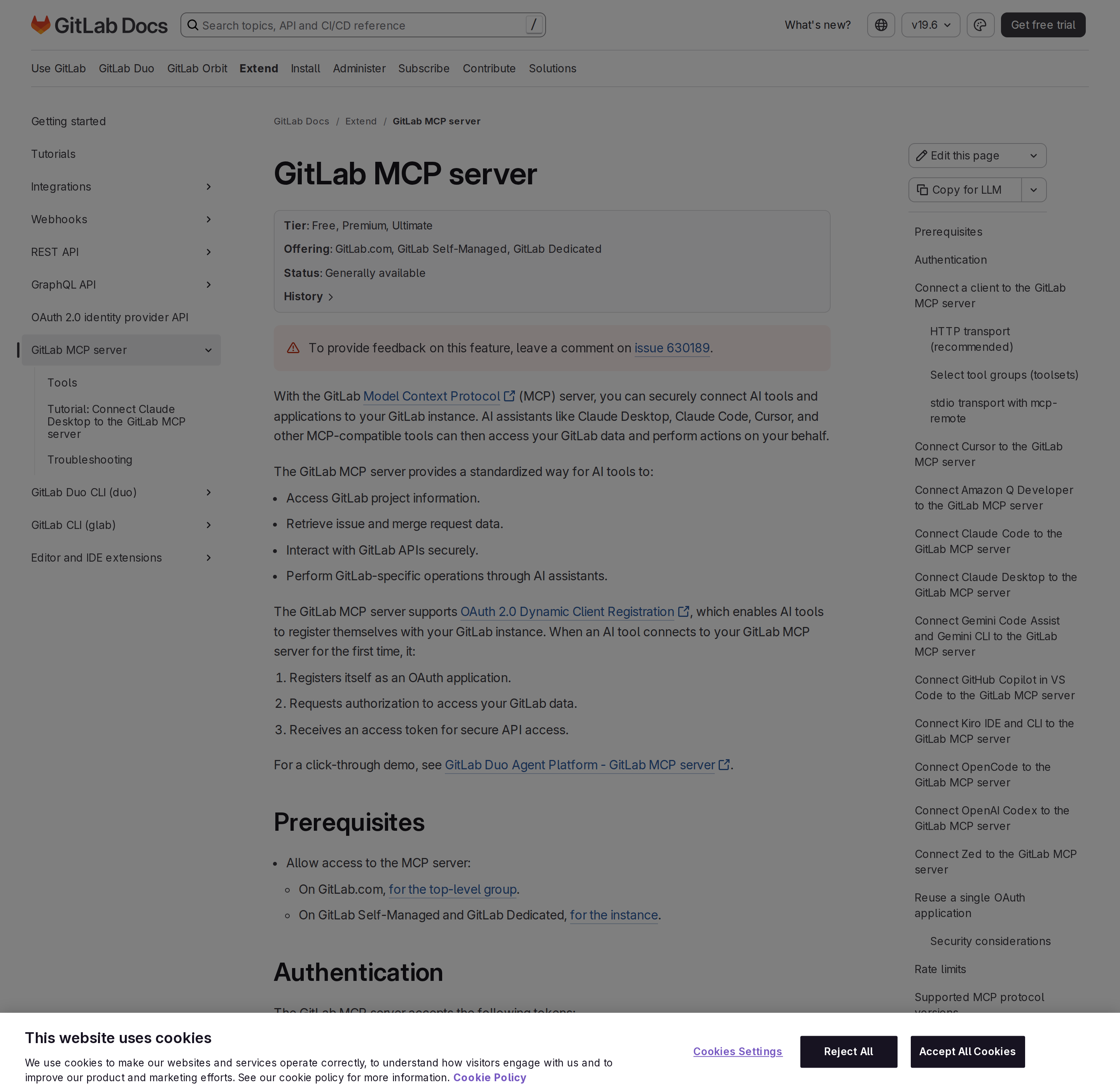
This section covers the endpoint, the toolsets you can scope to, the transport choices, the authentication edge cases that trip people up, and the pitfalls that only show up once you actually run it against a real GitLab instance.
One endpoint, two transports
There is a single MCP endpoint on every GitLab instance:
https://<gitlab.example.com>/api/v4/mcp
On GitLab.com, <gitlab.example.com> is gitlab.com. On Self-Managed and GitLab Dedicated it is your own instance URL. Two transports can reach it:
| Transport | How it connects | When to use it |
|---|---|---|
| HTTP (recommended) | Direct HTTP connection, no extra dependencies | Claude Code, Cursor, OpenCode, Codex, Gemini CLI, Copilot in VS Code, Kiro |
stdio via mcp-remote |
Local Node.js proxy at npx -y mcp-remote <url> |
Clients that only speak stdio: Claude Desktop, Zed, Amazon Q Developer |
The HTTP form is a plain mcpServers entry:
{
  "mcpServers": {
    "GitLab": {
      "type": "http",
      "url": "https://gitlab.com/api/v4/mcp"
    }
  }
}
Because the MCP server lives inside GitLab, it inherits the instance's own permissions. The assistant can only see and change what your GitLab user can see and change. There is no separate permission model to maintain, and revoking your access revokes the assistant's access too.
Tool groups (toolsets) instead of a flat tool list
The server groups its tools into toolsets, and you control which ones are exposed with the X-Gitlab-Enabled-Mcp-Server-Toolsets HTTP header (a comma-separated list). This matters because every tool definition you load costs context, and most teams only need a slice of the surface.
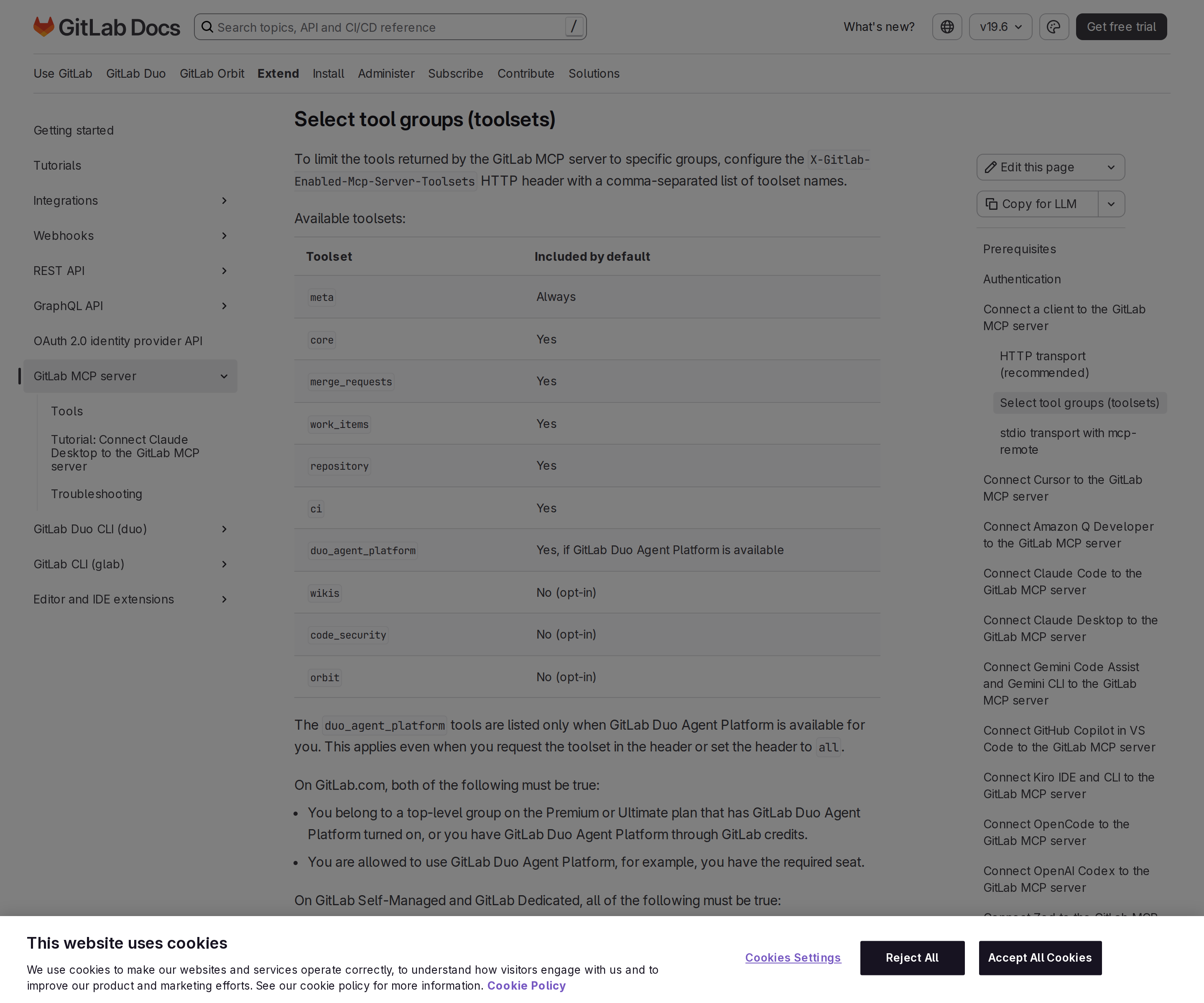
| Toolset | Included by default | Covers |
|---|---|---|
meta |
Always | Server metadata and discovery |
core |
Yes | Cross-cutting project operations |
merge_requests |
Yes | MR lookup, diffs, discussions, comments |
work_items |
Yes | Issues and work items |
repository |
Yes | Files, commits, branches, tree browsing |
ci |
Yes | Pipelines, jobs, logs |
duo_agent_platform |
Yes, if GitLab Duo Agent Platform is available | Duo agent workflows |
wikis |
No (opt-in) | Wiki pages |
code_security |
No (opt-in) | Vulnerabilities and scan profiles |
orbit |
No (opt-in) | One tool per Orbit command, e.g. query_graph |
Three behaviours here are worth memorising, because they are the ones that surprise people:
- Toolset names are case-insensitive —
ci,CI, andCiall work. - An unrecognised toolset name returns a 400 error. This is the friendly case. The unfriendly case is described in the pitfalls below.
- Listing a tool never grants access. Every tool still checks your project and namespace permissions at call time, so an over-broad toolset cannot leak data you are not entitled to.
If you omit the toolsets header entirely, you get the default toolsets. If you set X-Gitlab-Enabled-Mcp-Server-Tools (individual tools) but omit the toolsets header, you get only the tools you named, with no defaults and no meta tools. And if you set both headers, the server returns the union of the two lists, never the intersection, so setting both never returns fewer tools than either alone.
Authentication: the OAuth path and the one token type that works
There are exactly two things the GitLab MCP server accepts:
- An OAuth access token with the
mcpscope. The client gets this through the OAuth flow, either by registering itself dynamically (Dynamic Client Registration, enabled by default) or via a pre-registered OAuth application. - A fine-grained personal access token with the MCP tool resource and the Execute permission.
That is the whole list. Everything that used to be the "obvious" way to authenticate is rejected:
- Legacy personal access tokens → 403 Forbidden.
- Project access tokens → 403 Forbidden.
- Group access tokens → 403 Forbidden.
The reason is a scope technicality: those tokens cannot hold the mcp scope, so the server refuses them even if they carry the broad api scope. This is the single most common "it connected but I keep getting 403s" complaint, and the fix is to switch to OAuth or a fine-grained token with the MCP tool resource.
The headless path for scheduled jobs and CI
OAuth with dynamic client registration is an interactive, browser-based flow, which makes it a poor fit for a cron job or a CI runner. For those, use a fine-grained personal access token carrying the MCP tool resource with Execute permission and send it as a bearer token to POST /api/v4/mcp. Because it is a static token, it survives across runs without a browser round-trip. Treat it like any other long-lived credential: scope it as narrowly as the job allows and rotate it on a schedule.
Note the GitLab terminology shift — "fine-grained" tokens are the newer model that replaced the old personal access token. If your token UI does not offer an "MCP tool resource" with an Execute permission, you are looking at the legacy token page and the MCP server will 403 it.
Reusing one OAuth application
Every MCP client that connects with DCR creates a new OAuth application on your instance. On a small instance that is harmless. On a Self-Managed instance with many users, or with clients that reconnect often, this becomes a real problem in two ways:
- Your instance accumulates OAuth applications.
- DCR is IP-rate-limited to 10 registrations per hour. Anyone behind a shared egress IP — a corporate network, a VPN, a NAT gateway — can blow through that together and start failing to authenticate.
The documented fix is to pre-register a single OAuth application (at instance, group, or user scope) with the mcp scope, leave Confidential unchecked, and hand its application ID to clients as the clientId. Important nuance: the shared application is the OAuth client identity, not a shared credential. Each user still authorises with their own GitLab credentials and receives their own access token, so they only ever see their own data.
One constraint to plan around: the redirect URI on the shared application must exactly match what the client sends during the OAuth flow, and one shared application cannot serve clients with different redirect URIs. If your team mixes Cursor and Claude Code, create one application per client type.
You can turn DCR off entirely at the instance level. When you do, pre-registered applications are no longer optional — they are the only way in.
Connecting the common clients
Each client has its own configuration shape, and the header location differs:
# Claude Code — user scope so it works in every project
claude mcp add -s user --transport http GitLab https://gitlab.com/api/v4/mcp \
  --header "X-Gitlab-Enabled-Mcp-Server-Toolsets: core,work_items"
# OpenAI Codex
codex mcp add GitLab --url "https://gitlab.com/api/v4/mcp"
# then enable the feature flag in ~/.codex/config.toml:
#   [features]
#   "rmcp_client" = true
codex mcp login GitLab
- Cursor and Kiro accept a
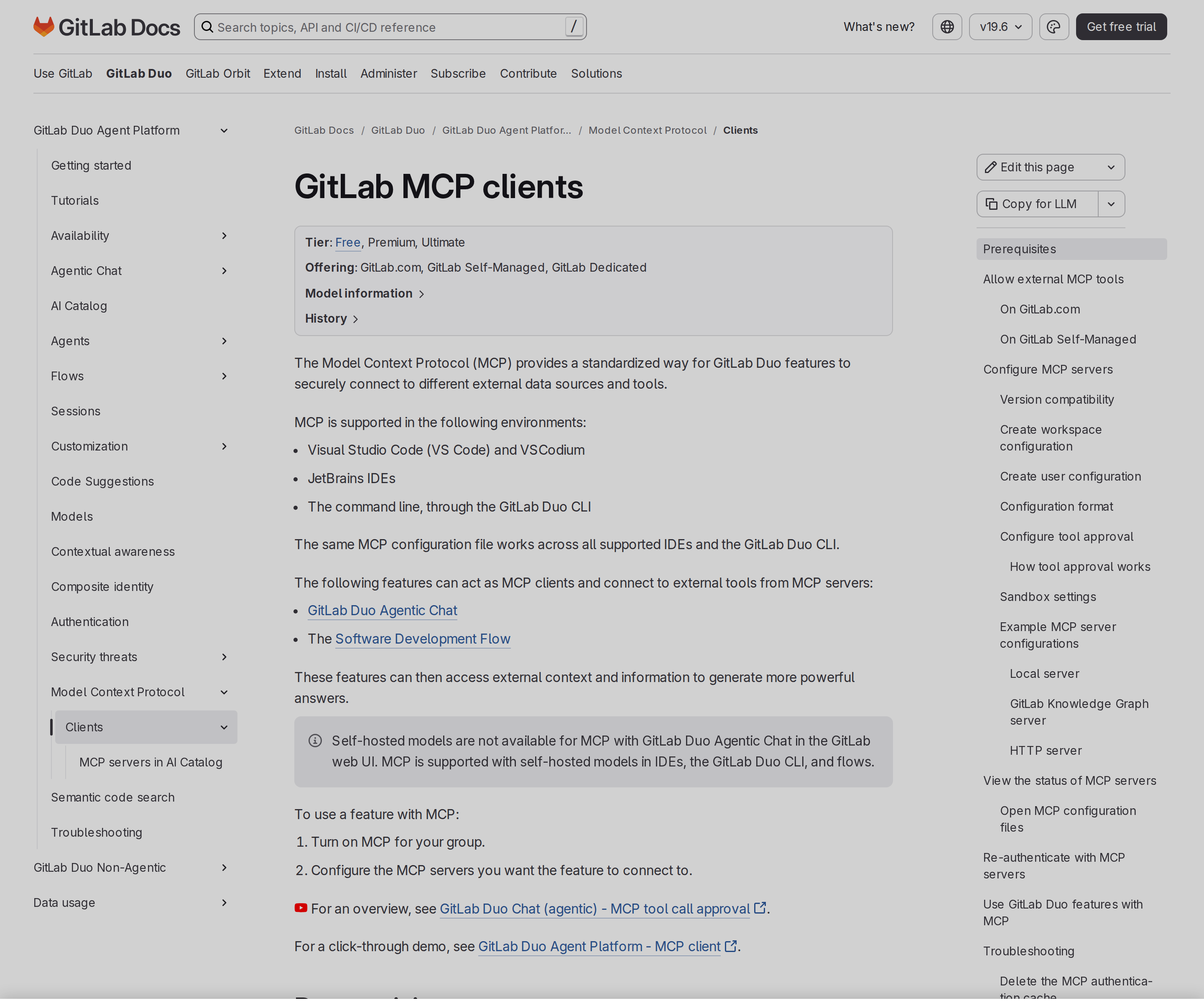
headerskey in the JSON server definition, so the toolset header goes inline. - Claude Desktop and Zed connect through
mcp-remoteand take the header as a--headerargument. - OpenCode uses a top-level
mcpkey with"type": "remote". - Gemini CLI uses
httpUrlrather thanurlin~/.gemini/settings.json. - GitHub Copilot in VS Code configures through the command palette (MCP: Add Server → HTTP).
If you already added GitLab with an older set of instructions and are now seeing two entries, that is expected: older instructions omitted -s user, so the entry landed at local scope, and a local entry takes precedence over a user entry with the same name. Remove the local one first.
Choose your path
| Your situation | Best path |
|---|---|
| Individual developer in an IDE | HTTP transport + OAuth in Claude Code, Cursor, or Codex |
| Desktop chat client only | stdio via mcp-remote in Claude Desktop |
| Scheduled job or CI runner | Fine-grained PAT with MCP tool resource + Execute, as a bearer token |
| Team on a shared egress IP | Pre-registered OAuth application (one per client type) |
| Self-Managed instance with many users | Turn off DCR and require pre-registered applications |
| Only need issues and MRs, want minimal context | X-Gitlab-Enabled-Mcp-Server-Toolsets: core,merge_requests,work_items |
| Bulk export or cross-project reporting | The REST/GraphQL API directly, not the MCP tool surface |
GitLab-specific MCP pitfalls
- Legacy and project/group access tokens are rejected with 403, even with
apiscope — they cannot hold themcpscope. Use OAuth or a fine-grained token with the MCP tool resource. - An unknown toolset name returns a 400 error, which is loud and easy to fix. Do not assume every bad input is loud: the failure mode you will actually lose time to is a valid toolset that returns fewer tools than you expected because the feature behind it is not licensed for you.
duo_agent_platformsilently disappears unless GitLab Duo Agent Platform is actually available to you. Setting the header toalldoes not force it on. You need the right plan, seat, and (on Self-Managed) Duo turned on for the organisation.code_securitytools are licence-gated per tool.list_vulnerabilities,get_vulnerability, andsave_vulnerabilityneed the security dashboard;attach_scan_profileneeds security scan profiles. Both are Ultimate features.orbittools ignore the individual-tool header. Naming an Orbit tool inX-Gitlab-Enabled-Mcp-Server-Toolsdoes not list it — you must request theorbittoolset or set the header toall.- DCR is rate-limited to 10 registrations per hour per IP. Shared egress IPs hit this collectively, and the symptom is a failed OAuth flow, not a clear rate-limit message.
- MCP request limits are per user, not per token or per client. On GitLab.com it is 60 requests/minute on Free and 600/minute on Premium and Ultimate; a user running three clients shares one allowance. Requests also count against GitLab.com's general traffic limits, and the MCP limit is the lower of the two for every plan. On Self-Managed, an admin sets a single instance-wide limit.
- A rate limit on the API endpoint behind a tool is reported differently from an MCP-level limit — you get a
rate_limitedtool result rather than a 429 on the MCP call itself. Check both layers when diagnosing throttling. - The protocol version you ask for may not be the one you get. The server negotiates in the
initializerequest. It supports2025-11-25,2025-06-18, and2025-03-26; a client requesting2026-07-28is accepted only ininitializeand the server answers with2025-11-25, because it does not implement that version's stateless features yet. - You own prompt injection. GitLab's own documentation repeats this on every client page: you are responsible for guarding against prompt injection, and you should use MCP tools only on GitLab objects you trust. Issue bodies, MR descriptions, and comments are untrusted input that flows straight into your model context.
- Pre-registered applications created via the REST API do not enforce PKCE. PKCE defends against authorization-code interception for public clients. GitLab accepts PKCE parameters for pre-registered applications but does not require them, so verify your client sends
code_challengeandcode_challenge_methodif that matters to you.
For the human-in-the-loop version — GitLab pipelines, MR context, and issue triage surfaced inside a team chat rather than an IDE — see how to connect GitLab to OpenClaw. To compare against the other big developer platform, read GitHub MCP, and for the issue-tracker view, Jira MCP. If the assistant needs to live in Slack rather than a terminal, OpenClaw for GitLab covers that setup end to end.
How to Connect GitLab via MCP
There are two main paths:
Option A: Use GitLab's official MCP server
GitLab maintains an official GitLab MCP server. This is the recommended starting point — it's built and maintained by the GitLab team, so it stays up to date with API changes.
Note: GitLab ships a first-party MCP server inside the product itself, served over HTTP transport at https://
/api/v4/mcp (gitlab.com on GitLab.com). It is generally available and free to enable from GitLab 19.2. Tools are grouped into toolsets (meta, core, merge_requests, work_items, repository, ci, duo_agent_platform by default; wikis, code_security, orbit opt-in) and scoped with the X-Gitlab-Enabled-Mcp-Server-Toolsets header. Auth accepts only an OAuth access token with the mcp scope or a fine-grained PAT with the MCP tool resource and Execute permission; legacy, project, and group access tokens return 403 even with api scope. Rate limits are per user: 60/min Free, 600/min Premium and Ultimate on GitLab.com.
What the server exposes:
- repositories
- issues
- merge requests
- pipelines
- projects
- wikis
- vulnerabilities
- OAuth 2.0 dynamic client registration
- fine-grained PAT with MCP tool resource
What you'll need:
- An MCP-compatible client (Claude Desktop, OpenClaw, or another host)
- GitLab credentials configured per the server's setup guide
This path gives you the most control but requires you to handle client configuration and credential management yourself.
Option B: Use Cody (OpenClaw-based, managed)
Cody is built on OpenClaw and supports MCP-compatible integrations out of the box. You connect GitLab once from the Cody dashboard — no server to run, no code to write — and Cody handles authentication, context passing, and write-back actions with appropriate guardrails.
Cody works where your team already operates: Slack, Telegram, or the web chat. The GitLab connection is available to your entire team without each person setting up their own MCP client.
Want GitLab Connected to AI Without Running Your Own MCP Server?
Cody comes with GitLab integration built in. Connect it once, then ask about merge requests, failing pipelines, release blockers, and issue context directly from Slack without wiring GitLab auth, API clients, or proxy logic yourself.
MCP vs Other AI Integration Patterns
| Approach | What it is | Tradeoff |
|---|---|---|
| MCP | Standardised protocol for live tool access | Requires an MCP server; most powerful when set up correctly |
| RAG (retrieval) | Pre-index GitLab content and retrieve it | Good for static docs; not suitable for live/transactional data |
| Manual copy-paste | Paste GitLab output into ChatGPT/Claude | Fast to start; breaks for anything recurring or at scale |
| Custom API wrappers | Bespoke integration code per tool | Full control; high maintenance overhead |
MCP wins when you need live data from GitLab and want to avoid rebuilding integrations as APIs change.
Common Mistakes
- Using training data when live data is needed — if the AI doesn't have an MCP connection, it will answer from memory, which is often outdated or wrong for account-specific questions
- No write-back guardrails — MCP can write to GitLab, so it's worth adding an approval step for any action that modifies records
- Too many tools exposed at once — give the AI access to the GitLab actions it actually needs; a scoped connection is easier to reason about and audit
- Skipping structured outputs — ask the AI to return structured JSON or clear fields when writing back to GitLab; free-form output is harder to validate
Related MCP Guides
Want the full workflow picture? See: GitLab AI Automation and How to Connect GitLab to OpenClaw.