If you're searching for "Linear MCP", you're asking one of two things: does Linear have an MCP server? or how do I connect Linear to an AI assistant via the Model Context Protocol?
✅ Linear has an official MCP server. Details in the setup section below.
What Is MCP?
Model Context Protocol (MCP) is an open standard developed by Anthropic that lets AI assistants — like Claude — connect to external tools, APIs, and data sources in a standardised way.
Before MCP, every AI integration required bespoke tooling: custom prompts, custom API wrappers, and custom glue code to pass context back and forth. MCP replaces that with a common interface: the AI asks the MCP server for data or actions, the server returns structured results, and the AI uses them to answer your question or complete a task.
In plain terms: MCP is how you give an AI assistant live access to Linear — not just knowledge about it, but real, up-to-date data from your account.
What a Linear MCP Integration Does
Once Linear is connected via MCP, your AI assistant can:
- Read live data — pull records, metrics, activity, and status directly from Linear
- Take actions — create, update, or log records based on your instructions
- Cross-reference context — combine Linear data with other connected tools mid-conversation
The key difference from a standard chatbot: the assistant is not working from training data or memory. It is reading your actual Linear instance, in real time.
Practical Linear MCP Use Cases
Query issues and PRs without leaving chat
Ask the assistant to list open issues by label, summarise a PR, or find tickets assigned to a specific person — it queries Linear directly and returns the result.
Write tickets from conversation
Turn a Slack message or call note into a properly structured ticket in Linear: title, description, acceptance criteria, and priority — without touching the UI.
On-call context lookup
During an incident, have the assistant pull recent deployments, open issues, and related PRs from Linear to help narrow down root cause faster.
Release note generation
At the end of a sprint, ask the assistant to fetch merged PRs from Linear and produce user-facing release notes grouped by theme.
Linear MCP: The Real Setup, Read-Only Boundaries, and Cycle Workflows
Linear ships an official, centrally hosted remote MCP server at https://mcp.linear.app/mcp. It is not a community wrapper and not a self-hosted process you run yourself: Linear follows the authenticated remote MCP spec, so the server is hosted and managed by Linear and your client connects to it over Streamable HTTP.
The tools cover finding, creating, and updating objects in Linear — issues, projects, cycles, documents, comments, and team data. That is the whole surface today, and it is deliberately narrower than Linear's GraphQL API: think day-to-day issue and project work, not bulk data engineering.
The endpoint you should actually connect to
Linear exposes four connection shapes, and which one you pick decides whether your AI assistant can write back:
| Endpoint | Access | When to use it |
|---|---|---|
https://mcp.linear.app/mcp |
Read-write | Default. Interactive assistants where you want the agent to create and update issues |
https://mcp.linear.app/mcp/readonly |
Read-only | Safe default for a shared assistant. Only ever exposes read tools, so a bad prompt cannot mutate your workspace |
/mcp with the read OAuth scope requested |
Read-only | When you want one endpoint but scope-level control — the underlying token simply cannot reach write APIs |
https://mcp.linear.app/sse |
Read-write | Deprecated SSE fallback, only for clients that do not support Streamable HTTP |
Read-only is a real boundary, not a prompt instruction. The /readonly path and the read-scope option both work at the token level. That matters more than most guides admit: an MCP server connected to your Linear workspace inherits exactly the permissions of the account that authorized it, so the cleanest way to hand a Linear assistant to a whole team is to point them at /mcp/readonly and stop worrying about writes.
Per-client setup (pick yours)
Every client stores MCP configuration somewhere different, which is why "just connect it" is unhelpful. The five that cover most teams:
Claude Code — one command, then an in-session auth flow:
claude mcp add --transport http linear-server https://mcp.linear.app/mcp
Then run /mcp inside a Claude Code session and complete the OAuth flow.
Claude.ai / Claude Desktop — Claude Team and Enterprise connect Linear from the connectors page; Free and Pro desktop users add it from Settings → Connectors. No config file.
Codex(CLI or IDE extension — the config is shared):
codex mcp add linear --url https://mcp.linear.app/mcp
Cursor — install from Cursor's MCP tools page (search "Linear"), or add the JSON entry directly.
VS Code, Windsurf, and Zed — these three do not speak remote MCP natively, so they bridge through mcp-remote:
{
  "mcpServers": {
    "linear": {
      "command": "npx",
      "args": ["-y", "mcp-remote", "https://mcp.linear.app/mcp"]
    }
  }
}
Windsurf uses the same shape under Cascade → MCP servers; Zed puts it under context_servers instead.
Connecting without an interactive browser (the headless path)
This is the single most useful fact for anyone wiring Linear into a scheduled agent or CI job, and most Linear MCP guides skip it entirely.
The interactive setup uses OAuth 2.1 with dynamic client registration — fine for a human at a keyboard, useless for a cron job. But Linear's server also accepts credentials directly in the header:
Authorization: Bearer <your-token>
You can pass a Linear API key (Settings → API → Personal API Key) or an existing OAuth access token. Line’s own FAQ lists three concrete reasons to do this:
- Interact with the server as an app user instead of as yourself.
- Provide read-only access through a restricted API key — Linear lets you create a key with only the Read permission enabled.
- Integrate an existing Linear OAuth application without adding a second authentication hop for the user.
For a headless read-only assistant, the cleanest combination is a Read-only API key plus the /mcp/readonly endpoint. Both layers agree, so neither a misconfigured client nor a confused model can produce a write.
Multiple Linear workspaces need separate auth contexts
Linear's MCP server authenticates each session via OAuth, and reconnecting alone does not switch the workspace inside an existing auth session. If you belong to more than one Linear workspace — very common for agencies and anyone doing contractor work — a single connection will keep answering from whichever workspace it authenticated against, and the mismatch looks like a data bug.
The documented fix is one configuration directory per workspace:
MCP_REMOTE_CONFIG_DIR=~/.mcp-auth/workspace-a npx mcp-remote https://mcp.linear.app/mcp
MCP_REMOTE_CONFIG_DIR=~/.mcp-auth/workspace-b npx mcp-remote https://mcp.linear.app/mcp
Authenticate each configuration separately. Clients that manage their own auth storage need their own workspace-switching mechanism — check the client, not the server.
Enterprise-managed authorization (Okta / SAML)
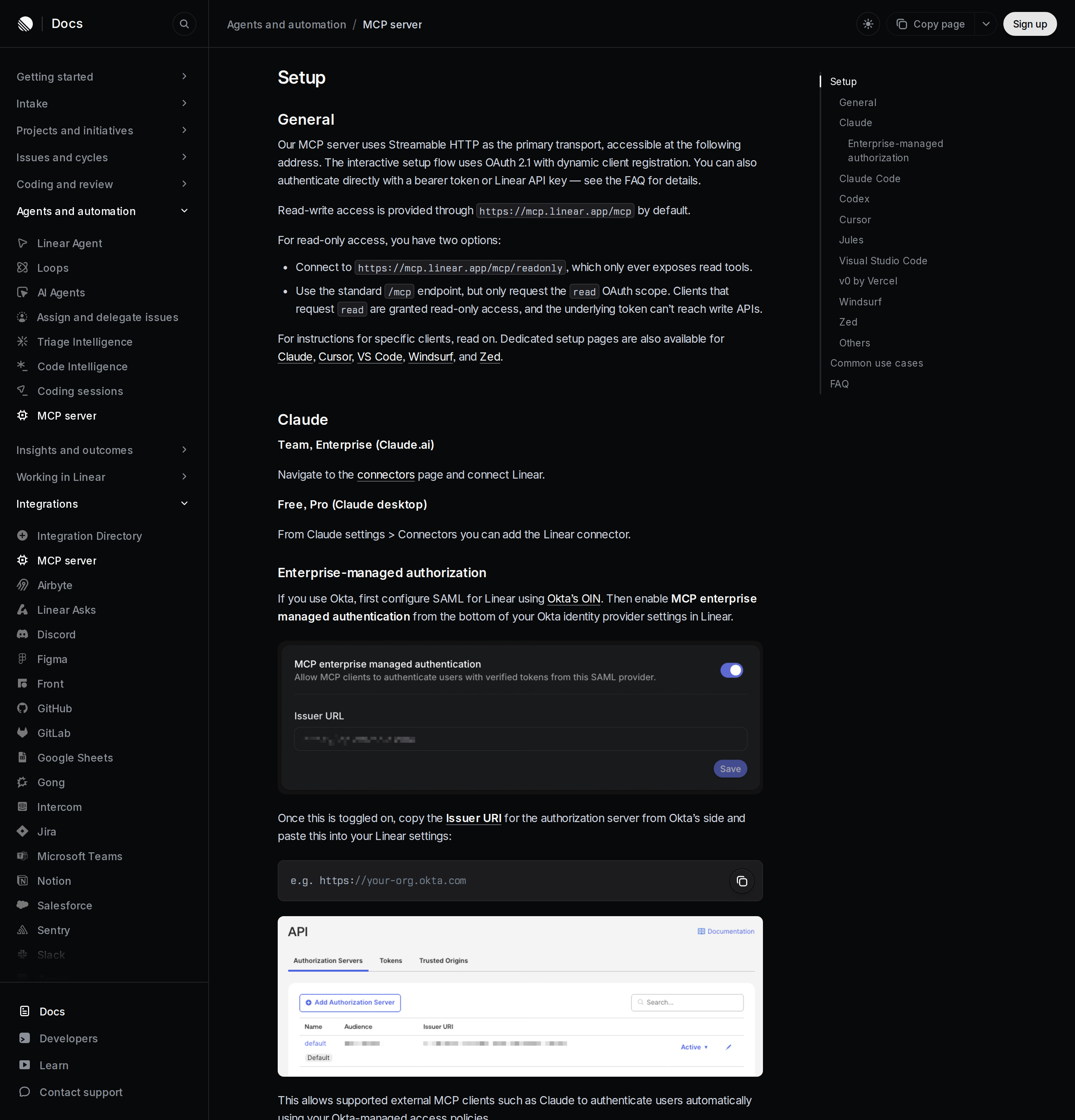
On Enterprise plans you can remove the per-user consent screen entirely. Configure SAML for Linear using Okta's OIN, enable MCP enterprise managed authentication at the bottom of the Okta identity provider settings in Linear, then copy the Issuer URI from Okta's authorization server into the Linear field (e.g. https://your-org.okta.com).
Once toggled on, supported external MCP clients such as Claude authenticate users automatically through your Okta-managed access policies — no individual OAuth consent, and revocation happens in Okta rather than in each user's client settings. This is the right answer for a company that must prove who can reach its issue tracker.
What Linear MCP is genuinely good at
The tool surface is narrow on purpose, and it maps to five workflows Linear itself documents as examples. These are not generic "ask about your data" prompts — they have structure, guardrails, and a required confirmation step:
1. Roadmap planning — turn a planning doc into a real Linear project. Give the assistant a planning document and ask it to create a project reflecting the doc's objective, scope, and timeline, then create the issues needed to represent the work with clear titles and populated descriptions. Each issue should capture the problem, the goal, the proposed approach when one is given, and open questions. Organize into milestones when the document clearly implies phases or checkpoints, and add relationships where issues are genuinely connected — but do not invent dependencies the source material does not support. If the document is too vague, flag the uncertainty and return a proposed outline for review instead of guessing.
2. Standup notes → issue updates. Paste live standup notes and have the assistant match each note to an existing issue by ID, title, owner, or strong surrounding context, then post a concise comment capturing what changed, the current status or blocker, and the next step. The instruction that makes this safe: match only when the connection is strong; ambiguous notes are returned as unmatched with an explanation rather than turned into work. Show the planned changes before applying them.
3. Incoming bug investigation. Start from an existing issue, follow the technical and product clues to a likely root cause, and post a concise findings summary as a comment. The documented constraint is explicit: do not guess when the evidence is weak — call out uncertainty and say what additional context would help.
4. Cycle summarization. Identify the most recently completed cycle for a team, gather its issues, and produce a summary of what was actually completed, the main themes, and notable patterns (bugs resolved, projects advanced, areas of concentrated effort). Linear's own prompt says to avoid overstating progress where work is still in flight.
5. Timeline generation. Build a chronological history of work around a topic — when work was created, when direction changed, when decisions were recorded, when things completed — and flag gaps rather than inferring events that are not clearly supported.
Notice what all five share: show the proposed changes first, then apply. That is the pattern to copy into your own prompts, and it is what makes a write-capable Linear connection safe enough to leave running.
Linear-MCP-specific pitfalls
/mcpis read-write by default. If you only want an assistant that can see Linear, connect to/mcp/readonly— do not rely on telling the model "don't change anything." The token can write.- The connected account's permissions are the ceiling. An MCP server never grants more access than the authorizing user has. A read-only assistant for the whole team means a restricted key or the readonly endpoint, not a shared admin login.
- Multiple workspaces need multiple auth contexts. Reconnecting does not switch workspaces inside an existing session, and the wrong-workspace answers look like corrupted data. Use
MCP_REMOTE_CONFIG_DIRper workspace. - "Internal server error" on connect is usually stale auth, not an outage. Linear's documented fix is to clear the saved auth state and retry:
rm -rf ~/.mcp-auth, then reconnect. Check your Node version too. - WSL on Windows can fail on Streamable HTTP. The documented fallback is the SSE path with an explicit transport flag —
npx -y mcp-remote https://mcp.linear.app/sse --transport sse-only. Only reach for this if the primary endpoint will not work; SSE is the deprecated path. - Do not pin
mcp-remote. A floatingnpx -y mcp-remotepicks up fixes; a pinned version goes stale against a moving server. Renew a dropped connection by disconnecting and reconnecting the server in the client's MCP settings — a routine client-side reset that does not touch your Linear data or auth session. - Linear's API is GraphQL-only — MCP does not change that. MCP gives you a curated object-level tool surface (issues, projects, cycles, comments, documents). For anything outside it — bulk export, custom reporting, cross-object joins — you still need a proxy over
https://api.linear.app/graphqlwith a Personal API Key. - Prompt injection is a live risk on a write-capable connection. Issue descriptions, comments, and documents are text authored by other people. Treat tool-returned content as untrusted, keep write actions behind a confirm step, and prefer the readonly endpoint for assistants that only need context.
Which Linear path fits your case
| Your situation | Best path |
|---|---|
| Individual developer, wants the agent to file and update issues | /mcp with OAuth in Claude Code, Codex, or Cursor |
| Whole team, assistant should only read cycles and issues | /mcp/readonly or a Read-only API key, in your shared client |
| Scheduled job or CI agent, no browser available | Authorization: Bearer with a Read-only API key |
| Multiple Linear workspaces | One MCP_REMOTE_CONFIG_DIR per workspace, authenticated separately |
| Enterprise with Okta | SAML via Okta OIN + MCP enterprise managed authentication |
| Bulk data, custom reports, anything off the tool surface | Headless proxy over Linear's GraphQL API |
If you want Linear context inside a team chat rather than an IDE, see how to connect Linear to OpenClaw — the same GraphQL proxy pattern, wrapped in a skill file. For the Jira comparison, read Jira MCP, and for the broader developer-tool picture, GitHub MCP.
How to Connect Linear via MCP
There are two main paths:
Option A: Use Linear's official MCP server
Linear maintains an official Linear MCP server. This is the recommended starting point — it's built and maintained by the Linear team, so it stays up to date with API changes.
What the server exposes:
- issues
- projects
- cycles
- roadmap
- teams
- documents
- comments
What you'll need:
- An MCP-compatible client (Claude Desktop, OpenClaw, or another host)
- Linear credentials configured per the server's setup guide
This path gives you the most control but requires you to handle client configuration and credential management yourself.
Option B: Use Cody (OpenClaw-based, managed)
Cody is built on OpenClaw and supports MCP-compatible integrations out of the box. You connect Linear once from the Cody dashboard — no server to run, no code to write — and Cody handles authentication, context passing, and write-back actions with appropriate guardrails.
Cody works where your team already operates: Slack, Telegram, or the web chat. The Linear connection is available to your entire team without each person setting up their own MCP client.
Want Linear Connected to AI Without Running Your Own MCP Server?
Cody gives your team a Linear assistant in Slack, so people can check cycle progress, blocked issues, roadmap movement, and project context without opening Linear all day.
MCP vs Other AI Integration Patterns
| Approach | What it is | Tradeoff |
|---|---|---|
| MCP | Standardised protocol for live tool access | Requires an MCP server; most powerful when set up correctly |
| RAG (retrieval) | Pre-index Linear content and retrieve it | Good for static docs; not suitable for live/transactional data |
| Manual copy-paste | Paste Linear output into ChatGPT/Claude | Fast to start; breaks for anything recurring or at scale |
| Custom API wrappers | Bespoke integration code per tool | Full control; high maintenance overhead |
MCP wins when you need live data from Linear and want to avoid rebuilding integrations as APIs change.
Common Mistakes
- Using training data when live data is needed — if the AI doesn't have an MCP connection, it will answer from memory, which is often outdated or wrong for account-specific questions
- No write-back guardrails — MCP can write to Linear, so it's worth adding an approval step for any action that modifies records
- Too many tools exposed at once — give the AI access to the Linear actions it actually needs; a scoped connection is easier to reason about and audit
- Skipping structured outputs — ask the AI to return structured JSON or clear fields when writing back to Linear; free-form output is harder to validate
Related MCP Guides
Want the full workflow picture? See: Linear AI Automation and How to Connect Linear to OpenClaw.