If you're searching for "Google Workspace MCP", you're asking one of two things: does Google Workspace have an MCP server? or how do I connect Google Workspace to an AI assistant via the Model Context Protocol?
✅ Google Workspace has an official MCP server. Details in the setup section below.
What Is MCP?
Model Context Protocol (MCP) is an open standard developed by Anthropic that lets AI assistants — like Claude — connect to external tools, APIs, and data sources in a standardised way.
Before MCP, every AI integration required bespoke tooling: custom prompts, custom API wrappers, and custom glue code to pass context back and forth. MCP replaces that with a common interface: the AI asks the MCP server for data or actions, the server returns structured results, and the AI uses them to answer your question or complete a task.
In plain terms: MCP is how you give an AI assistant live access to Google Workspace — not just knowledge about it, but real, up-to-date data from your account.
What a Google Workspace MCP Integration Does
Once Google Workspace is connected via MCP, your AI assistant can:
- Read live data — pull records, metrics, activity, and status directly from Google Workspace
- Take actions — create, update, or log records based on your instructions
- Cross-reference context — combine Google Workspace data with other connected tools mid-conversation
The key difference from a standard chatbot: the assistant is not working from training data or memory. It is reading your actual Google Workspace instance, in real time.
Practical Google Workspace MCP Use Cases
Read and update records without switching tabs
The assistant can look up a page, task, or row in Google Workspace and return the relevant content — then write updates back — from inside your chat interface.
Meeting prep from project context
Before a standup or planning session, ask the assistant to summarise recent activity in Google Workspace and surface open blockers or overdue items.
Cross-tool status updates
The assistant pulls status from Google Workspace and formats it for a Slack message, an email, or a doc — without you needing to copy anything manually.
Google Workspace MCP: Real Configuration & Setup
Most "Google Workspace MCP" guides are written as if there were one thing by that name. There isn't. Google ships eight separate remote MCP servers — one per Workspace product — plus a Universal Search server that fans a single query across all of them. If you are searching for the right endpoint, the answer is not "the Google Workspace MCP server." It is "which product's server, on which hostname."
That per-product split is the single most useful thing to understand before you configure anything, because every step downstream (the APIs you enable, the scopes you consent to, the client config you paste) follows from it.
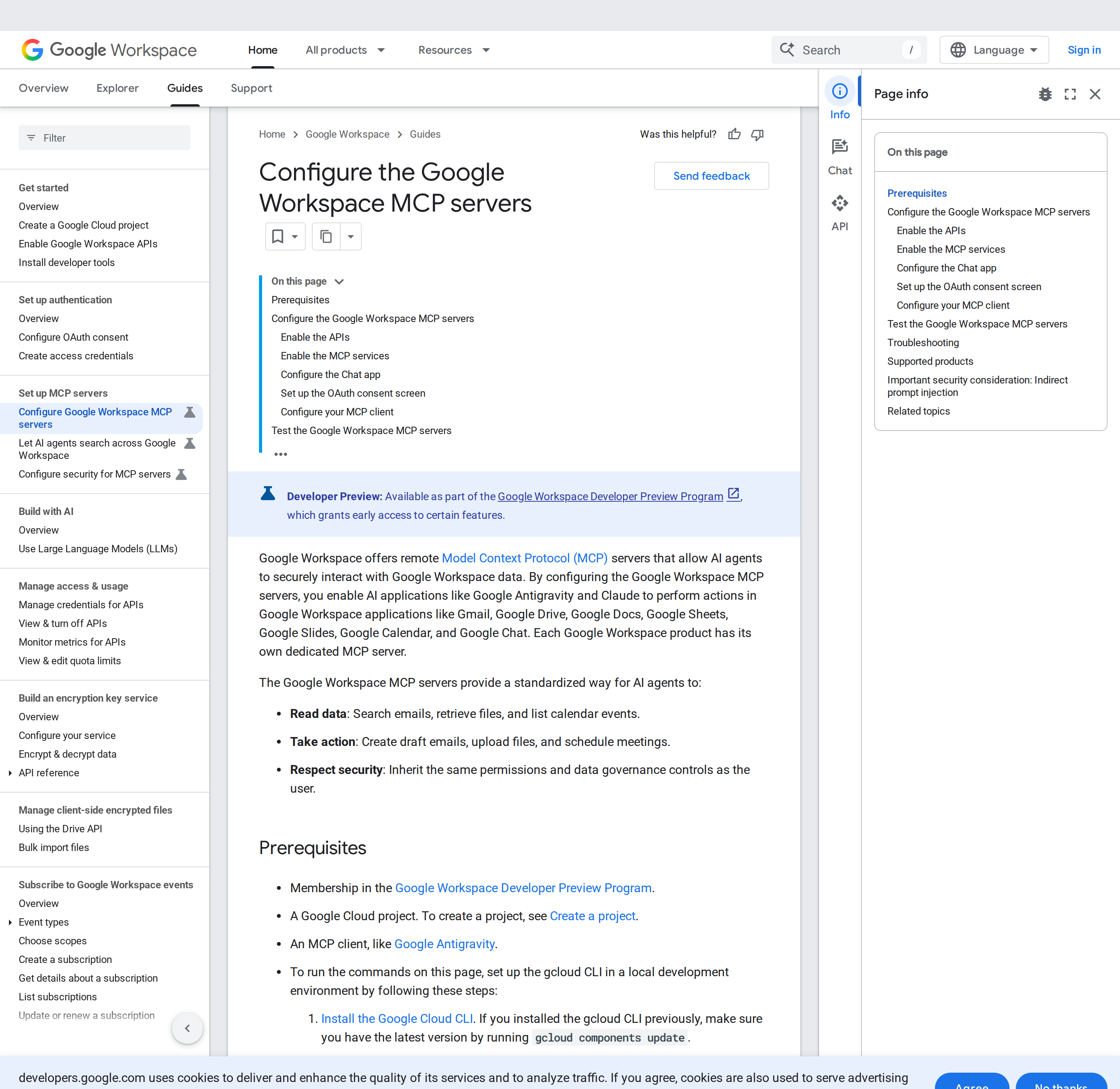
Correction worth leading with: the server endpoints are per-product Google-hosted URLs of the form
https://<product>mcp.googleapis.com/mcp/v1. They are not the communitygithub.com/google/mcprepository that older write-ups (and some of our own earlier copy) pointed at. Google's own docs live atdevelopers.google.com/workspace/guides/configure-mcp-servers, and every server listed here is a remote, OAuth-authenticated HTTPS endpoint you do not host yourself.
The servers, and what each one is for
Each Workspace product exposes its own server. They are enabled independently, so you can turn on Gmail and Calendar without ever enabling Drive.
| Server | Endpoint | What it reads and writes |
|---|---|---|
| Gmail | https://gmailmcp.googleapis.com/mcp/v1 |
Profile access, search, and drafting — the documented pair is gmail.readonly + gmail.compose |
| Google Drive | https://drivemcp.googleapis.com/mcp/v1 |
File fetching, permissions management, listing, and uploading |
| Google Docs | https://docsmcp.googleapis.com/mcp/v1 |
Document read and edit, gated on Drive scopes for file access |
| Google Sheets | https://sheetsmcp.googleapis.com/mcp/v1 |
Spreadsheet read and write |
| Google Slides | https://slidesmcp.googleapis.com/mcp/v1 |
Presentation read and write |
| Google Calendar | https://calendarmcp.googleapis.com/mcp/v1 |
Finding available times and managing events |
| Google Chat | https://chatmcp.googleapis.com/mcp/v1 |
Spaces, memberships, messages — read plus message creation |
| People | https://people.googleapis.com/mcp/v1 |
Directory, profile, and contacts (read-only scopes documented) |
The Chat server carries a setup step none of the others do: you must configure a Chat app in your Google Cloud project (Google Chat API → Manage → Configuration), with interactive features turned off, before the server will work. Skipping it is the most common reason a Chat MCP server authenticates and then returns nothing.
Universal Search — one tool across every product
The Universal Search MCP Server is the piece most competitor guides miss entirely. It uses a single tool to search Gmail messages, Drive files, Calendar events, and Chat spaces/messages at once, instead of requiring your agent to call four product-specific servers in sequence.
The behaviour that matters: Universal Search is scope-driven. It searches only the products you actually granted a scope for at consent time. Google's docs give the exact example — if you consent to drive.readonly, calendar.readonly, and chat.messages.readonly but omit gmail.readonly, then universal search returns Drive, Calendar, and Chat results and silently never looks at your email. There is no error; the results simply lack mail. That makes scope selection a functional decision, not just a security one.
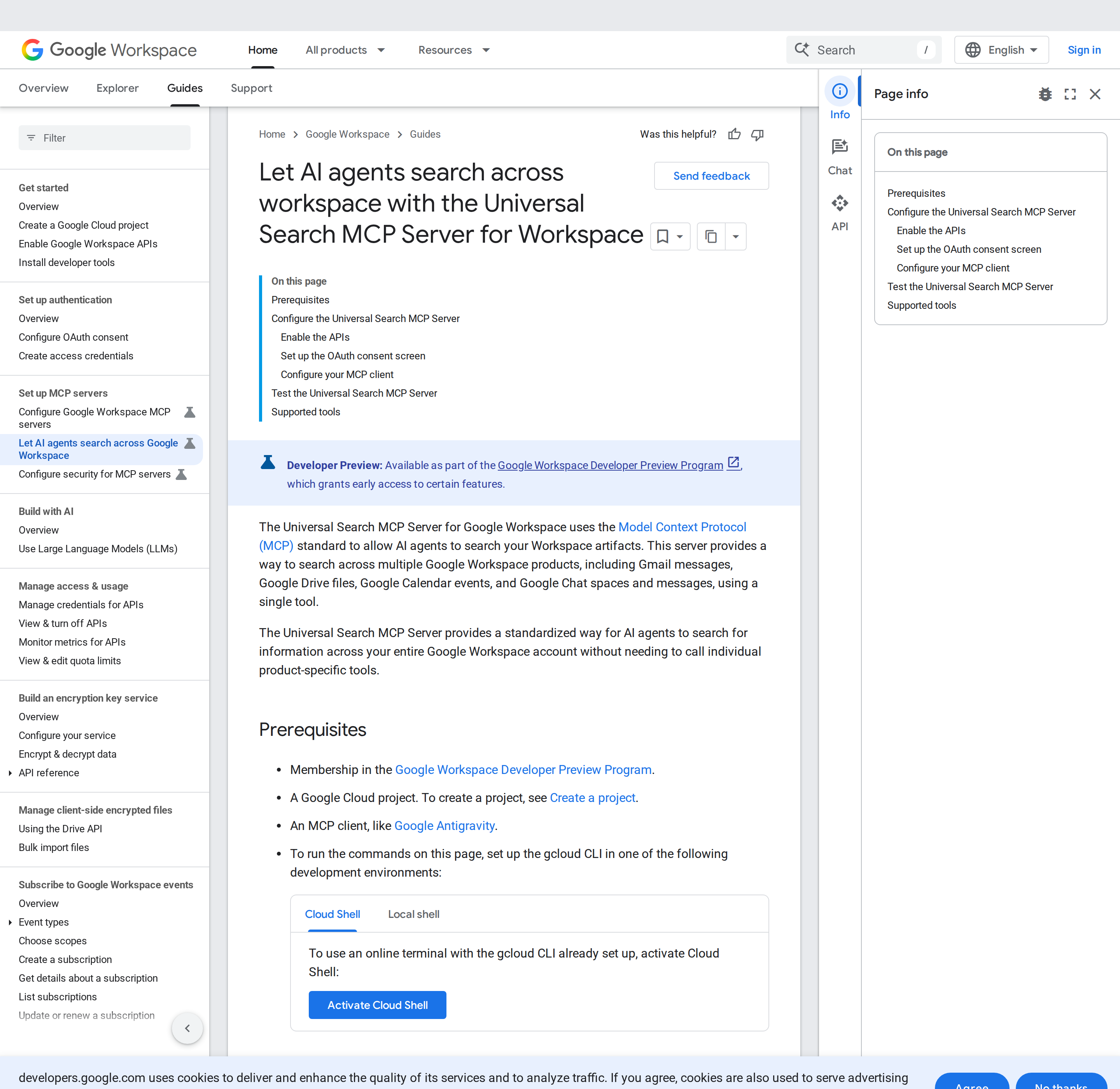
# Universal Search needs the Workspace MCP API plus the APIs of the products you search
gcloud services enable gmail.googleapis.com \
drive.googleapis.com \
calendar-json.googleapis.com \
chat.googleapis.com \
workspacemcp.googleapis.com --project=PROJECT_ID
Setting it up: APIs, then MCP services, then consent
The setup has a shape worth internalising, because it is two enablement steps and not one. Every Workspace MCP server needs its product API and its MCP API enabled:
# Step 1 — the product APIs
gcloud services enable gmail.googleapis.com \
drive.googleapis.com \
docs.googleapis.com \
sheets.googleapis.com \
slides.googleapis.com \
calendar-json.googleapis.com \
chat.googleapis.com \
people.googleapis.com --project=PROJECT_ID

# Step 2 — the MCP service for each product you want
gcloud services enable gmailmcp.googleapis.com \
drivemcp.googleapis.com \
docsmcp.googleapis.com \
sheetsmcp.googleapis.com \
slidesmcp.googleapis.com \
calendarmcp.googleapis.com \
chatmcp.googleapis.com \
people.googleapis.com --project=PROJECT_ID
Note the asymmetry in the second block: People has no separate peoplemcp.googleapis.com — it is listed with the product API name. Enabling only the first block and forgetting the second is the classic "the client connects but the server reports no tools" failure.
Then configure the OAuth consent screen (Google Auth Platform → Branding), add the per-product scopes under Data Access, and create a Web application OAuth client with the redirect URI matching your client:
| MCP client | Redirect URI to register |
|---|---|
| Google Antigravity | https://antigravity.google/oauth-callback |
| Claude.ai / Claude Desktop | https://claude.ai/api/mcp/auth_callback |
For Antigravity the servers go in ~/.gemini/config/mcp_config.json; each entry is a serverUrl plus an oauth block carrying the client ID and secret.
The client-side config that trips people up
Two details in the client JSON cause the majority of "I pasted the config and nothing works" reports:
- The key is
serverUrl, not the olderhttpUrl. Clients that follow the current MCP spec reject the old key outright. - Every product server is a separate
mcpServersentry. There is no combined single entry; a Gmail-plus-Calendar setup is two blocks sharing one OAuth client.
{
  "mcpServers": {
    "gmail": {
      "serverUrl": "https://gmailmcp.googleapis.com/mcp/v1",
      "oauth": { "clientId": "OAUTH_CLIENT_ID", "clientSecret": "OAUTH_CLIENT_SECRET" }
    },
    "calendar": {
      "serverUrl": "https://calendarmcp.googleapis.com/mcp/v1",
      "oauth": { "clientId": "OAUTH_CLIENT_ID", "clientSecret": "OAUTH_CLIENT_SECRET" }
    }
  }
}
Concrete workflows that are actually worth wiring up
These are the jobs where a Workspace MCP server earns its place, with the prompt shape that makes them work:
- Morning inbox triage. "Search Gmail for unread messages from the last 18 hours, group them by whether they need a reply, a decision, or just filing, and draft replies for the ones where the answer is obvious from thread context." The
gmail.readonlygrant powers the search;gmail.composepowers the drafts. The drafts land in your Drafts folder for review — nothing sends until you do. - Meeting prep that reads the actual documents. "Find my next meeting, then pull every Drive file shared in the thread that set it up and summarise what changed since last week." This is the workflow that needs Drive and Calendar servers together; a single-product setup cannot do it.
- Cross-product search before you ask a colleague. "Search Gmail, Drive, Calendar, and Chat for anything about the Acme renewal and tell me what I already know." This is the Universal Search server doing exactly what it exists for — and it returns nothing from any product you did not consent to.
- Sheet-backed reporting. "Read the pipeline sheet, add a column for days-since-last-touch calculated from the dates in column C, and flag anything over 14 days." Sheets read plus write, no export step.
Warnings and pitfalls specific to Google Workspace MCP
- It is a Developer Preview. Membership in the Google Workspace Developer Preview Program is an explicit prerequisite on every one of these pages. Do not plan a production rollout around servers that Google labels preview.
- Gmail scopes are sensitive/restricted. Non-personal-use Gmail access can trigger Google's app verification process before you can serve more than a small set of test users. Budget for review time, not just setup time.
- There is no single "Google Workspace API." These are 8+ separate APIs with separate rate limits, separate quotas, and separate response shapes. An agent that works beautifully against Gmail will need entirely different handling for Sheets.
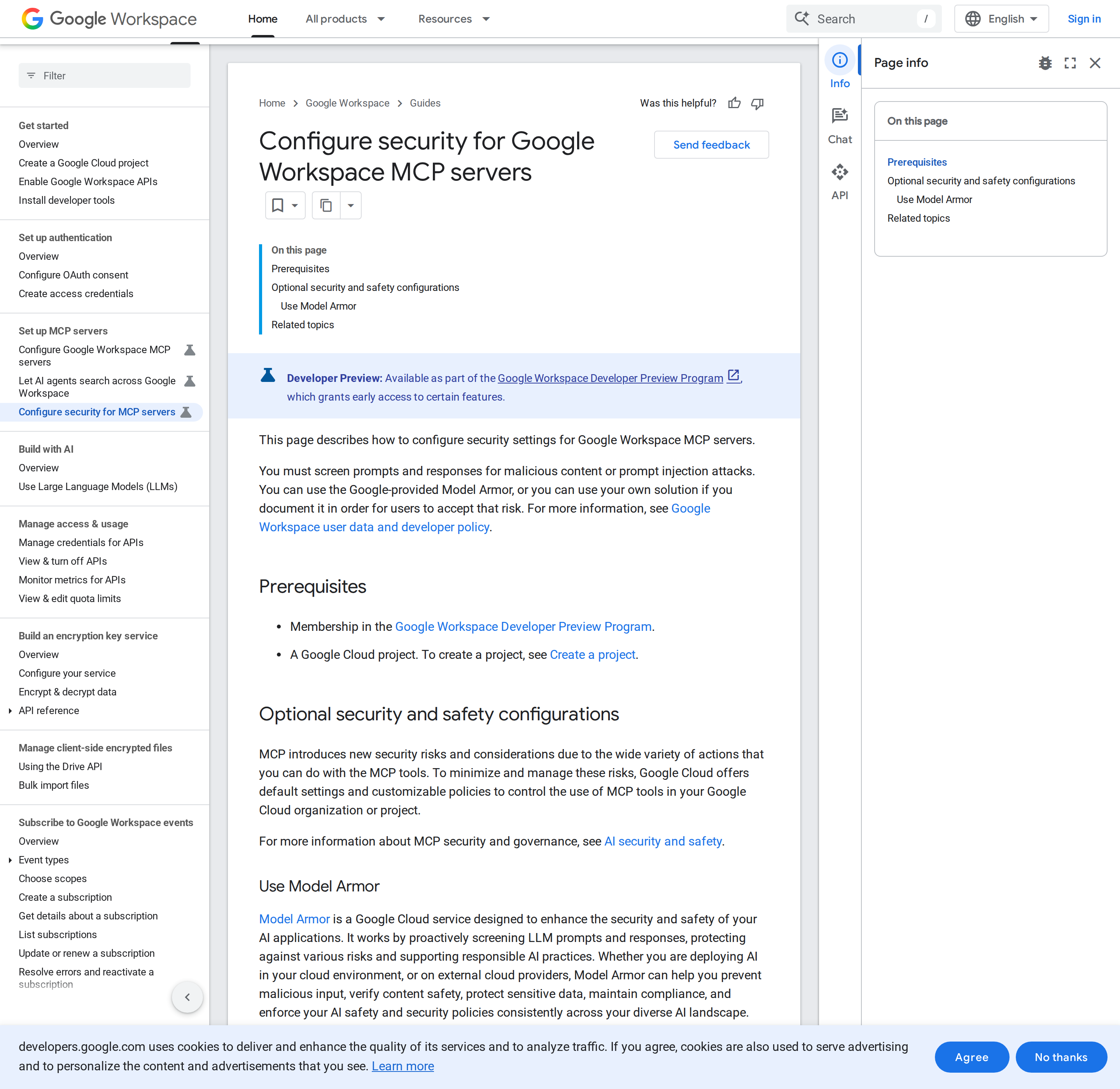
- Prompt injection is now an explicit, documented risk. Google's own security page states plainly that you must screen prompts and responses for malicious content or prompt-injection attacks — via Model Armor or your own solution. This matters more here than in most integrations, because an agent with Gmail plus Drive plus Chat access sits on top of nearly everything a company knows.
- Model Armor logging captures the full payload. Google warns that when Model Armor runs with logging enabled, it logs the entire payload, which can expose sensitive data in your logs. Treat log retention as a scoping decision.
- Regional routing can break data residency. Model Armor is region-limited; when it is enabled and you use an MCP server in an unsupported jurisdiction, routing behaviour differs per server and can break residency compliance for in-use and in-transit data. If residency is a hard requirement, verify per-server behaviour before enabling.
- The base integration path still exists and is still the harder one. If you are self-hosting rather than using a hosted client, the OAuth + Domain-Wide Delegation route (a service account acting on behalf of workspace users, granted access in the Admin console) remains a real project — it is admin-level work and it is what Cody removes for hosted deployments.
Related reading
- Google Sheets MCP — the Sheets server in depth, if spreadsheets are your main surface.
- How to connect Google Workspace to OpenClaw — the self-hosted path, including Cloud project and delegation setup.
- Notion MCP — the other "your company knowledge lives here" integration, for teams that split between Workspace and Notion.
How to Connect Google Workspace via MCP
There are two main paths:
Option A: Use Google Workspace's official MCP server
Google Workspace maintains an official Google Workspace MCP server. This is the recommended starting point — it's built and maintained by the Google Workspace team, so it stays up to date with API changes.
Note: Open-source servers maintained by Google. They can run locally or deploy to Google Cloud.
What the server exposes:
- Gmail
- Google Calendar
- Google Docs
- Google Sheets
- Google Slides
- Google Drive
What you'll need:
- An MCP-compatible client (Claude Desktop, OpenClaw, or another host)
- Google Workspace credentials configured per the server's setup guide
This path gives you the most control but requires you to handle client configuration and credential management yourself.
Option B: Use Cody (OpenClaw-based, managed)
Cody is built on OpenClaw and supports MCP-compatible integrations out of the box. You connect Google Workspace once from the Cody dashboard — no server to run, no code to write — and Cody handles authentication, context passing, and write-back actions with appropriate guardrails.
Cody works where your team already operates: Slack, Telegram, or the web chat. The Google Workspace connection is available to your entire team without each person setting up their own MCP client.
Want Google Workspace Connected to AI Without Running Your Own MCP Server?
Cody gives your team a Google Workspace assistant in Slack, so people can triage Gmail, prep for meetings, search Drive and Docs, and draft follow-ups without setting up Google Cloud projects, domain delegation, or OAuth plumbing.
MCP vs Other AI Integration Patterns
| Approach | What it is | Tradeoff |
|---|---|---|
| MCP | Standardised protocol for live tool access | Requires an MCP server; most powerful when set up correctly |
| RAG (retrieval) | Pre-index Google Workspace content and retrieve it | Good for static docs; not suitable for live/transactional data |
| Manual copy-paste | Paste Google Workspace output into ChatGPT/Claude | Fast to start; breaks for anything recurring or at scale |
| Custom API wrappers | Bespoke integration code per tool | Full control; high maintenance overhead |
MCP wins when you need live data from Google Workspace and want to avoid rebuilding integrations as APIs change.
Common Mistakes
- Using training data when live data is needed — if the AI doesn't have an MCP connection, it will answer from memory, which is often outdated or wrong for account-specific questions
- No write-back guardrails — MCP can write to Google Workspace, so it's worth adding an approval step for any action that modifies records
- Too many tools exposed at once — give the AI access to the Google Workspace actions it actually needs; a scoped connection is easier to reason about and audit
- Skipping structured outputs — ask the AI to return structured JSON or clear fields when writing back to Google Workspace; free-form output is harder to validate
Related MCP Guides
Want the full workflow picture? See: Google Workspace AI Automation and How to Connect Google Workspace to OpenClaw.