If you're searching for "Asana MCP", you're asking one of two things: does Asana have an MCP server? or how do I connect Asana to an AI assistant via the Model Context Protocol?
✅ Asana has an official MCP server. Details in the setup section below.
What Is MCP?
Model Context Protocol (MCP) is an open standard developed by Anthropic that lets AI assistants — like Claude — connect to external tools, APIs, and data sources in a standardised way.
Before MCP, every AI integration required bespoke tooling: custom prompts, custom API wrappers, and custom glue code to pass context back and forth. MCP replaces that with a common interface: the AI asks the MCP server for data or actions, the server returns structured results, and the AI uses them to answer your question or complete a task.
In plain terms: MCP is how you give an AI assistant live access to Asana — not just knowledge about it, but real, up-to-date data from your account.
What a Asana MCP Integration Does
Once Asana is connected via MCP, your AI assistant can:
- Read live data — pull records, metrics, activity, and status directly from Asana
- Take actions — create, update, or log records based on your instructions
- Cross-reference context — combine Asana data with other connected tools mid-conversation
The key difference from a standard chatbot: the assistant is not working from training data or memory. It is reading your actual Asana instance, in real time.
Practical Asana MCP Use Cases
Read and update records without switching tabs
The assistant can look up a page, task, or row in Asana and return the relevant content — then write updates back — from inside your chat interface.
Meeting prep from project context
Before a standup or planning session, ask the assistant to summarise recent activity in Asana and surface open blockers or overdue items.
Cross-tool status updates
The assistant pulls status from Asana and formats it for a Slack message, an email, or a doc — without you needing to copy anything manually.
Asana MCP: The Official V2 Server, Explained Properly
Asana ships an official, first-party MCP server — and unlike many project-management tools where the "MCP" label points at a community wrapper, this one is Asana's own hosted infrastructure. It runs at:
https://mcp.asana.com/v2/mcp
The V2 server is generally available and uses OAuth for authorization. If you have seen the older https://mcp.asana.com/sse endpoint in a tutorial, that is the V1 beta server, which is deprecated and shuts down on 5 August 2026 — do not build anything new against it.
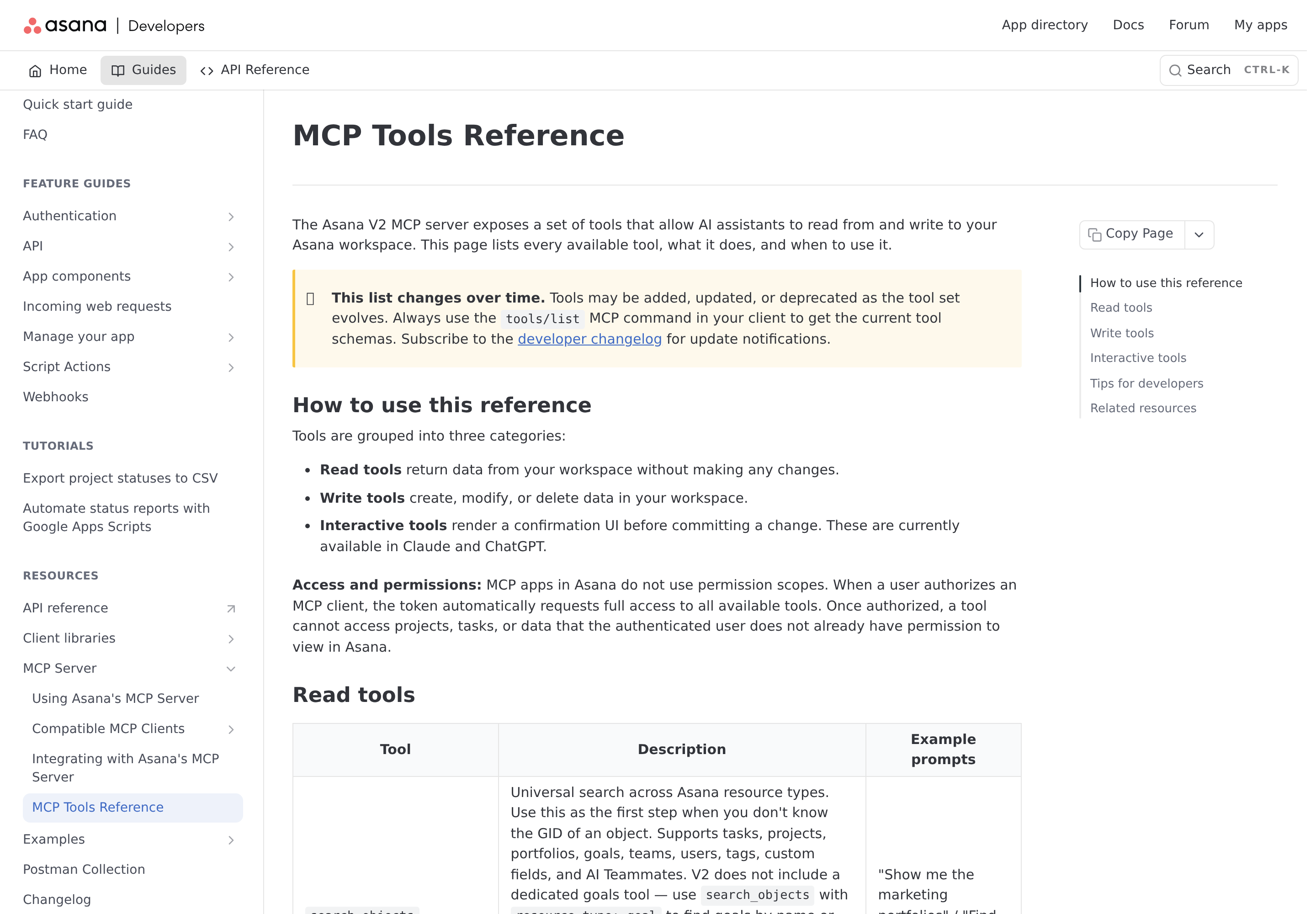
Asana's official MCP Tools Reference: three tool categories, not one flat list.
Why V2 replaced V1 (and why the tool names changed)
V2 was not just a URL bump. Two changes catch people migrating from V1:
- Tool names dropped the
asana_prefix.asana_create_taskis nowcreate_task. Any saved prompt or skill file that names the old tools breaks. workspaceGidmostly disappeared. Workspace scope is now set at authorization time, not per call. You authorize against one workspace, and every tool call in that session is scoped to it.
That second point has a real consequence: to work across multiple Asana workspaces you need separate MCP sessions, because a single token cannot span them.
Setting up the official server (the developer path)
The V2 server does not support dynamic client registration. You must pre-register an OAuth app:
- Go to the Asana developer console (
app.asana.com/0/my-apps) and click Create new app - Enter a name and — critically — choose "MCP app" as the app type (not a standard API app)
- Copy the Client ID and Client secret
- Under OAuth, add your Redirect URL
- Under Manage distribution, choose "Specific workspaces" and select your workspace — or "Any workspace"
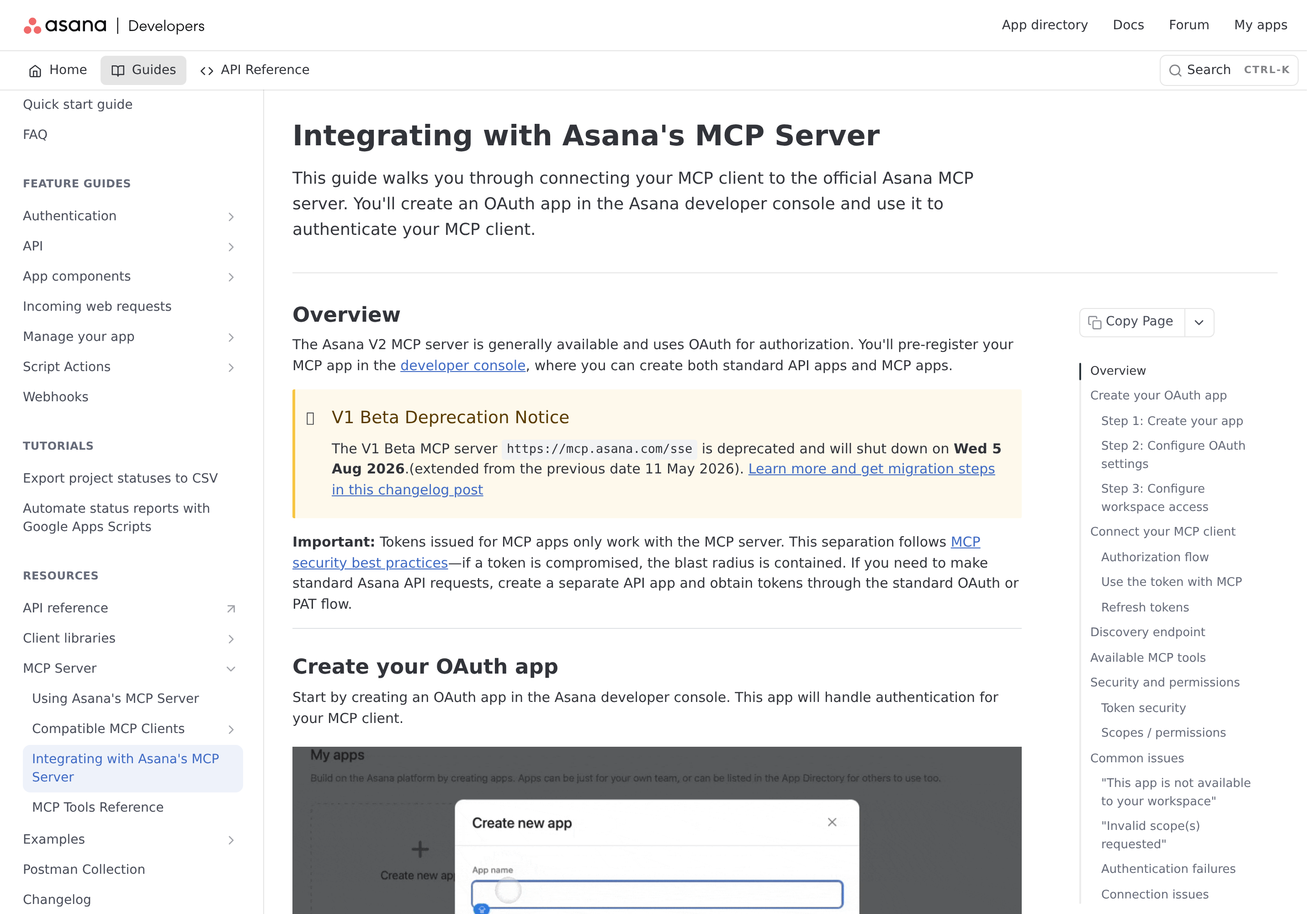
Asana's developer guide. Note the "MCP app" app type and the V1 shutdown date.
The authorization URL takes an optional resource parameter pointing at the MCP server:
https://app.asana.com/-/oauth_authorize
  ?client_id=YOUR_CLIENT_ID
  &redirect_uri=YOUR_REDIRECT_URL
  &response_type=code
  &resource=https://mcp.asana.com/v2
  &state=RANDOM_STRING
  &code_challenge={SHA256_CHALLENGE}
  &code_challenge_method=S256
Do not include a scope parameter. MCP apps have no scopes — sending one returns Invalid scope(s) requested and the flow dies. This is the single most common setup error, and it contradicts almost every other OAuth integration you have built.
Then call the server with the token in the header:
Authorization: Bearer YOUR_ACCESS_TOKEN
Access tokens expire after one hour. Use the refresh token to get a new one unattended — if you skip the refresh logic, a scheduled integration authenticates once and then fails silently the next morning.
The three tool categories
Asana groups its V2 tools deliberately, and the distinction matters when you are deciding what to let an agent do:
| Category | Behaviour | Examples |
|---|---|---|
| Read | Returns data, changes nothing | search_objects, get_task, get_tasks, get_my_tasks, search_tasks, get_project, get_projects, get_portfolio, get_items_for_portfolio, get_status_overview, get_attachments, get_user, get_me, get_users, get_teams, get_agent, get_workspace_agents |
| Write | Creates, modifies, or deletes immediately | create_tasks (up to 50/call), create_project, update_tasks (up to 50/call), delete_task, add_comment, create_project_status_update |
| Interactive | Renders a confirmation UI before committing — Claude and ChatGPT only | create_task_preview, create_project_preview, search_tasks_preview |
The interactive category is the trap for self-hosted clients. create_task_preview and create_project_preview render a confirmation card in Claude and ChatGPT. Asana states plainly that other MCP clients use the standard write tools directly — meaning a self-hosted client like OpenClaw calls create_tasks and the task is created immediately, with no preview step. If you want a human gate, you have to build it yourself.
What You Can Actually Do with Asana MCP
Run a real Monday status sweep across portfolios
get_status_overview accepts a keyword and returns an aggregated report: project details, current status updates, task summaries, and flagged blockers — for one or more projects or portfolios.
"Give me a status overview of the Rebrand initiative. Group by project, list every flagged blocker, and flag anything with no status update in the last 10 days."
Note the docs' specific instruction: this tool handles its own search internally — do not chain a search tool before calling it. Wrapping it in a search_objects call first is a documented misuse.
Find anything when you don't know the GID
Asana's API is GID-based, which is normally painful. search_objects is the universal entry point across tasks, projects, portfolios, goals, teams, users, tags, custom fields, and AI Teammates.
"Find the Marketing portfolio, then list the projects inside it."
There is no dedicated goals tool in V2. Goals are reached through search_objects with resource_type: goal. And AI Teammates — Asana's own agents — are searchable with resource_type: agent, or resource_type: actor to search humans and AI Teammates together (the useful call when you want everything assignable).
Turn a meeting into structured work
create_project accepts sections and tasks in a single call, so a project can be fully scaffolded at creation time rather than assembled incrementally.
"Create a project called Q4 Launch with sections Backlog, In Progress, and Done. Add these eight tasks from the notes below to the right sections, with owners and due dates."
Audit who is actually overloaded
Combine get_users, get_teams, and get_tasks filtered by assignee:
"For everyone on the Engineering team, count incomplete tasks due in the next 14 days. Rank by count and flag anyone above 12."
Post a status update without opening Asana
create_project_status_update requires a title, a status colour (green, yellow, red, blue, or complete), and body text.
"Post a yellow status update to the Q3 Roadmap project, titled 'Scope creep on integration work', summarising the two-week slip and the owner."
Wiring Asana into a self-hosted client
The good news: any client that supports OAuth and Streamable HTTP can connect — Asana documents Claude Code, Cursor, VS Code, and Codex explicitly.
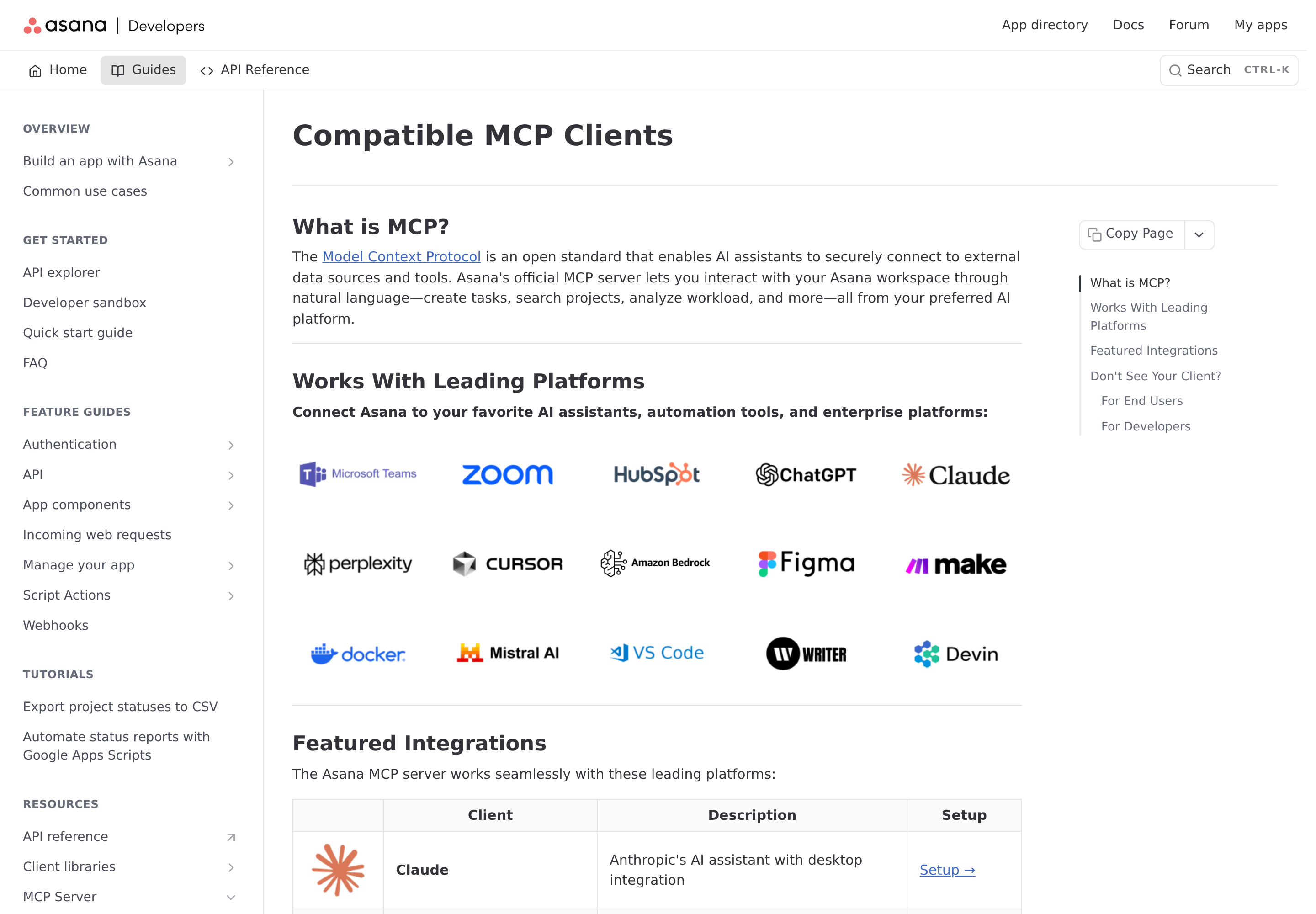
Asana's compatible-clients page — Streamable HTTP plus OAuth is the whole requirement.
The four steps Asana gives for non-featured clients:
- Configure the client to connect to
https://mcp.asana.com/v2/mcp - Ensure the client supports OAuth and Streamable HTTP transport
- Supply the Client ID and Client secret — unless the client manages OAuth registration for you (this is exactly the step Claude and ChatGPT hide)
- Authenticate against your Asana account when prompted
Step 3 is where self-hosted setups do the work. Because Asana does not support dynamic client registration, you must register the app yourself and carry the credentials into the client config. There is no "one-click connect" outside the featured clients.
There is also a discovery endpoint at https://mcp.asana.com/v2/.well-known/oauth-protected-resource, which points at Asana's authorization server metadata. It is genuinely useful for debugging redirect and token-endpoint problems — but it does not remove the pre-registration requirement.
Workspace app management can block you
If your workspace is on Enterprise+ or Legacy Enterprise, admins can allow or block MCP clients through app management. For V2 clients this is a per-client setting — the app is allowed or blocked individually. If a client is blocked, users are prompted to request an unblock from their admin, and there is nothing the integration can do about it. On lower tiers you can only ask Asana Support — via a super admin — to block the legacy "Asana MCP" app.
If you hit "This app is not available to your Asana workspace or organization", that is almost always a distribution misconfiguration, not an auth bug.
Common Pitfalls Specific to Asana MCP
MCP tokens do not work with the Asana REST API
This is deliberate, and it follows MCP security best practice: a token issued for an MCP app is valid only against the MCP server. It cannot be used for standard Asana API requests. If you need both, you create a second app through the standard OAuth/PAT flow. Teams routinely assume one credential covers both and then spend an afternoon confused by 401s.
There are no MCP permission scopes — authorization is all-or-nothing
Asana's docs are blunt about this: "MCP apps in Asana do not use permission scopes. When a user authorizes an MCP client, the token automatically requests full access to all available tools." And that includes tools added after you authorized — the grant is open-ended.
What limits the damage is that the token cannot exceed the authorizing user's own Asana permissions. It is not an admin bypass. But if you authorize with a broad account, you grant broad access, with no way to narrow it.
Every action is attributed to the human who authorized it
Asana MCP access is user-based: "All actions taken over MCP will appear as the user who authorized them." A bot-created task, comment, and status update all carry a real person's name — with real notification consequences. Anyone following that task gets pinged. There is no "service account" attribution to hide behind.
search_tasks is Premium-only
Asana's own reference states search_tasks is available on Premium accounts only and advises using get_tasks for non-Premium workspaces. If full-text search over task names, descriptions, and comments silently returns nothing, check the plan tier before you debug the query.
get_tasks requires a filter — it is not a list-all call
get_tasks needs at least one context filter: project, section, tag, user task list, or assignee. There is no "give me every task" mode. Broad "what's going on?" questions belong on search_objects or get_status_overview, not get_tasks.
Bulk writes are capped at 50 per call
create_tasks and update_tasks both cap at 50 items per call. A 500-row backlog import silently becomes a partial import if the agent does not loop. Always have the agent report the count it actually created.
delete_task is permanent and can cascade
The docs state it plainly: delete_task permanently deletes a task and any of its subtasks that are not also members of another project, and cannot be undone. There is no trash and no recovery window. This is the one tool worth excluding from an autonomous agent entirely.
Scope the write tools to your risk appetite
Because MCP authorization is all-or-nothing, you cannot ask Asana for "read-only" MCP. The practical mitigation is at the client layer: only enable the tools the job needs. A reporting agent should not have delete_task in its tool list at all.
How to Connect Asana via MCP
There are two main paths:
Option A: Use Asana's official MCP server
Asana maintains an official Asana MCP server. This is the recommended starting point — it's built and maintained by the Asana team, so it stays up to date with API changes.
Note: Remote MCP server at mcp.asana.com/v2/mcp — uses app integration OAuth, no self-hosting required.
What the server exposes:
- tasks
- projects
- portfolios
- goals
- teams
- Work Graph data
What you'll need:
- An MCP-compatible client (Claude Desktop, OpenClaw, or another host)
- Asana credentials configured per the server's setup guide
This path gives you the most control but requires you to handle client configuration and credential management yourself.
Option B: Use Cody (OpenClaw-based, managed)
Cody is built on OpenClaw and supports MCP-compatible integrations out of the box. You connect Asana once from the Cody dashboard — no server to run, no code to write — and Cody handles authentication, context passing, and write-back actions with appropriate guardrails.
Cody works where your team already operates: Slack, Telegram, or the web chat. The Asana connection is available to your entire team without each person setting up their own MCP client.
Want Asana Connected to AI Without Running Your Own MCP Server?
Cody gives your team an Asana assistant in Slack, so people can check project status, pull task context, spot blocked or overdue work, and draft updates without managing GIDs, PATs, or API plumbing.
MCP vs Other AI Integration Patterns
| Approach | What it is | Tradeoff |
|---|---|---|
| MCP | Standardised protocol for live tool access | Requires an MCP server; most powerful when set up correctly |
| RAG (retrieval) | Pre-index Asana content and retrieve it | Good for static docs; not suitable for live/transactional data |
| Manual copy-paste | Paste Asana output into ChatGPT/Claude | Fast to start; breaks for anything recurring or at scale |
| Custom API wrappers | Bespoke integration code per tool | Full control; high maintenance overhead |
MCP wins when you need live data from Asana and want to avoid rebuilding integrations as APIs change.
Common Mistakes
- Using training data when live data is needed — if the AI doesn't have an MCP connection, it will answer from memory, which is often outdated or wrong for account-specific questions
- No write-back guardrails — MCP can write to Asana, so it's worth adding an approval step for any action that modifies records
- Too many tools exposed at once — give the AI access to the Asana actions it actually needs; a scoped connection is easier to reason about and audit
- Skipping structured outputs — ask the AI to return structured JSON or clear fields when writing back to Asana; free-form output is harder to validate
Asana MCP vs. the Asana REST API
The choice is not "better or worse" — it is about who is in the loop.
Use MCP when a human is asking. Exploratory questions ("what's blocked on the Rebrand initiative?"), conversational task creation, and anything where the user wants to see and correct the result. The interactive preview tools in Claude and ChatGPT make this genuinely pleasant, and the read tools cover portfolios, goals, teams, and AI Teammates without you learning Asana's GID system.
Use the REST API when nothing is watching. Scheduled reports, high-volume syncs, and CI jobs belong on a PAT or standard OAuth app, not an MCP token — because MCP tokens cannot touch the REST API and because a self-hosted client bypasses the confirmation UI that makes conversational writes safe.
A workable split for a self-hosted OpenClaw-style agent:
- MCP for reads and conversational writes — status overviews, task lookups, project scaffolding from a meeting
- REST API with a scoped PAT for scheduled work — nightly sweep, weekly digest, bulk updates, anything unattended
- Neither, for destructive operations —
delete_taskgets no automated caller
If you are comparing project-management MCP servers more broadly, see our Linear MCP and Jira MCP guides — Linear is GraphQL-first with a hosted MCP and no REST fallback, while Jira splits across REST v3, Agile, and Service Desk APIs. Asana, by contrast, is the one with a genuinely first-party remote MCP server and a clean REST alternative sitting beside it.
Related MCP Guides
Want the full workflow picture? See: Asana AI Automation and How to Connect Asana to OpenClaw.