If you're searching for "LinkedIn MCP", you're asking one of two things: does LinkedIn have an MCP server? or how do I connect LinkedIn to an AI assistant via the Model Context Protocol?
⚠️ No official LinkedIn MCP server yet. Community options exist — details below.
What Is MCP?
Model Context Protocol (MCP) is an open standard developed by Anthropic that lets AI assistants — like Claude — connect to external tools, APIs, and data sources in a standardised way.
Before MCP, every AI integration required bespoke tooling: custom prompts, custom API wrappers, and custom glue code to pass context back and forth. MCP replaces that with a common interface: the AI asks the MCP server for data or actions, the server returns structured results, and the AI uses them to answer your question or complete a task.
In plain terms: MCP is how you give an AI assistant live access to LinkedIn — not just knowledge about it, but real, up-to-date data from your account.
What a LinkedIn MCP Integration Does
Once LinkedIn is connected via MCP, your AI assistant can:
- Read live data — pull records, metrics, activity, and status directly from LinkedIn
- Take actions — create, update, or log records based on your instructions
- Cross-reference context — combine LinkedIn data with other connected tools mid-conversation
The key difference from a standard chatbot: the assistant is not working from training data or memory. It is reading your actual LinkedIn instance, in real time.
Practical LinkedIn MCP Use Cases
Performance lookups mid-workflow
Ask the assistant to fetch recent post performance from LinkedIn while you're planning the next content calendar — no dashboard-switching required.
Content repurposing with live data
Pull your top-performing content from LinkedIn via MCP and have the assistant generate repurposed formats (threads, summaries, email snippets) in one step.
Scheduling and publish via conversation
Draft and schedule a post to LinkedIn by describing it in chat — the assistant handles formatting and API calls.
The Honest State of "LinkedIn MCP": No Official Server, but a Healthier Community Story Than You'd Expect
There is no official, first-party LinkedIn MCP server — no mcp.linkedin.com endpoint, and nothing published by LinkedIn or Microsoft. This is worth stating plainly, because the base guide above already told you the official API is the hardest part of any LinkedIn integration: the walls described there (an application review, a 1–4 week Marketing Developer Platform approval that is frequently rejected, no feed/connection data at any tier) apply to MCP exactly as much as they apply to a hand-built proxy. An MCP server cannot grant you an API permission LinkedIn refuses to give you.
What does exist is a genuinely good open-source ecosystem, and it splits cleanly into two architectures with very different tradeoffs. Understanding that split is the actual content of this page.
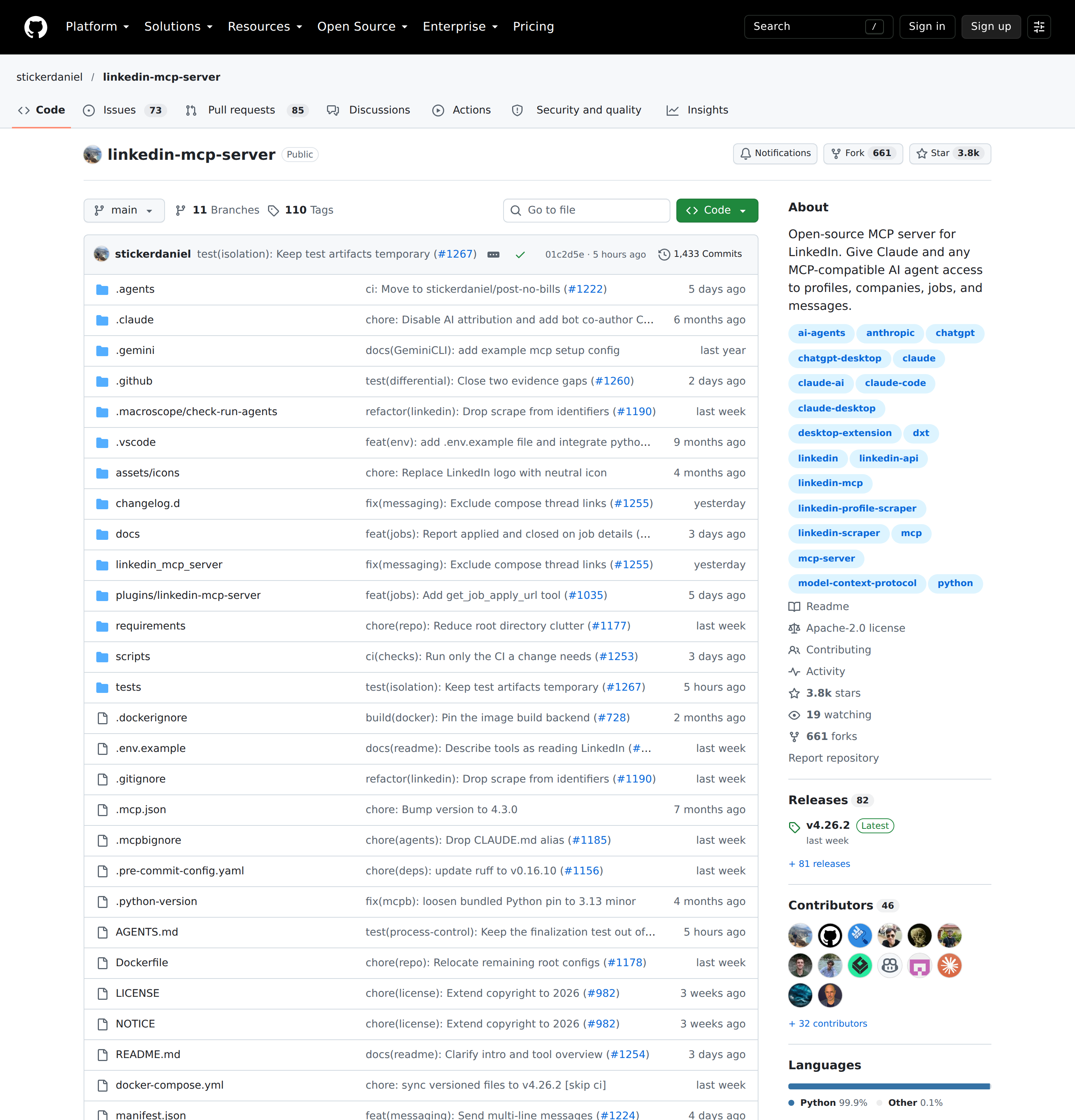
The most-starred open-source LinkedIn MCP server drives a real browser session rather than the official API — which is why it can do things the API cannot.
Three paths, and what each one actually gets you
| Path | Backed by | Setup difficulty | What it can reach | Headless? |
|---|---|---|---|---|
Browser-session servers (e.g. stickerdaniel/linkedin-mcp-server, ~3.8k★, Apache-2.0) |
A real signed-in Chromium session you control | Low — uvx one-liner, reuse your everyday browser's cookies |
Profiles, companies, jobs, your feed, search, inbox, connection requests | No — needs a browser and a human-ish login |
Official-API wrappers (e.g. felipfr/linkedin-mcpserver, TypeScript) |
LinkedIn's public OAuth 2.0 API | High — developer app + product approval | Posting, page analytics, ads data — only what your approved products scope | Yes, once tokens are stored |
Hosted/managed services (e.g. Cadenza, Unipile, gtm-api/linkedin-mcp) |
A vendor's own managed sessions | Lowest — paste a key | Varies; often Sales Navigator + Recruiter coverage | Yes (vendor's problem) |
The first row is the one most people actually end up using, because it sidesteps the approval gauntlet entirely. The catch is the one the server's own README states without hedging — more on that in the pitfalls.
The browser-session server is the ecosystem default, and it is honest about the tradeoff
stickerdaniel/linkedin-mcp-server is the reference implementation: FastMCP plus Patchright (a stealth-patched Playwright), 20 tools exposed, and a design that drives a real logged-in browser session instead of calling the API. The tool surface is the useful part:
- Profiles & people:
get_person_profile,get_my_profile,search_people,get_sidebar_profiles - Companies & jobs:
get_company_profile,get_company_posts,search_companies,get_company_employees,search_jobs,get_job_details,get_job_apply_url,get_saved_jobs - Social & messaging:
get_feed,search_posts,get_inbox,get_conversation,search_conversations,send_message,connect_with_person,close_session
Two setup details make this far easier than the API route:
{
  "mcpServers": {
    "mcp-server-linkedin": {
      "command": "uvx",
      "args": ["mcp-server-linkedin@latest"],
      "env": { "UV_HTTP_TIMEOUT": "300" }
    }
  }
}
You can reuse your everyday browser's LinkedIn session instead of doing a fresh login — --import-from-browser (or auto, which picks the most recently used signed-in Chromium-family browser) reads that browser's LinkedIn cookies, validates them against your feed, and saves them to ~/.linkedin-mcp/profile/. If you are already signed into LinkedIn in Chrome, Brave, Edge, Arc, Vivaldi or similar, the server can be working in one command.
The architecture that trips people up: one shared browser, serialized calls
This is the design fact that explains nearly every "why is my agent so slow / why did it say the browser was busy" complaint. Tool calls are serialized through a queue, both within one server process and across separate ones, because they all share one browser session. Run three MCP clients at once and each starts its own server process, but only one holds the browser at a time; the others wait and take over when the call finishes. A client that waits too long gets a "browser is busy" message and should simply retry — it is not an error to page someone about.
The relevant knobs, all verified from the README:
--browser-wait(default 25s, max 45): how long to wait for another process to hand over the shared browser.--browser-min-hold(default 20s, clamped to at least 3s below--browser-wait): shortest time this process keeps the browser before handing it over. Higher = fewer browser restarts, longer waits elsewhere.--browser-idle-timeout(default 600s): close an idle browser and release the profile.--tool-timeout(default 180s): raise it for multi-section profiles, cold-start Chromium, or slow containers.--timeout(default 5000ms): the per-page-operation timeout — raise it when elements are not found or navigation hangs.
Critically: this cross-process coordination does not extend between the host and a Docker container sharing the same ~/.linkedin-mcp directory. The README says not to run --login or --logout on the host while a container is running — a rule that is easy to violate and produces confusing session corruption.
The official-API route, and the fact that dates it
If you do go the official route, you need the base guide's products and scopes — and then two things that rot faster than people expect. Both are documented on Microsoft Learn, which is where LinkedIn's API docs now live:
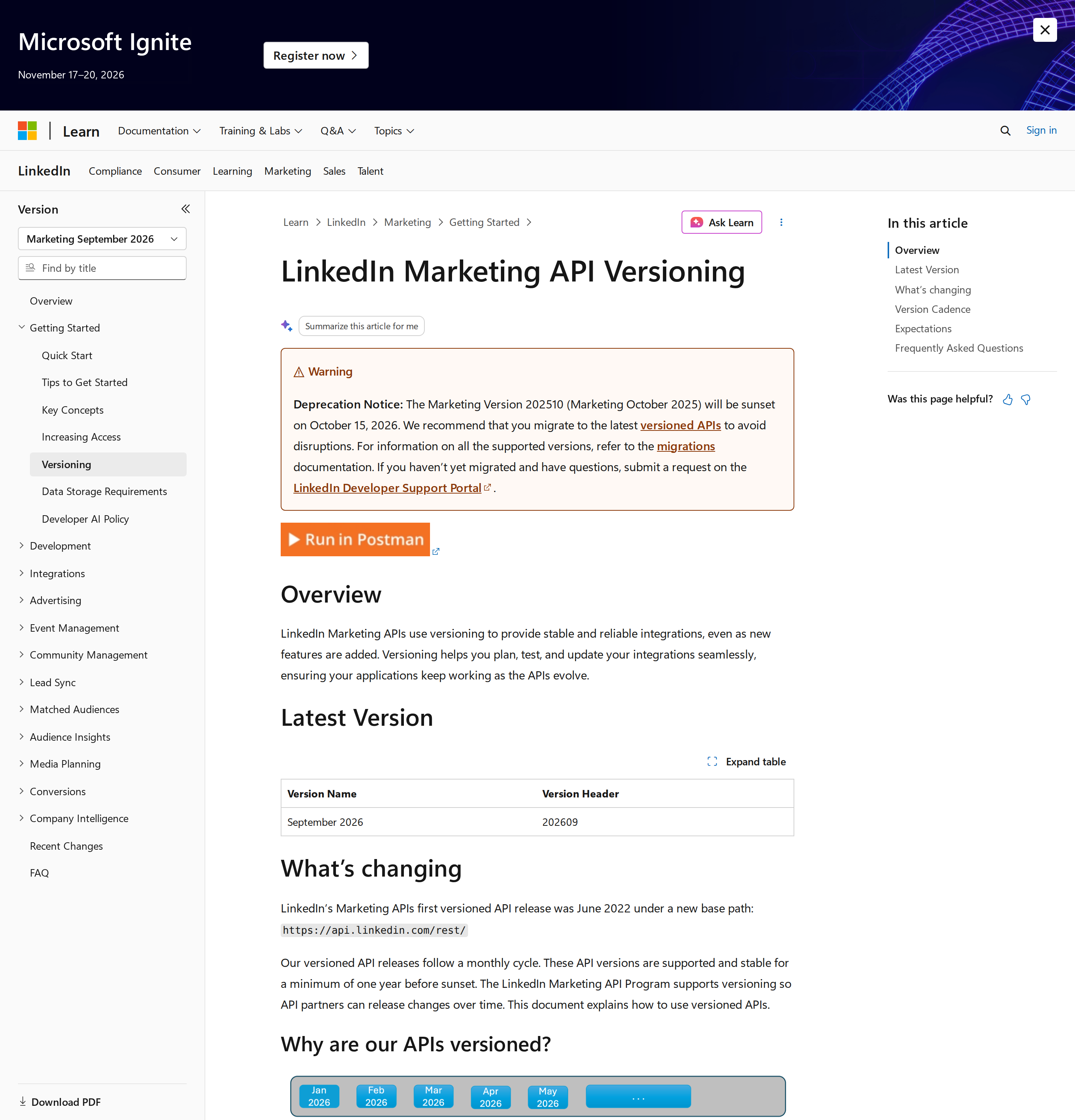
LinkedIn's Marketing API is monthly-versioned and every version is supported for a minimum of one year before it is sunset.
First, the version header is mandatory and versions retire. Request header LinkedIn-Version: YYYYMM is required, matching the documentation version you built against. As of this writing the latest published version is 202609 (September 2026), and — the fact that will break a stale integration — version 202510 is sunset on October 15, 2026. A guide or a client that hard-codes an old month will start failing with no code change on your side.
Second, rate limits are dual and unpublished. Every request is rate limited against two pools simultaneously: an Application limit (total calls your app makes per day) and a Member limit (calls per single member per app per day). Both reset at midnight UTC, and a limited request returns 429. The traps: standard daily limits are not published in the documentation at all — the only place to read the limit your app is actually entitled to is the Developer Portal, under your app's Analytics tab. And LinkedIn notes it may return a 429 "in rare cases" as infrastructure protection even when you are within your limit.
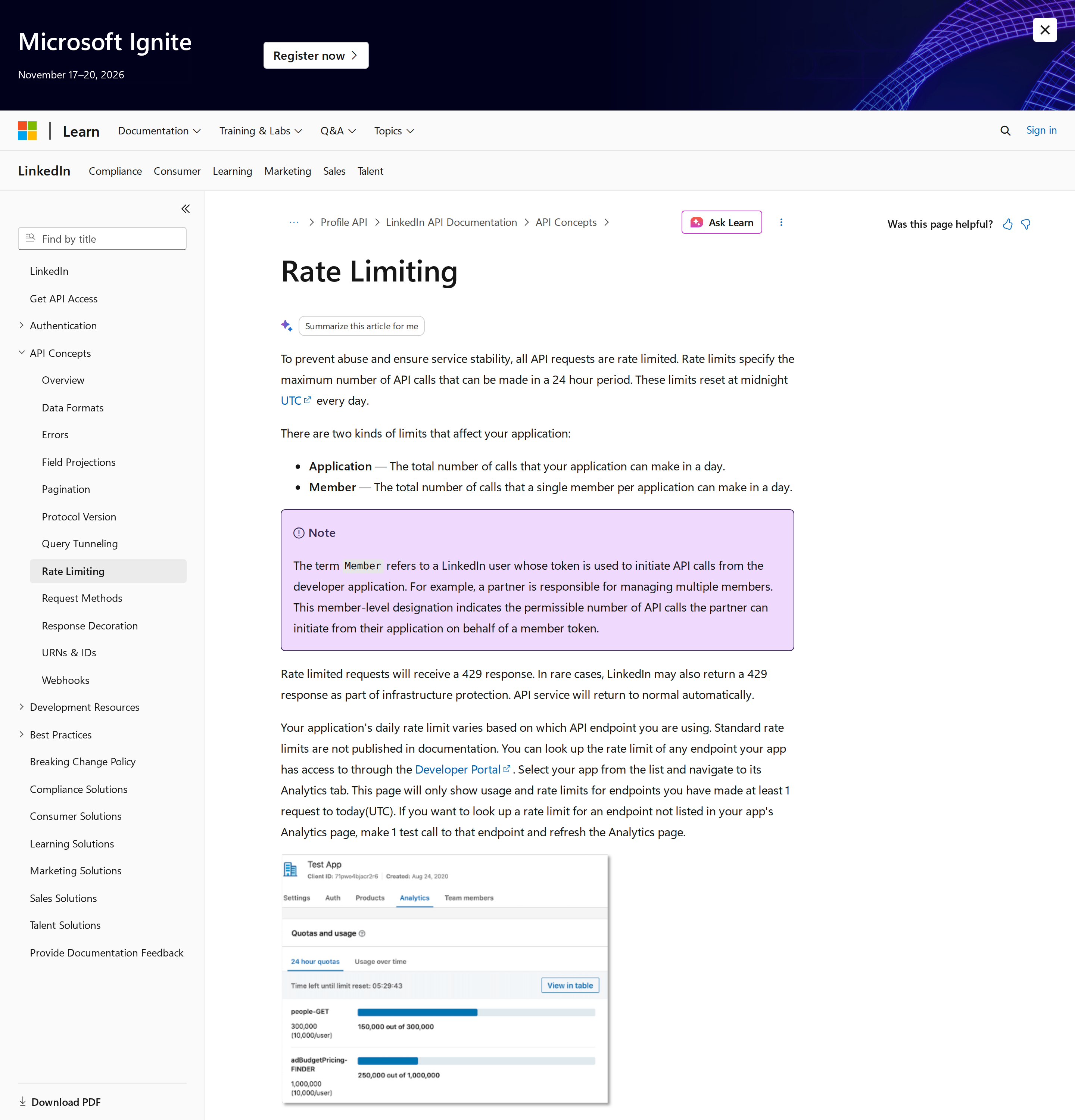
Two independent limits — application and member — both resetting at midnight UTC; the per-endpoint numbers live in the Developer Portal, not the docs.
So the honest comparison: the browser-session server largely sidesteps versioning (it reads rendered pages, not the versioned API) but replaces it with a different, more personal risk — which is the whole point of the pitfalls below.
What You Can Actually Do with LinkedIn MCP
Because the browser-session server sees what you see, the workflows are the ones the API structurally cannot support:
Prospect research from a company page
"Look up LinkedIn on LinkedIn, list the employees filtered by title containing 'growth', and summarise their recent posts." This is search_companies → get_company_employees → get_person_profile, and it is precisely the "research any profile on demand" use case the base guide correctly says the official API makes impossible.
Inbox triage without opening LinkedIn
"Summarise my unread LinkedIn conversations from the last 48 hours and flag any that mention a specific product. Draft replies but do not send." get_inbox → get_conversation → draft, with send_message deliberately left for a human-confirmed step.
Feed monitoring and post search
"What are people in my network posting about MCP this week? Group by theme and link the originals." get_feed plus search_posts with the past-week limit — a lightweight listening workflow that would otherwise mean a paid social tool.
Connection-request batching with a stop condition
"Find 20 people matching {title, location, company} and send connection requests with a short note; stop if the browser reports a challenge." The stop condition matters — see the pitfalls.
Common Pitfalls Specific to LinkedIn MCP
Automated access violates LinkedIn's User Agreement, and the README says so in the FAQ
This is not a footnote; it is the single most important thing on the page. The server's own FAQ answers "Is this safe to use? Will I get banned?" with: "LinkedIn's User Agreement prohibits automated access, and accounts using automated tools can be restricted or banned. Use at your own risk; there is no guarantee of account safety." The tool "controls a real browser session; it doesn't exploit undocumented APIs or bypass authentication" — but driving a session programmatically is still automated access. Point it at an account you can afford to lose, not the one that owns your company page. The README also notes it is "for personal use only."
The 20-tool surface is a blast radius, not a feature list
send_message, connect_with_person, and any tool that acts on your behalf turn a chatty agent into an unsupervised outreach machine. The server queues calls but does not budget them: the README states you "are responsible for the volume of automation you run; use it sparingly and prompt your agents responsibly." Before connecting an agent, decide which write tools it is even allowed to call — for most teams the correct answer is read-only plus a human-confirmed send.
A real login is required, and the guard rails differ by environment
Login is a genuine friction point, and it behaves differently depending on where the server runs. Browser auto-import and the inline login wait do not apply under Docker or when the server is bound to a non-loopback HTTP host — in those setups you must create the session on the host with --login (or the Docker --login --login-viewer flow). LinkedIn may also demand a confirmation in the mobile app, or throw a captcha that must be solved manually. None of this is cron-friendly, which is why a headless scheduled job should use the official-API route even though it reaches far less.
Session corruption has several quiet causes
The saved session lives in ~/.linkedin-mcp/profile/ and can break in ways that all look identical (a dead session): rotating or clearing a session deletes the profile directory and its parent. On Chrome 127+, cookies protected by app-bound encryption (v20) cannot be decrypted without OS elevation, so browser import fails and you must fall back to --login. And on macOS/Linux the browser you launch must be at least as new as the one that last opened your profile — the server refuses otherwise, because an older browser can silently drop stores a newer one wrote. A stale-session error after an upgrade is usually this, not an expired login.
The "browser is busy" message is normal, not a bug
With several MCP clients running, a "browser is busy" response simply means another process holds the shared browser and you should retry. Treating it as a failure and raising an alert is a self-inflicted incident. Tune --browser-wait / --browser-min-hold if you run multiple clients rather than chasing it as an error.
The official route still has every wall the base guide describes
Choosing the API-wrapper path (e.g. felipfr/linkedin-mcpserver) does not soften the base guide's caveats: the application can be rejected, the granted scopes may be narrower than requested, there are no webhooks for most events so you poll, rate limits are per-member and per-application, and LinkedIn-Version retirement means ongoing maintenance. MCP changes how you call the API, not whether LinkedIn lets you.
The server is not affiliated with LinkedIn — and neither are the managed ones
The stickerdaniel project states it is "an independent open-source project, not affiliated with LinkedIn or Microsoft." That independence is the reason the ecosystem exists at all, and also the reason you are accepting a third party's judgment about what is safe to automate. Managed services (Cadenza, Unipile, and similar) accept that risk on your behalf for a fee — a legitimate choice, but read what they do with your session before you decide it is the safer option.
Browser-Session vs. Official-API LinkedIn MCP: How to Choose
Choose the browser-session path when the value is in reading things the API will not expose — profiles, feed, inbox, search, jobs — and a human can complete a login and live with a personal-account risk. Choose the official-API path when the job must run unattended on a schedule and the data you need is genuinely inside your approved products (posting, page analytics, ads). Choose a managed service when you need Sales Navigator or Recruiter coverage and would rather pay than run a browser. For a self-hosted OpenClaw box, the practical pattern is the same as elsewhere on the site: MCP for the interactive, human-in-the-loop work, and a small API-backed proxy plus a skill file for anything that has to fire while nobody is watching. See the related walkthroughs on connecting OpenClaw with LinkedIn and using LinkedIn with ChatGPT for those two paths.
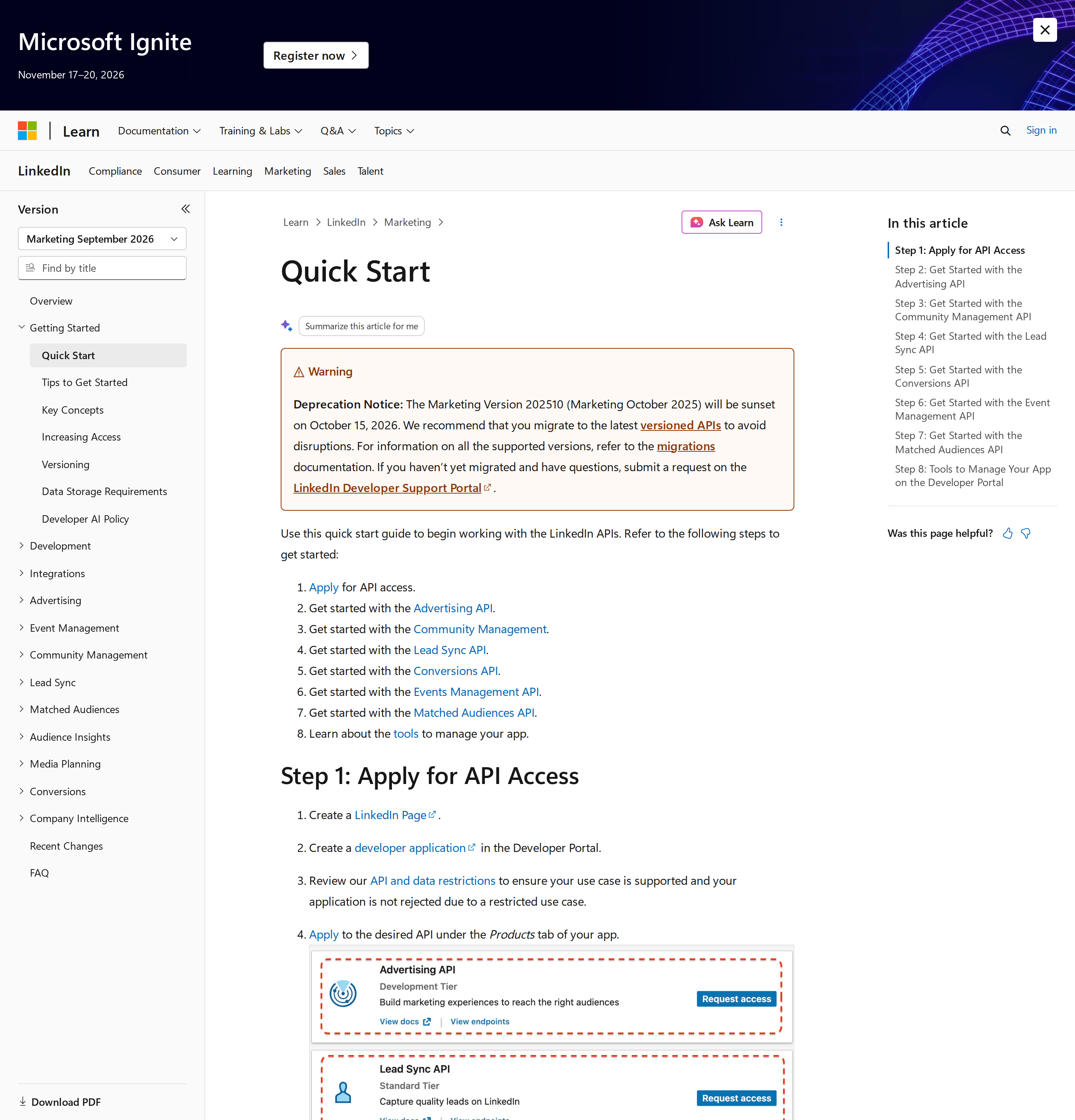
The official route's starting point: an app tied to a Company Page, then a product application — the step most MCP wrappers quietly assume you have already passed.
Also read
- Connecting OpenClaw with LinkedIn: A Practical Guide — the self-hosted, skill-file route
- How to use LinkedIn with ChatGPT — the same account, wired into a different assistant
- HubSpot MCP — the pipeline-side counterpart if your LinkedIn work feeds a CRM
How to Connect LinkedIn via MCP
There are two main paths:
Option A: Use a community MCP server for LinkedIn
No company-maintained MCP server currently exists for LinkedIn. Community-built servers are available — search the MCP Registry or GitHub for "LinkedIn MCP server".
What you'll need:
- An MCP-compatible client (Claude Desktop, OpenClaw, or another host)
- A running MCP server process with LinkedIn credentials configured
- Basic familiarity with running a local service or Docker container
Community servers vary in completeness and maintenance quality — review the repo before committing to one.
Option B: Use Cody (OpenClaw-based, managed)
Cody is built on OpenClaw and supports MCP-compatible integrations out of the box. You connect LinkedIn once from the Cody dashboard — no server to run, no code to write — and Cody handles authentication, context passing, and write-back actions with appropriate guardrails.
Cody works where your team already operates: Slack, Telegram, or the web chat. The LinkedIn connection is available to your entire team without each person setting up their own MCP client.
Want LinkedIn Connected to AI Without Running Your Own MCP Server?
Everything described above — the API applications, the OAuth flow, the proxy service, the token refresh, the skill files — is infrastructure you'd have to build and maintain yourself. Cody comes with LinkedIn integration built in. Connect your Slack workspace, and your team can query LinkedIn page analytics, draft posts, and pull prospect research directly from Slack — no developer account, no API applications, no proxy services, no maintenance.
MCP vs Other AI Integration Patterns
| Approach | What it is | Tradeoff |
|---|---|---|
| MCP | Standardised protocol for live tool access | Requires an MCP server; most powerful when set up correctly |
| RAG (retrieval) | Pre-index LinkedIn content and retrieve it | Good for static docs; not suitable for live/transactional data |
| Manual copy-paste | Paste LinkedIn output into ChatGPT/Claude | Fast to start; breaks for anything recurring or at scale |
| Custom API wrappers | Bespoke integration code per tool | Full control; high maintenance overhead |
MCP wins when you need live data from LinkedIn and want to avoid rebuilding integrations as APIs change.
Common Mistakes
- Using training data when live data is needed — if the AI doesn't have an MCP connection, it will answer from memory, which is often outdated or wrong for account-specific questions
- No write-back guardrails — MCP can write to LinkedIn, so it's worth adding an approval step for any action that modifies records
- Too many tools exposed at once — give the AI access to the LinkedIn actions it actually needs; a scoped connection is easier to reason about and audit
- Skipping structured outputs — ask the AI to return structured JSON or clear fields when writing back to LinkedIn; free-form output is harder to validate
Related MCP Guides
Want the full workflow picture? See: LinkedIn AI Automation and How to Connect LinkedIn to OpenClaw.