If you're searching for "Make MCP", you're asking one of two things: does Make have an MCP server? or how do I connect Make to an AI assistant via the Model Context Protocol?
⚠️ No official Make MCP server yet. Community options exist — details below.
What Is MCP?
Model Context Protocol (MCP) is an open standard developed by Anthropic that lets AI assistants — like Claude — connect to external tools, APIs, and data sources in a standardised way.
Before MCP, every AI integration required bespoke tooling: custom prompts, custom API wrappers, and custom glue code to pass context back and forth. MCP replaces that with a common interface: the AI asks the MCP server for data or actions, the server returns structured results, and the AI uses them to answer your question or complete a task.
In plain terms: MCP is how you give an AI assistant live access to Make — not just knowledge about it, but real, up-to-date data from your account.
What a Make MCP Integration Does
Once Make is connected via MCP, your AI assistant can:
- Read live data — pull records, metrics, activity, and status directly from Make
- Take actions — create, update, or log records based on your instructions
- Cross-reference context — combine Make data with other connected tools mid-conversation
The key difference from a standard chatbot: the assistant is not working from training data or memory. It is reading your actual Make instance, in real time.
Practical Make MCP Use Cases
Trigger and inspect automations from chat
Ask the assistant to list recent workflow runs in Make, identify failures, and explain what went wrong — so you can debug faster.
Workflow creation from description
Describe what you want to automate; the assistant drafts the workflow structure and, via MCP, creates or updates it in Make.
AI steps inside your existing workflows
Use Make to trigger the AI step — via MCP — and get structured outputs (classifications, summaries, extracted fields) back into your automation flow.
Make MCP: Real Configuration & Setup (as of 2026)
Make ships a first-party, Make-hosted MCP server — there is no local install, no Node or Docker requirement, and no community wrapper needed. That is the headline, and it is still missing from most "Make MCP" guides, which either describe the older SSE-era setup or point at a third-party GitHub project. The official server runs at https://mcp.make.com over stateless Streamable HTTP, and Make's own docs describe the local server as legacy.
The confusion worth clearing up first: there are two distinct MCP products on Make, and they solve different problems.
| Product | What it is | Auth | Best for |
|---|---|---|---|
| Make MCP server | The single, Make-hosted server at https://mcp.make.com |
OAuth or MCP token | Straightforward "give my assistant my Make account" |
| MCP Toolboxes | A dedicated MCP server per toolbox, with its own URL and keys | Toolbox key (Authorization header) | Curated tool sets shared with teammates or clients |
Both end in the client calling your scenarios as MCP tools. The difference is which scenarios, and how tightly you can scope the exposure.
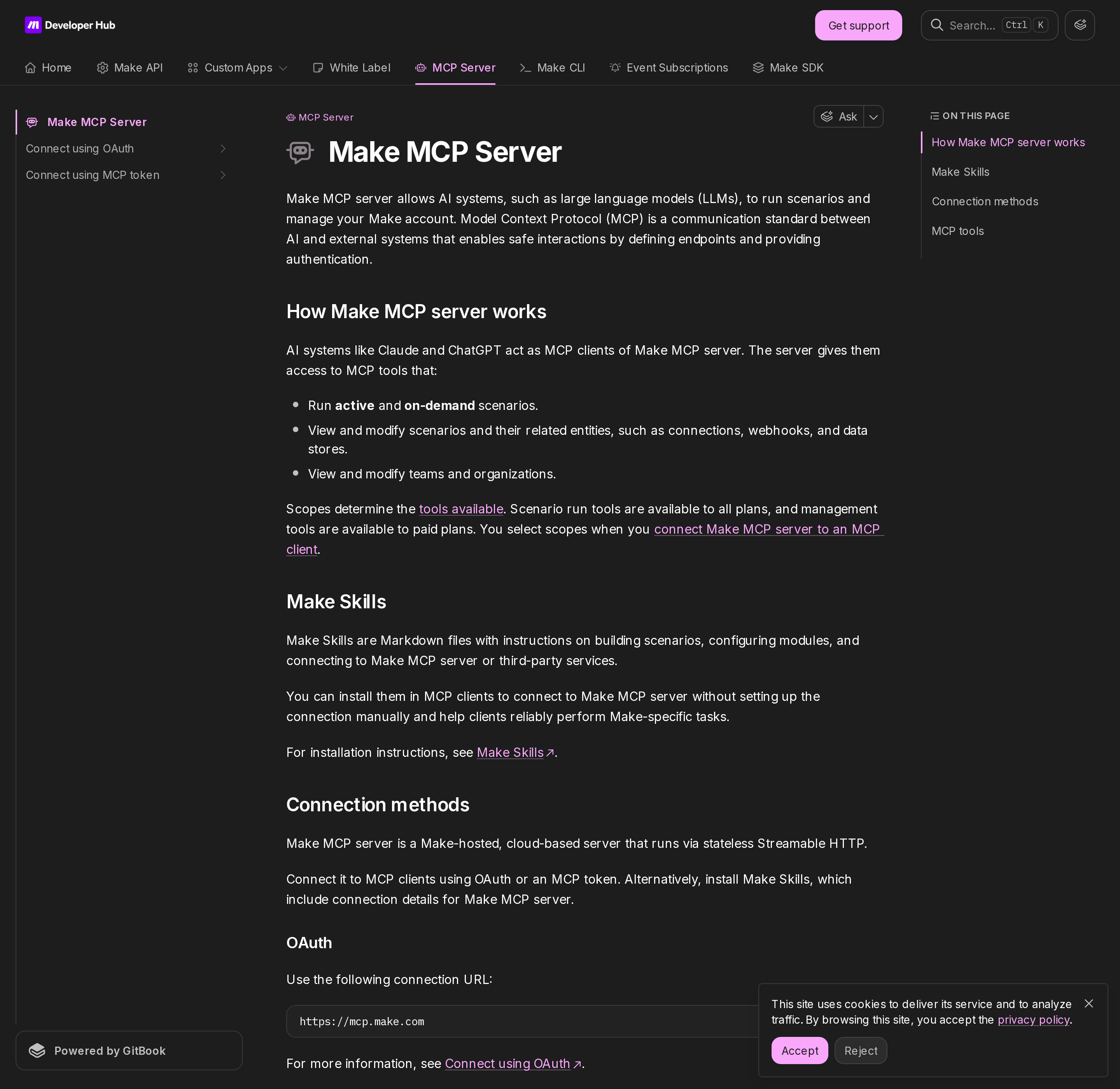
Make's official MCP server documentation. The server is cloud-hosted and runs via stateless Streamable HTTP — no local process to run.
The two connection methods (and why the choice matters)
OAuth uses a single universal URL that never contains a secret:
https://mcp.make.com
You pick the organization and scopes on the OAuth consent screen. Nothing sensitive lives in a config file, and revocation happens in Make. The catch for unattended jobs: OAuth needs a browser round-trip, so a headless scheduled agent cannot complete it.
MCP token is the path for scheduled and unattended use. You create a token under Profile → API access → Tokens → Add token and select scopes — including mcp:use if you want your scenarios exposed as tools. Then you pick one of two URL shapes depending on what your client supports:
# Token in the URL (client cannot send auth headers)
https://<MAKE_ZONE>/mcp/u/<MCP_TOKEN>

# Token in the Authorization header (preferred)
https://<MAKE_ZONE>/mcp
Authorization: Bearer <MCP_TOKEN>
Prefer the header form when the client supports it. A token in a URL ends up in logs, browser history, and shared screenshots; the header form keeps it out of the URL entirely.
The zone trap that looks like a bad token
This is the single most misdiagnosed failure on Make MCP, and it is specific to Make's architecture. <MAKE_ZONE> is not always eu1. Make hosts organizations across multiple production zones — including eu1, eu2, us1, and us2 — and the MCP token URL is zone-scoped.
If you point the URL at the wrong zone:
- The request does not fail cleanly with "wrong region."
- It reads as an authentication error or an empty tool list — the scenario you expect simply is not there.
So when a token that works in one client returns nothing in another, compare the zones before you regenerate the token. Make's own OAuth troubleshooting hint is telling: if the universal OAuth URL misbehaves, fall back to an MCP token URL rather than debugging the OAuth dance.
Two timeouts, not one — and the async escape hatch
Make MCP enforces different tool-call timeouts by tool type and by connection method, and nobody writes this down:
| Tool type | OAuth (mcp.make.com) |
MCP token |
|---|---|---|
| Scenario run tools | 25 seconds | 40 seconds |
| Management tools | 30 seconds | 60 seconds |
The numbers matter because a Make scenario is not a synchronous request. When a scenario run tool call times out, the scenario keeps running in Make for up to 40 minutes, and the timeout response hands the client an executionId:
{
    instruction: 'The Tool execution has started, but did not complete yet. Use a corresponding Tool for getting Execution Results to check for the result asynchronously.',
    executionId: '4eb841b3fe3d48a5b2b59e2eed3f55be',
    scenarioId: 1,
}
To let the client actually retrieve that output once the run finishes, the token needs the scenarios:read scope. Without it, the client gets the executionId and then nothing — a silent dead end that looks like a broken integration.
Note also that MCP-token connections get larger timeouts than OAuth across the board. If you are hitting timeouts and you have a choice, the token path buys you 15 extra seconds on scenario runs and 30 on management calls.
Scoping the tool surface: org, team, or scenario
By default, a token's mcp:use scope exposes every active and on-demand scenario across all of your Make organizations. That is a wide default, and it is worth narrowing deliberately.
Access control is set with a query parameter on the token URL — at one of three levels:
?organizationId=<id>   # all scenarios in one organization
?teamId=<id>           # all scenarios in one team
?scenarioId=<id>       # a single scenario
Repeats are allowed (?scenarioId[]=<id1>&scenarioId[]=<id2>), but you cannot combine levels — organization, team, and scenario levels are mutually exclusive. So "everything in team A plus one scenario from team B" is not expressible; pick the level that contains what you need.
There is a parallel control on the OAuth side: the Run your scenarios scope grants access to all active and on-demand scenarios in an organization, and the documented way to reduce that is to move to a Teams plan with user accounts bound to specific teams. Scope granularity is a plan feature, not just a setting.
Two prerequisites that fail quietly if missed:
- Only active and on-demand scenarios appear as tools. A scenario set to On demand is what makes it callable. If your tool list is short, check scenario scheduling before anything else.
- Management tools are paid-plan only. Scenario-run tools are available on all plans; the tools that view and modify scenarios, connections, webhooks, data stores, teams, and organizations require a paid plan. On a free plan you get runs and nothing else.
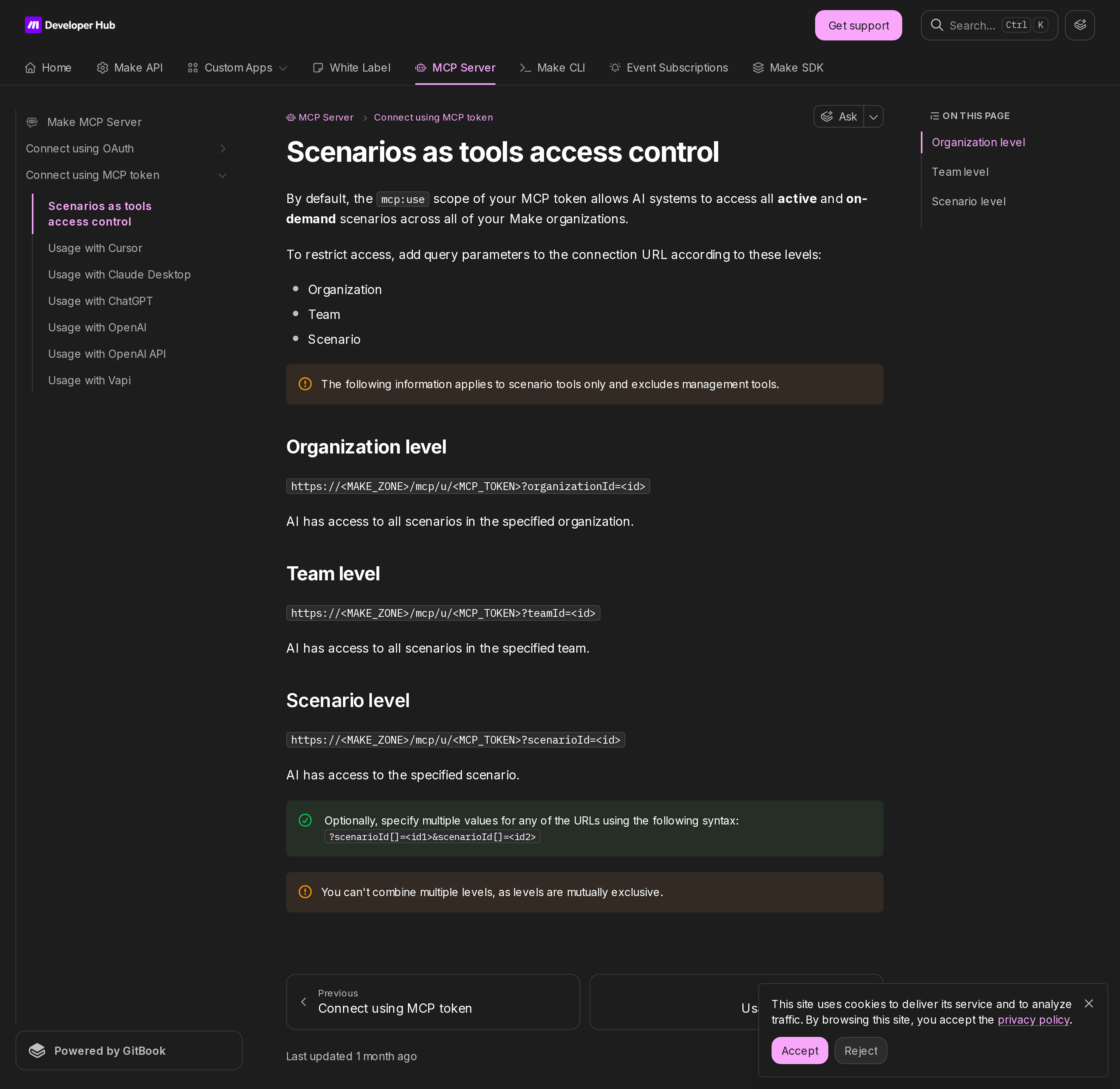
Make's documented access-control levels for MCP tokens. Each is a query parameter on the token URL, and the three levels cannot be combined.
MCP Toolboxes: the curated, shareable option
When you want tighter control or you are handing tools to someone else, MCP Toolboxes are the answer. A toolbox is its own MCP server with:
- A unique URL per toolbox
- Tool management in Make — add, configure, and delete tools
- Multiple keys per toolbox, so you can share with teammates or clients without sharing one credential
- Configurable tool labels, descriptions, and behavior — including
Read onlyvsRead & writeannotations
That last point is the most useful and the least known. The default behavior annotation is Read & write. Marking a tool Read only tells a capable client to treat it as safe — some clients will skip the permission prompt and run it more quickly. It is both a safety signal and a latency win, and it only works if you set it honestly.
The URL shape mirrors the server product, with the transport path appended:
<MCP TOOLBOX URL>/t/<TOOLBOX KEY>/stateless
/stateless (stateless Streamable HTTP) is the recommended transport — Make calls it out explicitly for connection reliability, over SSE.
The toolbox timeout is 40 seconds and it is a hard wall. Unlike the main server (where a timed-out run continues for up to 40 minutes and returns an executionId), a toolbox scenario that exceeds 40 seconds simply times out and returns no output to the client. Design toolbox tools to answer fast.
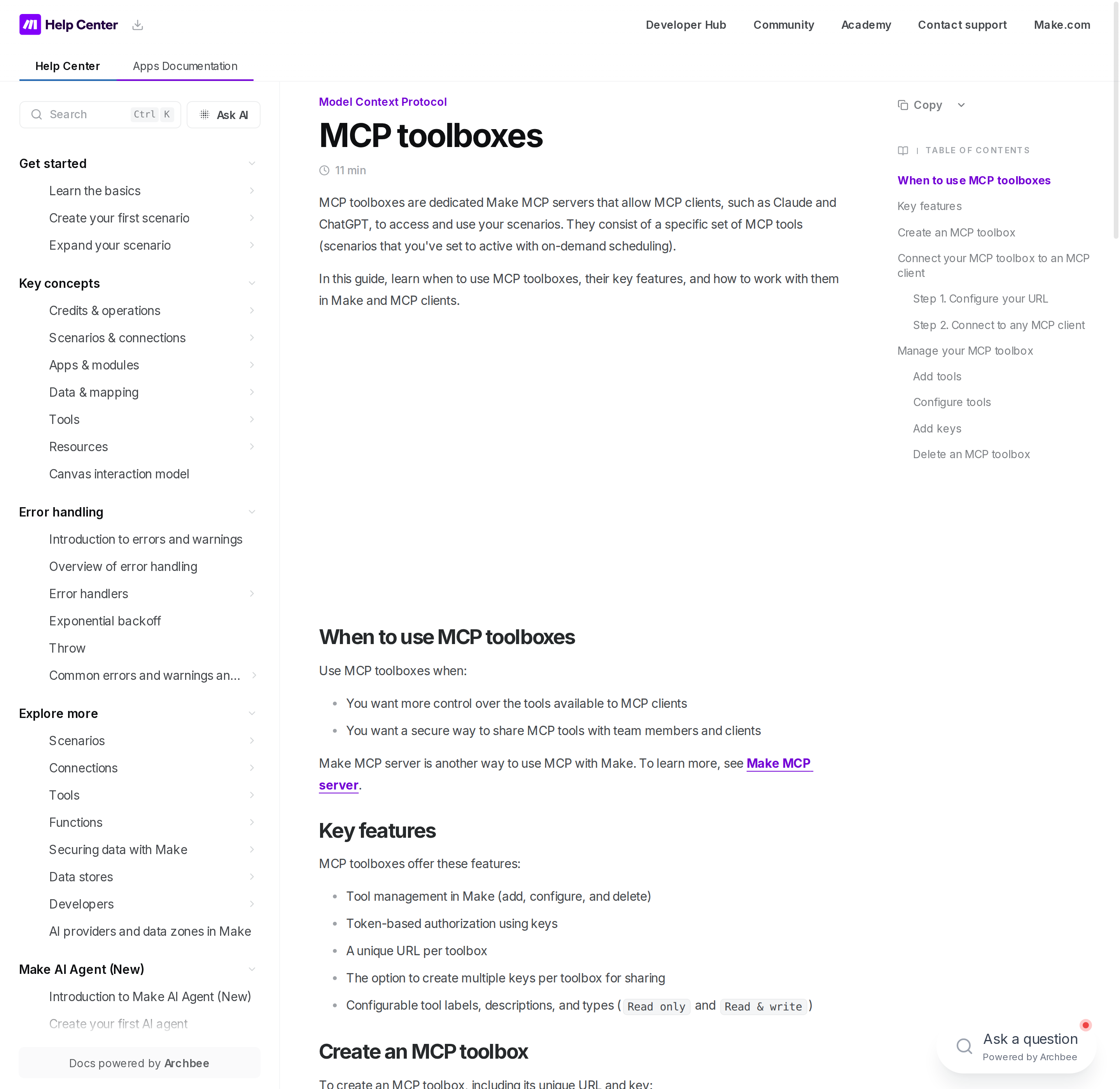
MCP Toolboxes are a separate Make product from the main MCP server: one server per toolbox, multiple keys, and per-tool behavior annotations.
Scenario inputs and outputs are the contract
When a client uses a scenario as a tool, it reads the scenario's inputs and outputs to know what to send and what to expect. Inputs are the parameters the client fills; outputs are what comes back.
Make's own guidance here is the highest-leverage line in the docs: write detailed scenario descriptions. The tool description is what the model uses to decide whether a scenario is the right tool at all. A scenario named "Sync" with no description will be chosen wrongly or not at all; a scenario named "Sync Qualified Leads to HubSpot" with a description of its inputs gets picked correctly. The description is part of the product surface, not documentation debt.
Five concrete Make MCP workflows
- Lead-routing triage. "Which Make scenarios route leads, and did any fail in the last 24 hours?" The assistant lists scenarios, checks execution history, and summarises failures — read-only, no writes.
- On-demand report generation. A scenario set to On demand accepts inputs (date range, team, region) and returns a structured digest. The assistant fills the inputs and returns the output — the classic MCP-tool pattern.
- Data store lookup. "What's the current value for account X in the enrichment data store?" Reads a Make data store through the management surface and returns the record, scoped to a single team.
- Approved workflow trigger. A scenario with an approval gate, exposed as an on-demand tool. The assistant confirms the payload with the human before the run, per Make's own recommendation to show proposed changes first. Note the async caveat: a trigger confirms the scenario accepted the payload, not that the whole automation succeeded.
- Scenario hygiene sweep. A read-only toolbox marked
Read only, exposing only inspection tools, so an assistant can audit which scenarios are paused or erroring without any write path available at all.
Make MCP vs. Zapier MCP vs. n8n MCP
The three big automation platforms all have an MCP story now, and they differ in a way that matters more than any feature list:
- Make MCP is a hosted server with real scoping. One endpoint, two auth methods, and — uniquely among the three — tool access control at the organization, team, and scenario level. If your concern is "the assistant can see all my automations," Make gives you the most granular dial out of the box.
- Zapier MCP is also hosted and is the fastest path to breadth, with a task-based billing model (each successful tool call consumes tasks from the shared pool) worth checking before fan-out use.
- n8n MCP is infrastructure you run yourself. There is no hosted
mcp.n8n.io; you build the server from nodes and own the execution layer. More control, more maintenance.
If you are weighing the hosted options, our Zapier MCP and n8n MCP guides cover those endpoints directly. For the assistant-facing view of Make — scenario inspection, execution triage, and approved triggers from Slack — see Make AI automation and connecting OpenClaw to Make.
How to Connect Make via MCP
There are two main paths:
Option A: Use a community MCP server for Make
No company-maintained MCP server currently exists for Make. Community-built servers are available — search the MCP Registry or GitHub for "Make MCP server".
What you'll need:
- An MCP-compatible client (Claude Desktop, OpenClaw, or another host)
- A running MCP server process with Make credentials configured
- Basic familiarity with running a local service or Docker container
Community servers vary in completeness and maintenance quality — review the repo before committing to one.
Option B: Use Cody (OpenClaw-based, managed)
Cody is built on OpenClaw and supports MCP-compatible integrations out of the box. You connect Make once from the Cody dashboard — no server to run, no code to write — and Cody handles authentication, context passing, and write-back actions with appropriate guardrails.
Cody works where your team already operates: Slack, Telegram, or the web chat. The Make connection is available to your entire team without each person setting up their own MCP client.
Want Make Connected to AI Without Running Your Own MCP Server?
Cody gives your team a Make AI assistant in Slack, so people can inspect scenarios, explain failures, watch automation risk, and trigger approved workflows without living inside scenario maps, execution history, and webhook setup screens all day.
MCP vs Other AI Integration Patterns
| Approach | What it is | Tradeoff |
|---|---|---|
| MCP | Standardised protocol for live tool access | Requires an MCP server; most powerful when set up correctly |
| RAG (retrieval) | Pre-index Make content and retrieve it | Good for static docs; not suitable for live/transactional data |
| Manual copy-paste | Paste Make output into ChatGPT/Claude | Fast to start; breaks for anything recurring or at scale |
| Custom API wrappers | Bespoke integration code per tool | Full control; high maintenance overhead |
MCP wins when you need live data from Make and want to avoid rebuilding integrations as APIs change.
Common Mistakes
- Using training data when live data is needed — if the AI doesn't have an MCP connection, it will answer from memory, which is often outdated or wrong for account-specific questions
- No write-back guardrails — MCP can write to Make, so it's worth adding an approval step for any action that modifies records
- Too many tools exposed at once — give the AI access to the Make actions it actually needs; a scoped connection is easier to reason about and audit
- Skipping structured outputs — ask the AI to return structured JSON or clear fields when writing back to Make; free-form output is harder to validate
Make-Specific MCP Pitfalls (the ones that cost an afternoon)
- The wrong zone looks like a bad token. Make hosts organizations in multiple zones (
eu1,eu2,us1,us2) and the MCP token URL is zone-scoped. Point it at the wrong zone and you get an auth error or an empty tool list, not a clear "wrong region." Compare zones before regenerating credentials. - Only active and on-demand scenarios become tools. If your tool list is shorter than expected, check scheduling first. A paused scenario, or one without on-demand scheduling, is simply not in the tool surface — no error, just absence.
mcp:usedefaults to all your organizations' scenarios. The token scope is wide by default. If you do not set anorganizationId,teamId, orscenarioIdparameter, you are exposing everything active and on-demand. Narrow it, and remember the three levels cannot be combined.- Timeout responses look like failures but are not. A scenario run tool call that exceeds 25s (OAuth) or 40s (MCP token) returns an
executionIdand an instruction to check asynchronously — the scenario is still running for up to 40 minutes. Without thescenarios:readscope, the client cannot retrieve the eventual output at all. Add the scope or accept that long runs return nothing. - Toolboxes have a hard 40-second wall, unlike the main server. The main server lets a timed-out run continue; a toolbox scenario that runs past 40 seconds times out and returns no output. Do not move slow scenarios into a toolbox and expect the async escape hatch.
- A scenario trigger is not a completion signal. Make's webhook and run model is asynchronous. A successful tool call means the scenario accepted the payload — not that the downstream systems finished. If you need certainty, build an explicit callback or a follow-up execution-history check.
- Toolbox tools default to
Read & write. If a tool only reads, mark itRead only— capable clients will then skip the confirmation prompt and run it faster. Leaving everything on the default annotation costs you both prompts and latency, and it blurs the safety picture for the tools that genuinely write. <MAKE_ZONE>and<MCP_TOKEN>in a URL leak. The token-in-URL form is convenient but ends up in logs, history, and screenshots. Use the Authorization header form whenever the client supports it.- The token and the API key are separate secrets. An MCP token is created under Profile → API access and is not the same as a standard Make API token. Rotating one does not rotate the other, and scopes differ (
mcp:usegoverns scenario exposure). - Management tools are paid-plan only, and the tool list is never fixed. Available tools depend on your scopes and your accessible scenarios, and Make documents capabilities rather than enumerating every management tool name. Use a
tools/listrequest (or a plain "What tools do you have from Make MCP server?" prompt) to see the real surface for your connection rather than trusting a generic list. ?maxToolNameLengthis a real compatibility knob. Generated tool names are cropped to 56 characters by default for client compatibility. If your scenario names are getting truncated into ambiguity, that parameter (range 32–160) is the fix — and it is easy to mistake a name collision for a client bug.
Getting the most out of Make MCP
The pattern that works across every Make MCP workflow is the same one Make's own docs recommend for agentic tools: show proposed changes before applying them. A Make scenario can fan out into routers, filters, iterators, retries, and multiple downstream systems, so the blast radius of a wrong trigger is larger than it looks. Let the assistant present the payload and the intended scenario, get a human confirmation, then run it.
For teams that want that discipline without maintaining MCP configs, tool tokens, and zone-specific URLs across every client, Cody connects to Make once from the dashboard and exposes approved scenario inspection and triggers inside Slack — so the same access-control thinking applies, minus the per-client setup and the token sprawl.
Related MCP Guides
Want the full workflow picture? See: Make AI Automation and How to Connect Make to OpenClaw.