If you're searching for "PhantomBuster MCP", you're asking one of two things: does PhantomBuster have an MCP server? or how do I connect PhantomBuster to an AI assistant via the Model Context Protocol?
✅ PhantomBuster has an official MCP server. Details in the setup section below.
What Is MCP?
Model Context Protocol (MCP) is an open standard developed by Anthropic that lets AI assistants — like Claude — connect to external tools, APIs, and data sources in a standardised way.
Before MCP, every AI integration required bespoke tooling: custom prompts, custom API wrappers, and custom glue code to pass context back and forth. MCP replaces that with a common interface: the AI asks the MCP server for data or actions, the server returns structured results, and the AI uses them to answer your question or complete a task.
In plain terms: MCP is how you give an AI assistant live access to PhantomBuster — not just knowledge about it, but real, up-to-date data from your account.
What a PhantomBuster MCP Integration Does
Once PhantomBuster is connected via MCP, your AI assistant can:
- Read live data — pull records, metrics, activity, and status directly from PhantomBuster
- Take actions — create, update, or log records based on your instructions
- Cross-reference context — combine PhantomBuster data with other connected tools mid-conversation
The key difference from a standard chatbot: the assistant is not working from training data or memory. It is reading your actual PhantomBuster instance, in real time.
Practical PhantomBuster MCP Use Cases
Live prospect lookups
Ask the assistant to look up a company or contact in PhantomBuster mid-conversation and return enriched data: firmographics, signals, and contact details.
Outreach personalisation at scale
Pull signal data from PhantomBuster via MCP and have the assistant generate personalised first lines or talking points for each prospect.
ICP fit scoring from chat
Describe your ICP; the assistant queries PhantomBuster and returns a scored list of accounts that match your criteria.
PhantomBuster MCP: What It Actually Is
PhantomBuster is a cloud automation platform: you configure Phantoms (scrapers and automation scripts) that run on PhantomBuster's own infrastructure against LinkedIn, X/Twitter, Instagram, Facebook, and the wider web. The MCP server is the conversational control surface for those Phantoms.
The important distinction up front: PhantomBuster ships one official, centrally-hosted MCP server at https://mcp.phantombuster.com, managed by PhantomBuster, protected by OAuth, and speaking Streamable HTTP. This is not a community wrapper — it is first-party. It exposes a curated subset of the PhantomBuster API as tools; the full REST API is larger than what MCP surfaces.
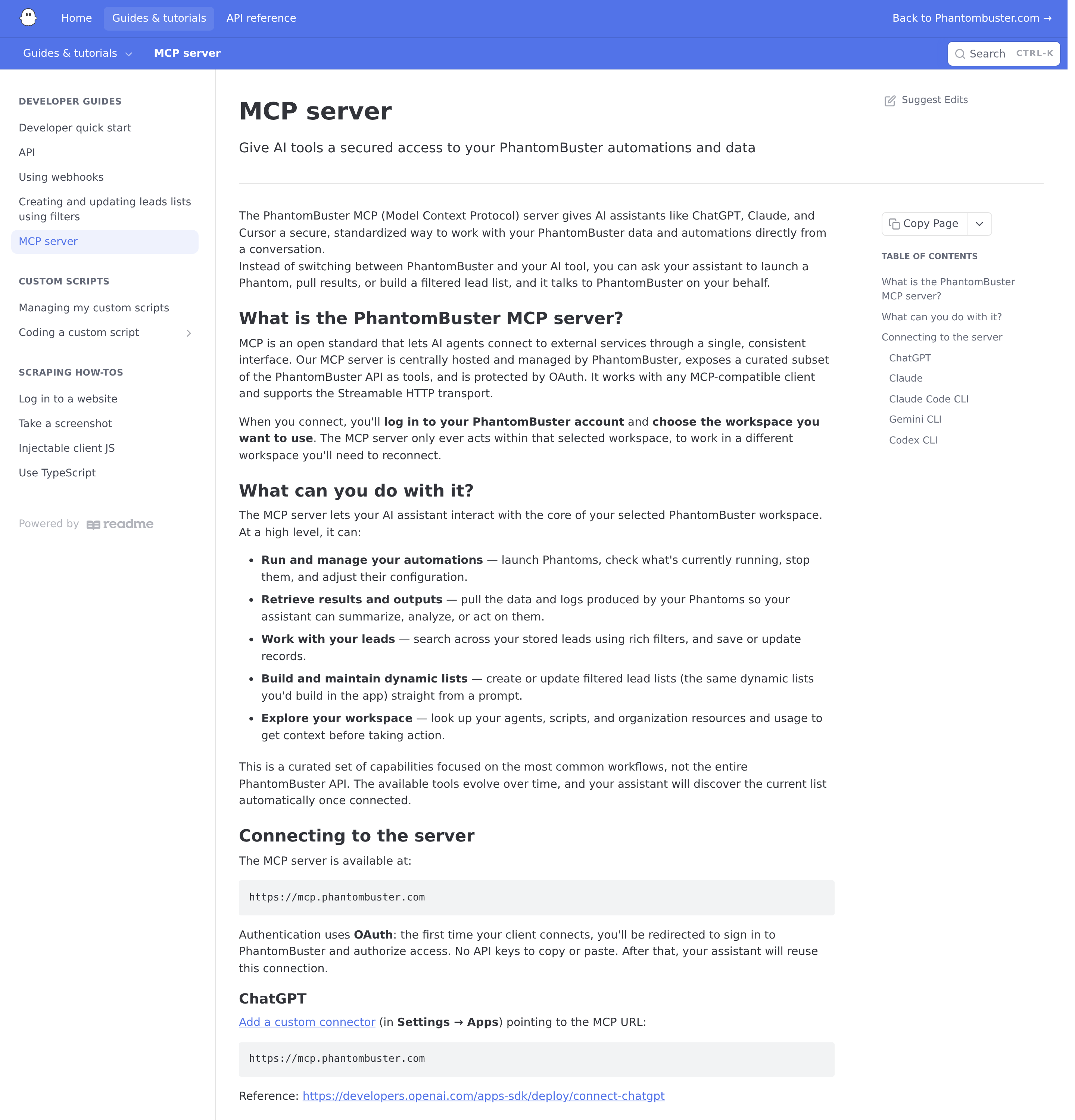
PhantomBuster's own MCP server documentation — the only official endpoint is mcp.phantombuster.com.
The one rule that explains most MCP confusion: workspace binding
When you connect, you log in and pick a workspace. The MCP server then acts only inside that workspace for the life of the connection. There is no "all workspaces" mode. If your team has a separate workspace for agency clients, for outbound, and for internal research, you re-connect to switch between them — the assistant cannot see across them in one session.
That single design decision invalidates a lot of "just ask the AI to find that lead" advice. If the lead lives in workspace B and you authorized workspace A, the tool call returns nothing, and it looks like a bug rather than a scope boundary.
Connecting It
Everything below is the official path — no API key to copy or paste, no local process to babysit.
Claude (web / desktop)
- Open Customize → Connectors
- Add a custom connector with the URL
https://mcp.phantombuster.com - Sign in to PhantomBuster and authorize the workspace
Claude Code CLI
claude mcp add --transport http phantombuster https://mcp.phantombuster.com
Then start a session, type /mcp, select the phantombuster server, and choose Authenticate.
Gemini CLI
gemini mcp add --scope user --transport http phantombuster https://mcp.phantombuster.com
Then run /mcp auth phantombuster inside a session.
Codex CLI
codex mcp add phantombuster --url https://mcp.phantombuster.com
ChatGPT
Add a custom connector in Settings → Apps pointing at the same URL.
Self-hosted agents (OpenClaw and friends)
Because the server is plain Streamable HTTP with OAuth, any MCP-compatible client that can complete the OAuth dance can use it. The catch for unattended agents is the same one that bites every OAuth-only MCP server: the OAuth flow needs a human in a browser at least once. For a headless OpenClaw deployment, the practical split is:
- MCP for interactive, human-in-the-loop work (Claude/ChatGPT/Codex sessions, ad-hoc research)
- The PhantomBuster REST API (
https://api.phantombuster.com/api/v2/, authenticated with theX-Phantombuster-Keyheader) plus a skill file for scheduled, unattended jobs
There is a community package — globodai-mcp-phantombuster, run via npx — for self-hosted stdio setups, but treat it as a convenience wrapper, not the supported path.
What the MCP Server Can Actually Do
The tool list is discovered dynamically at connect time (it evolves), but the documented capability groups are stable:
| Capability group | What it covers |
|---|---|
| Run & manage automations | Launch Phantoms, see what's currently running, stop them, adjust configuration |
| Retrieve results and outputs | Pull the data and logs a Phantom produced, for the assistant to summarize or act on |
| Work with your leads | Search stored leads with rich filters; save or update records |
| Build dynamic lists | Create/update filtered lead lists — the same dynamic lists you'd build in the app — from a prompt |
| Explore the workspace | Look up agents, scripts, org resources and usage before taking action |
A Real Workflow: Rebuild a Lead List From a Sentence
This is the capability that separates PhantomBuster's MCP server from a generic "launch my scraper" wrapper, and it's worth understanding how it works underneath.
Dynamic lists in PhantomBuster are saved filters, not frozen snapshots. They are created through POST /api/v2/org-storage/lists/save, where the filter object decides which leads belong to the list. Because the list is re-evaluated against the filter, it stays current as new leads land.
The filter language supports four shapes: a __global_search__ string across all fields, simple field filters ({"job": {"operator": "equals", "valueToCompare": "CTO"}}), logical combinations (and / or arrays), and arbitrary nesting of those. Operators include equals/notEquals, contains, in, numeric comparisons (greaterThan, lowerThan), date operators (beforeDateTime / afterDateTime with ISO 8601), relative dates (beforeNowPlusOffset, offset in milliseconds), unary checks (isSet, isNotSet), and array operators (include, some, every).
One timestamp trap worth flagging: for creation/update date number comparisons PhantomBuster expects unix timestamps, not ISO strings — but the date operators expect ISO 8601. Mixing the two produces a filter that matches nothing, silently.
In conversation, that becomes:
You: "Build a dynamic list of everyone we scraped this month with 'Head of Sales'
     in their title at companies with 50–200 employees, then launch the Email
     Finder Phantom against it."

AI: "Created list 'Head of Sales — SMB' (48 leads match the filter).
     Launching Email Finder against it now — I'll flag the run when it finishes."
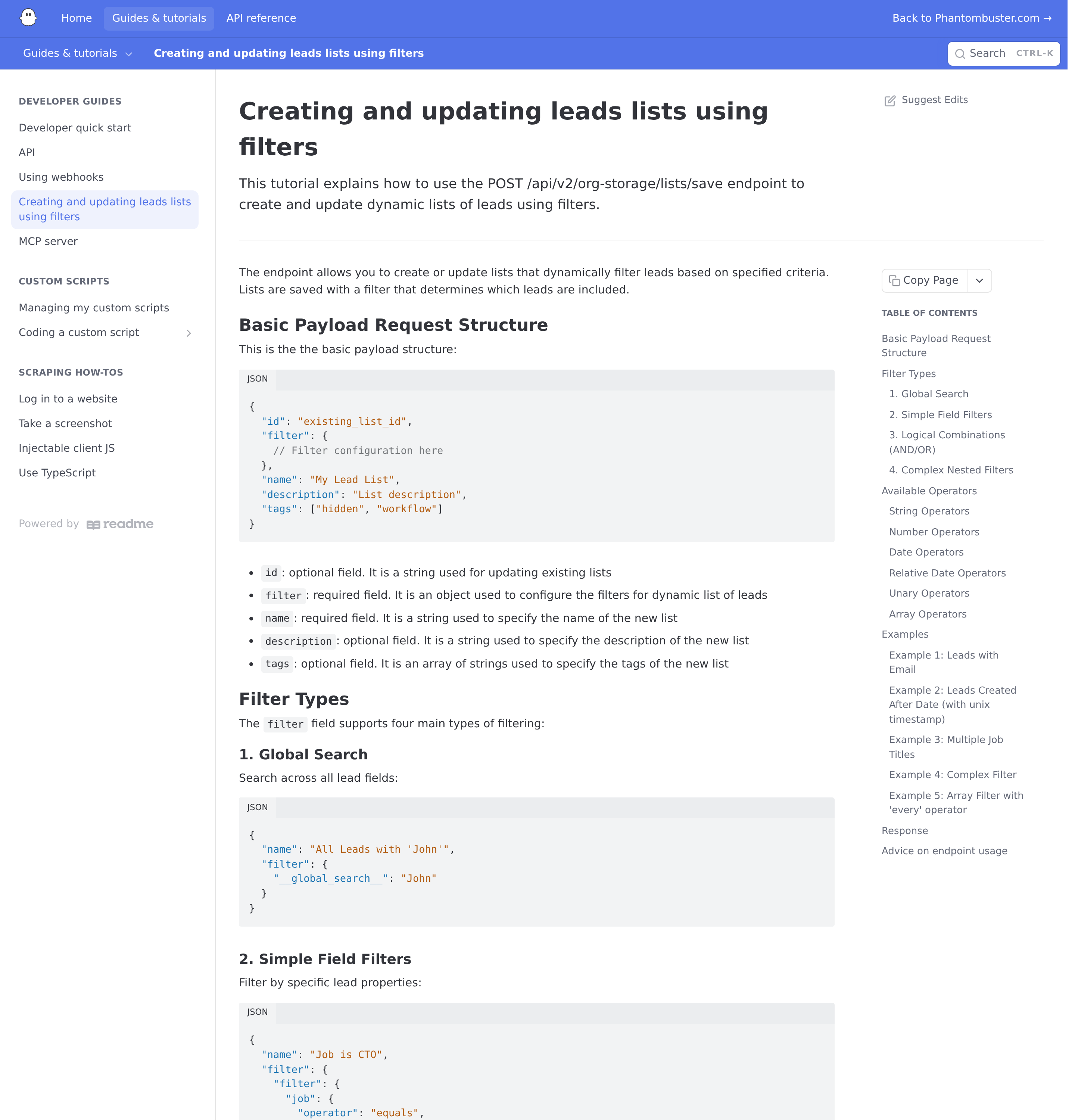
The filter-based list model, straight from PhantomBuster's docs — lists are live views over a filter, not static exports.
The Hybrid Pattern: MCP for Interaction, Webhooks for Completion
Phantom runs take time. A Phantom that scrapes 500 LinkedIn profiles can run for many minutes, and polling for completion from a chat session is wasteful and unreliable.
PhantomBuster's webhook integration is the correct primitive for this, and it's where MCP ends and the API begins:
- Webhooks fire at the end of an agent's execution and POST a payload with
agentId,agentName,containerId,script,launchDuration,runDuration,exitCode,exitMessage, andresultObject. exitMessageis the field to branch on:finished,killed,global timeout,org timeout,agent timeout, orunknown. AresultObject: nullwithexitCode: 1is a failed run, not an empty result.- Configure it in the agent's settings under Advanced Notification Settings.
- Webhooks cannot send custom headers — pass a secret in the query string (
?secret=MY_SECRET_KEY) instead. - The endpoint must accept POST and must not redirect more than twice.
- There is hard timeout budget: about 11 seconds total (≈5s connection, ≈5s to response headers, ≈1s to read the body). The response body is ignored — return
200fast. - Webhooks get removed on client errors: a 4xx response, too many redirects, or an invalid redirect URL unregisters the webhook. Out-of-your-control failures (network errors) do not. This is the single most common "my webhook stopped firing" cause.
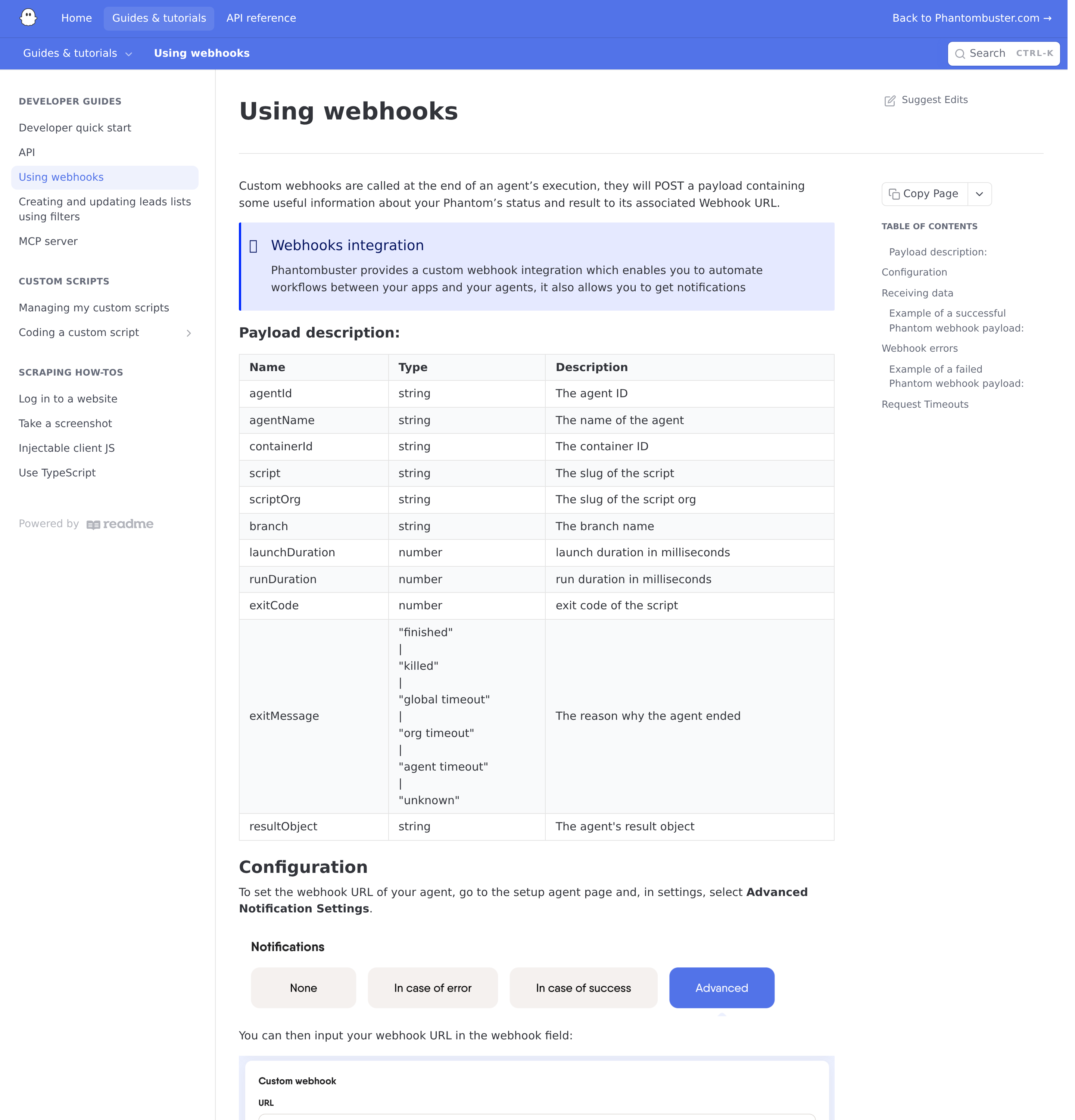
The webhook payload contract — exitMessage and exitCode are what you branch on, not the presence of a result.
The robust architecture is therefore: MCP (or the API) launches the Phantom → the webhook notifies your agent when it finishes → your agent pulls /agents/fetch-output for the incremental data and summarizes it. Do not ask the chat session to sit and poll.
The incremental-output detail people miss
GET /api/v2/agents/fetch-output is deliberately built so you can fetch incremental data from an agent: each call returns output from the most recent container, and the endpoint is designed for repeated polling without re-reading everything. If you build a scheduled job that summarizes Phantom output, this endpoint — not a CSV download — is the one to write against.
Warnings Specific to PhantomBuster MCP
- Workspace binding is not multi-workspace. One authorization, one workspace. Cross-workspace questions return nothing and look like bugs.
- Phantoms run on PhantomBuster's infrastructure, not yours. You get control and visibility, but when LinkedIn changes something and a scraper breaks, the fix lives in the PhantomBuster dashboard. The MCP layer will faithfully report a failure it cannot repair.
- Platform blocking is the dominant failure mode. LinkedIn, Instagram, and X actively fight scraping. Empty results or error statuses usually mean the platform blocked the Phantom, not that your MCP connection is wrong.
- Execution-time budgets are shared and finite. PhantomBuster plans cap execution time per month. Launching several large Phantoms conversationally — which is now one sentence away — can burn the allocation quickly. Put a confirmation step in front of bulk launches.
- Agents are addressed by ID, not name. The MCP tools target agents by ID. Have the assistant list agents first and cache the name→ID mapping in your skill file, or every "run the LinkedIn scraper" request costs an extra discovery round-trip.
- Output size vs. context. Some Phantoms emit thousands of rows. Dumping a raw CSV into a chat message is both useless and expensive; instruct the assistant to summarize, filter, and return counts plus a shortlist.
resultObject: nullis not "no leads". It usually means the run failed or was killed. CheckexitMessage/exitCodebefore concluding the data is empty.- Webhooks silently unregister on 4xx. If your summarization endpoint starts returning 401/404 (a rotated secret, a moved route), PhantomBuster removes the webhook and emails the org. Background jobs then go quiet without failing loudly.
- The MCP tool surface is a subset of the API. Anything the curated tools don't expose (custom scripts, fine-grained org administration) still needs the REST API — don't assume "not in MCP" means "not possible".
Where PhantomBuster Fits in the Stack
PhantomBuster MCP is strongest in the capture stage of an outbound pipeline. The pattern that works:
PhantomBuster (scrape + build filtered lead lists)
   ↓
Hunter.io MCP        → resolve and verify work emails
   ↓
Apollo.io MCP        → enrich with firmographics
   ↓
Your CRM MCP (HubSpot / Salesforce / Close) → write qualified records
   ↓
Slack MCP            → notify the team and route follow-up
With each stage connected, the assistant can orchestrate capture → enrich → write → notify in one conversation, and the webhook layer keeps the long-running scrape from blocking the chat.
Related: Hunter.io MCP · Apollo.io MCP · Slack MCP · PhantomBuster AI Automation
How to Connect PhantomBuster via MCP
There are two main paths:
Option A: Use PhantomBuster's official MCP server
PhantomBuster maintains an official PhantomBuster MCP server. This is the recommended starting point — it's built and maintained by the PhantomBuster team, so it stays up to date with API changes.
Note: Two deployment options: PhantomBuster's centrally-hosted OAuth MCP server (https://mcp.phantombuster.com), or the community globodai-mcp-phantombuster npm package for self-hosted setups.
What the server exposes:
- agent management
- execution monitoring
- results retrieval
- lead search & filtering
- dynamic list building
- workspace exploration
What you'll need:
- An MCP-compatible client (Claude Desktop, OpenClaw, or another host)
- PhantomBuster credentials configured per the server's setup guide
This path gives you the most control but requires you to handle client configuration and credential management yourself.
Option B: Use Cody (OpenClaw-based, managed)
Cody is built on OpenClaw and supports MCP-compatible integrations out of the box. You connect PhantomBuster once from the Cody dashboard — no server to run, no code to write — and Cody handles authentication, context passing, and write-back actions with appropriate guardrails.
Cody works where your team already operates: Slack, Telegram, or the web chat. The PhantomBuster connection is available to your entire team without each person setting up their own MCP client.
Want PhantomBuster Connected to AI Without Running Your Own MCP Server?
Cody gives your team a PhantomBuster AI assistant in Slack, so people can monitor agent runs, review extracted output, compare recent exports, and turn Phantom results into actionable follow-up without building their own control surface for run status and data triage.
MCP vs Other AI Integration Patterns
| Approach | What it is | Tradeoff |
|---|---|---|
| MCP | Standardised protocol for live tool access | Requires an MCP server; most powerful when set up correctly |
| RAG (retrieval) | Pre-index PhantomBuster content and retrieve it | Good for static docs; not suitable for live/transactional data |
| Manual copy-paste | Paste PhantomBuster output into ChatGPT/Claude | Fast to start; breaks for anything recurring or at scale |
| Custom API wrappers | Bespoke integration code per tool | Full control; high maintenance overhead |
MCP wins when you need live data from PhantomBuster and want to avoid rebuilding integrations as APIs change.
Common Mistakes
- Using training data when live data is needed — if the AI doesn't have an MCP connection, it will answer from memory, which is often outdated or wrong for account-specific questions
- No write-back guardrails — MCP can write to PhantomBuster, so it's worth adding an approval step for any action that modifies records
- Too many tools exposed at once — give the AI access to the PhantomBuster actions it actually needs; a scoped connection is easier to reason about and audit
- Skipping structured outputs — ask the AI to return structured JSON or clear fields when writing back to PhantomBuster; free-form output is harder to validate
Related MCP Guides
Want the full workflow picture? See: PhantomBuster AI Automation and How to Connect PhantomBuster to OpenClaw.