If you're searching for "Slack MCP", you're asking one of two things: does Slack have an MCP server? or how do I connect Slack to an AI assistant via the Model Context Protocol?
⚠️ No official Slack MCP server yet. Community options exist — details below.
What Is MCP?
Model Context Protocol (MCP) is an open standard developed by Anthropic that lets AI assistants — like Claude — connect to external tools, APIs, and data sources in a standardised way.
Before MCP, every AI integration required bespoke tooling: custom prompts, custom API wrappers, and custom glue code to pass context back and forth. MCP replaces that with a common interface: the AI asks the MCP server for data or actions, the server returns structured results, and the AI uses them to answer your question or complete a task.
In plain terms: MCP is how you give an AI assistant live access to Slack — not just knowledge about it, but real, up-to-date data from your account.
What a Slack MCP Integration Does
Once Slack is connected via MCP, your AI assistant can:
- Read live data — pull records, metrics, activity, and status directly from Slack
- Take actions — create, update, or log records based on your instructions
- Cross-reference context — combine Slack data with other connected tools mid-conversation
The key difference from a standard chatbot: the assistant is not working from training data or memory. It is reading your actual Slack instance, in real time.
Practical Slack MCP Use Cases
Read and query ${displayName} from chat
Instead of switching to the Slack dashboard, ask your AI assistant to fetch the data you need and return it in a readable format — right in your conversation.
Write back to ${displayName} without leaving chat
Have the assistant create, update, or log records in Slack based on your instructions — with a confirmation step before any write action executes.
Cross-tool context stitching
The assistant pulls data from Slack alongside other connected tools and surfaces the combined context where it's most useful — without manual copy-paste.
Slack MCP: It's Official Now (and Most Guides Still Say It Isn't)
Search "Slack MCP" and you'll land on a dozen 2025-era articles telling you Slack has no official MCP server and to use Anthropic's archived reference implementation instead. That was true. It isn't anymore.
Slack shipped its own hosted MCP server at https://mcp.slack.com/mcp, generally available since 17 February 2026, announced alongside the Real-Time Search (RTS) API. It speaks JSON-RPC 2.0 over Streamable HTTP, authenticates with Slack's standard OAuth 2.0 user-token flow, and covers search, messaging, canvases, users, files, and Slack Lists.
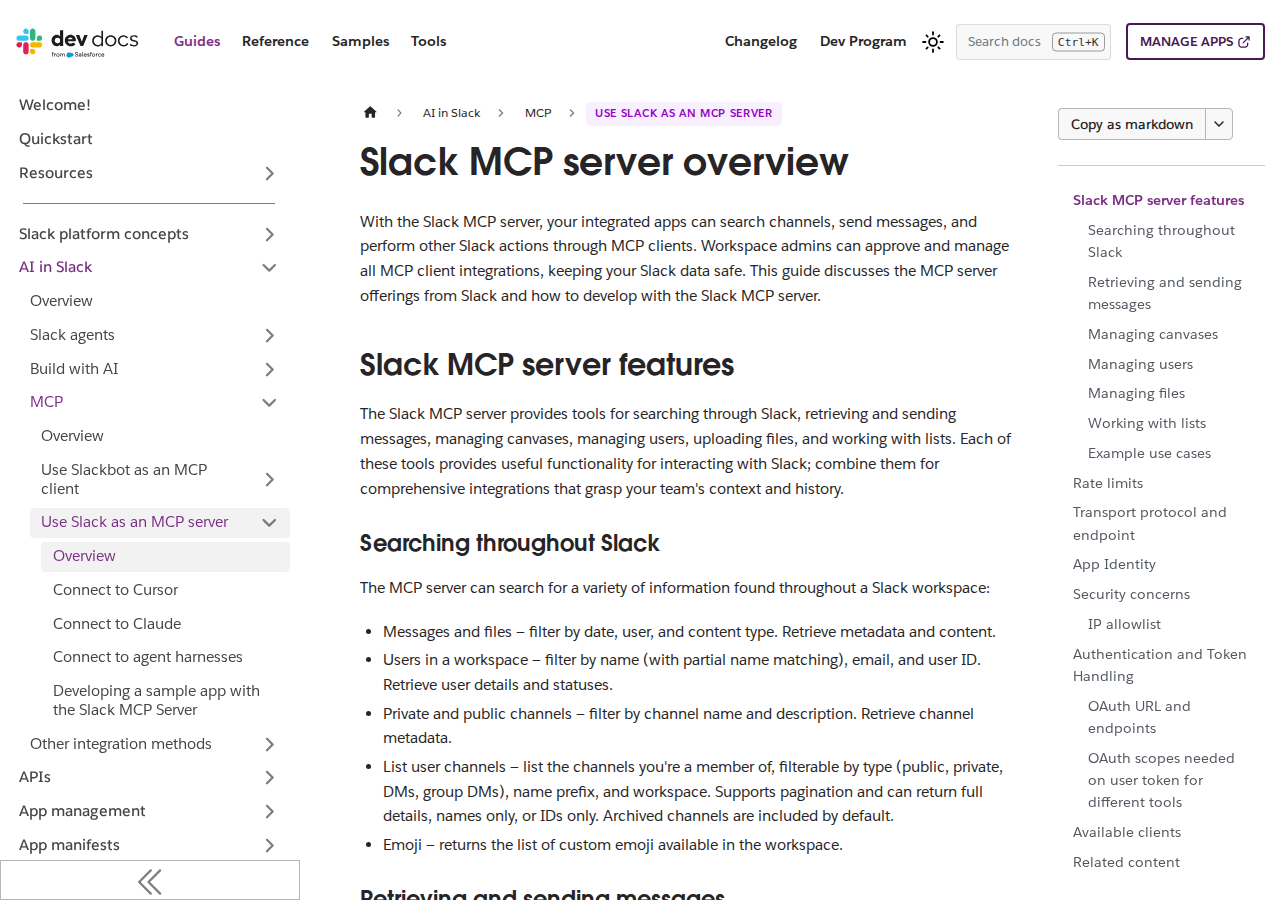
Slack's own docs for the MCP server — the "no official server" advice you'll find elsewhere is out of date.
If you're here because your assistant is answering Slack questions from stale training data, the fix is five minutes of OAuth, not a community server.
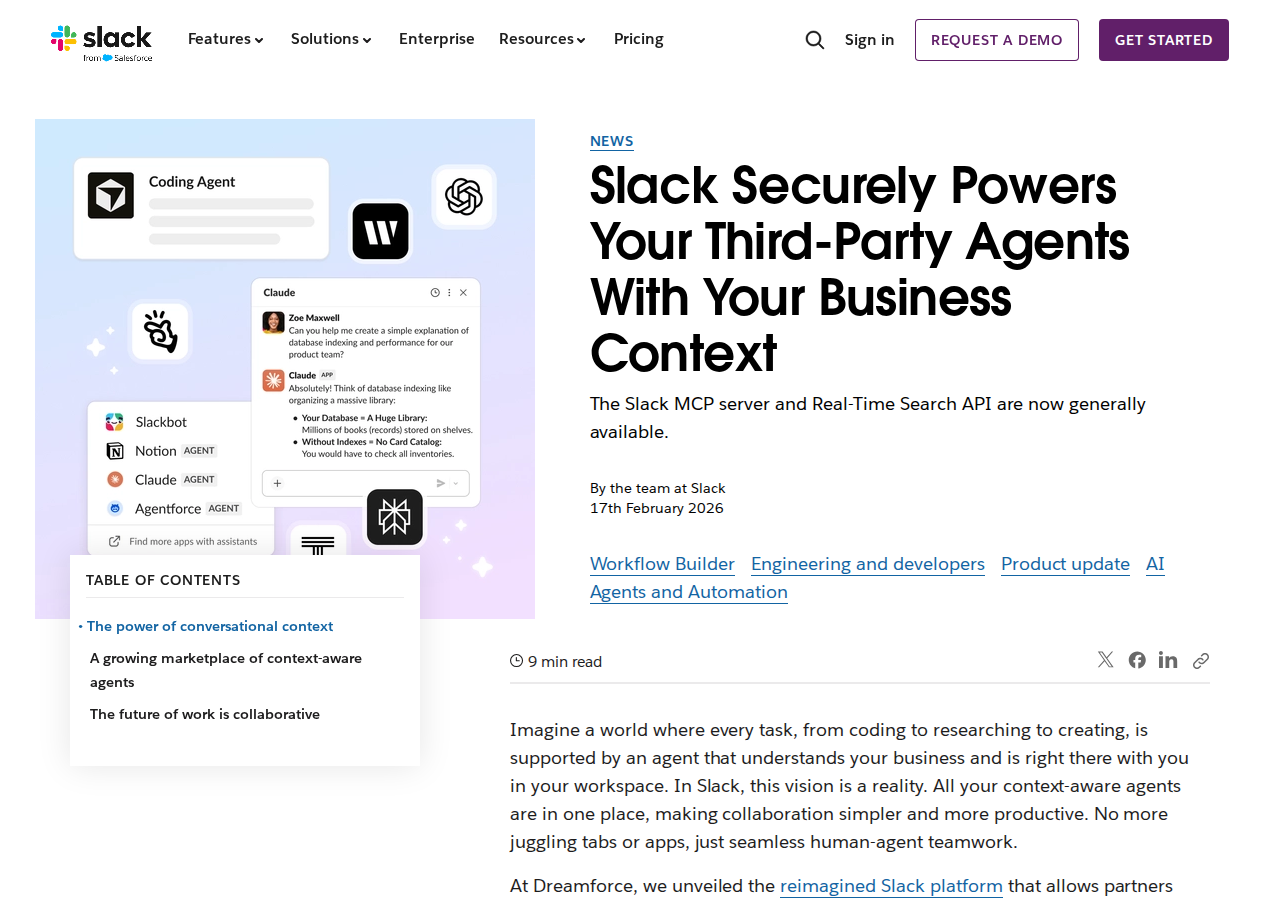
Slack's GA announcement for the MCP server and RTS API — 50+ launch partners including Anthropic, Google, OpenAI and Perplexity.
What the server actually exposes
Slack's MCP server is not a thin wrapper over one endpoint. It's a structured tool surface across seven areas:
| Area | Tools available |
|---|---|
| Search | Messages and files (filter by date, user, content type); users (partial name, email, user ID); public and private channels; custom emoji |
| Messages | Send to any conversation type; draft and preview messages; read full channel history; read complete threads; create a channel/group DM/IM; add reactions |
| Canvases | Create and update; read (exported as Markdown) |
| Users | Fetch full profile info including custom fields and statuses; list channel members |
| Files | Upload via a two-step signed-URL flow (slack_get_file_upload_url → POST bytes → slack_complete_file_upload) |
| Lists | Create and read Lists with custom schemas; update list metadata and columns; add or update individual records |
| Identity | Every call runs with the authenticated user's permissions, not a bot's |
That last row is the architectural point most write-ups miss. The server issues user tokens, not bot tokens. When your assistant reads a private channel or posts a message, it does so as the person who authorized it — which means the permission model is Slack's existing one, and there's no separate "what can the bot see" question to reason about.
Setting it up
Two paths, depending on whether you're using a partner client or building.
Path A — partner client (no code). Slack names Claude.ai, Claude Code, Perplexity and Cursor as partner-built clients where the connector shows up ready to authorize. Add the connector, complete OAuth, and the tools appear.
Path B — your own app. MCP clients must be backed by a registered Slack app with a fixed app ID that you hardcode. Reuse an existing app or create one, then:
# Endpoint
https://mcp.slack.com/mcp        # JSON-RPC 2.0 over Streamable HTTP

# OAuth (user token)
#   authorize: https://slack.com/oauth/v2_user/authorize
#   token:     https://slack.com/api/oauth.v2.user.access
#   scopes:    chat:write, channels:history, search:read.public, canvases:write, ...

# Metadata discovery (for clients that support RFC 8414)
https://mcp.slack.com/.well-known/oauth-protected-resource
https://mcp.slack.com/.well-known/oauth-authorization-server
{
  "mcpServers": {
    "slack": {
      "command": "npx",
      "args": ["mcp-remote", "https://mcp.slack.com/mcp"]
    }
  }
}
Two hard constraints from Slack's docs, verbatim in effect: SSE-based connections and Dynamic Client Registration are not supported, and only directory-published apps or internal apps may use MCP — unlisted apps are prohibited. That second rule is why "just point a throwaway app at it" doesn't work.
What You Can Actually Do with Slack MCP
Ask the workspace instead of scrolling it
"What did we decide about the Q3 launch?" or "Where did we land on the pricing change?" The assistant runs a real search across channels and files you have access to and answers from actual threads — including private channels, because it's acting as you. This is the single highest-value use of the server, and it's the one that most relies on the user-token model being correct.
Summarise a channel or a thread on demand
Point it at a busy channel and ask for the decisions, the open questions, and who owns what. Because it can read complete channel history and complete threads — not just recent messages — the summary reflects the whole conversation rather than the last hour.
Turn a discussion into a canvas
"Take this thread and turn it into a project canvas." The assistant reads the thread, drafts a formatted document, and creates and shares a Slack canvas — no copy-paste into a doc, no leaving Slack to write it up.
Draft first, send second
The server has a draft tool separate from send. Have the assistant draft and format a message for preview inside the AI client, you read it, then it posts. This is the pattern to reach for in any channel a customer or exec can see.
File-heavy conversations
Two-step uploads (get signed URL, POST bytes, finalize) mean the assistant can put a generated report, screenshot, or export into the right channel as part of a workflow instead of emailing it to you to attach manually.
Structured team trackers in Slack Lists
Slack Lists hold typed tabular data — text, date, select, user columns. Create a list, then add or update rows conversationally. It's the closest thing Slack has to a lightweight database, and the MCP server reads and writes it.
Common Pitfalls Specific to Slack MCP
Everything runs as you, with your full access
User-scoped tokens are the biggest double-edged sword here. Your assistant can read any private channel, DM, or file you can. If you're the workspace owner, that's effectively the whole workspace. There is no separate bot identity to scope down — the blast radius of a compromised client is your access level, not a reduced bot's.
Only Marketplace-published or internal apps can connect at all
Slack's MCP server rejects unlisted apps. If your client isn't Claude.ai, Claude Code, Perplexity or Cursor, you must ship your own registered app (internal apps count) — which means an admin has to be in the loop. Budget for the approval step; you can't self-serve around it.
Admin approval plus an IP allowlist can silently block you
Workspace admins manage and approve each MCP client integration, and if your app has allowed IP ranges configured, MCP requests are subject to the same restriction — calls from unlisted addresses are rejected. A setup that worked on a laptop can fail on a server behind a different egress IP with no obvious error.
No Dynamic Client Registration and no SSE
Slack states plainly that DCR isn't supported. If your MCP client assumes dynamic registration (as some do), you need a client that can be pre-registered with your app's client_id/client_secret or a client that supports the OAuth metadata discovery files. And if your only transport is legacy SSE, this server won't talk to you.
Rate limits are real Web API limits, per tool
Slack enforces its normal tiers per action type, and MCP calls count against the same budgets. Search messages and files carry special limits; send message has its own; most reads sit at Tier 2–4 (20 to 100+ per minute). An assistant that fans out across forty channels in one turn will hit Tier 2 (Search users, Search channels, List user channels — 20+/min) well before it finishes. Ask for narrower queries.
MCP is a doorway, not a worker
The server has no triggers. Nothing fires when a message lands, nobody gets watched, nothing runs while the chat is closed. If you want "when a customer posts in #support, create a ticket," that is not this server — that's an event-driven integration. The MCP path is request/response inside a conversation you start.
Mixing MCP servers raises the stakes
Slack's own docs carry a warning worth repeating: be careful connecting other MCP servers alongside this one. Every additional server is another process with access to the context you're feeding the model — and here the context includes your Slack workspace. Treat the client's tool list as a security surface, not just a convenience list.
Lists are typed and addressed by display name
List columns are addressed by display name or internal key, and select columns are color-coded options. If you rename a column, prompts that referenced the old name break. Pin the schema in your skill file before automating against a List.
How to Connect Slack via MCP
There are two main paths:
Option A: Use a community MCP server for Slack
Slack does not currently maintain an official MCP server. Community-built options exist — check the MCP Registry and GitHub for the latest.
Note: The original Slack MCP server was a reference implementation maintained by Anthropic — it has since been archived. A community-maintained version is available via Zencoder (github.com/zencoderai/slack-mcp-server).
What you'll need:
- An MCP-compatible client (Claude Desktop, OpenClaw, or another host)
- A running MCP server process with Slack credentials configured
Community servers vary in completeness and maintenance quality — evaluate before deploying to your team.
Option B: Use Cody (OpenClaw-based, managed)
Cody is built on OpenClaw and supports MCP-compatible integrations out of the box. You connect Slack once from the Cody dashboard — no server to run, no code to write — and Cody handles authentication, context passing, and write-back actions with appropriate guardrails.
Cody works where your team already operates: Slack, Telegram, or the web chat. The Slack connection is available to your entire team without each person setting up their own MCP client.
Want Slack Connected to AI Without Running Your Own MCP Server?
Cody turns Slack into the place your team gets answers, summaries, action items, and cross-tool context. Connect your workspace once and let Cody work inside Slack without building or maintaining any Slack-bot infrastructure.
MCP vs Other AI Integration Patterns
| Approach | What it is | Tradeoff |
|---|---|---|
| MCP | Standardised protocol for live tool access | Requires an MCP server; most powerful when set up correctly |
| RAG (retrieval) | Pre-index Slack content and retrieve it | Good for static docs; not suitable for live/transactional data |
| Manual copy-paste | Paste Slack output into ChatGPT/Claude | Fast to start; breaks for anything recurring or at scale |
| Custom API wrappers | Bespoke integration code per tool | Full control; high maintenance overhead |
MCP wins when you need live data from Slack and want to avoid rebuilding integrations as APIs change.
Common Mistakes
- Using training data when live data is needed — if the AI doesn't have an MCP connection, it will answer from memory, which is often outdated or wrong for account-specific questions
- No write-back guardrails — MCP can write to Slack, so it's worth adding an approval step for any action that modifies records
- Too many tools exposed at once — give the AI access to the Slack actions it actually needs; a scoped connection is easier to reason about and audit
- Skipping structured outputs — ask the AI to return structured JSON or clear fields when writing back to Slack; free-form output is harder to validate
Related MCP Guides
Want the full workflow picture? See: Slack AI Automation and How to Connect Slack to OpenClaw.