Tools
Classifiers
A classifier is a small, specialised AI that answers the same few questions about every item you give it: is this email sales or support? How urgent is it? Which department should handle this invoice? Your agent uses it to sort large volumes quickly, consistently and for very little money.
Open in your dashboard →What people use it for
Shared inboxes
Triage every email that comes in
Label each new email as sales, support or other, score its urgency and route it to the right person in seconds, around the clock. Thousands of emails a day sorted for a fraction of a cent each.
Every email sorted the moment it lands
Customer support
Route your entire ticket queue
For every ticket, decide which product it’s about, how upset the customer is and whether it needs a human today. The agent assigns, escalates and drafts replies for the rest, so the team works the queue in priority order.
The whole queue prioritised, not skimmed
Finance
Process all your paperwork
Classify every invoice, receipt and quote that arrives, pick its expense category and supplier, and file it in the right folder. Month-end closes with the documents already in order.
Every document filed without anyone opening it
Recruiting
Screen every applicant
Score every CV against the role on the same 1–5 scale and match it to the best opening. Hundreds of applications per role, and recruiters start with the strongest ten.
Hundreds of CVs scored consistently
How it works
You define the questions once. From then on, every email, ticket or document your agent sees gets the same questions and the same kind of answer, in seconds and for a fraction of a credit. That is what lets it keep up with a whole inbox.
info@ today 1,240
- Pricing for 40 seats?sales
- Can’t log in since 8 amsupport
- Invoice #2231 is wrongbilling
- Your weekly newsletterother
- Export to CSV failssupport
- 1
Create a classifier
In Tools → Classifiers, give it a name (for example “Email triage”) and the questions it should answer about each item. A new classifier starts filled in with an email triage example you can adapt. - 2
Test it with real examples
Paste a real email or document into Test recipe and check the answers. Adjust the option descriptions until you’re happy. - 3
Let your agent use it
Once published, every agent in the workspace can use it. Ask for it in the chat, or include it in a recurring task.
One email, step by step
The item · a new email in info@1
Ana Ruiz · Northwind Logistics
Can’t log in since this morning
Hi, nobody on our team has been able to log in since 8 am, and we have to send invoices to our clients before 5 pm today. Can someone help us as soon as possible?
team3Choice4Choose the team that should handle this email.
salessupportbillingothersupport: a customer has a problem using the product. Not questions about invoices.
support94%urgencyScore5How quickly does someone need to act?
can waitthis weektodayright nowtoday88%blockedYes / No6True or false: the customer can’t use the product right now.
yesno96% likely yesyes · 0.96
What the agent does with it7
Forwards it to support@
because team = support
Alerts you on Slack
because blocked = yes
Logs it in Recent runs
0.4 credits · saved with the answers
- 1
The item
Whatever you want sorted: an email, a support ticket, a CV, the text of an invoice. - 2
Classifier
A saved set of questions. Agents always use its published version. - 3
Question
One decision about the item, with a short name (team) and the question in plain words. - 4
Choice
Picks one of your options. See the three kinds of questions below. - 5
Score
Places the item on your scale, from lowest to highest. - 6
Yes / No
Says how likely a statement is to be true. - 7
Answers and actions
Your agent acts on the answers (forward, alert, file) and the run is saved in Recent runs.
Examples of what to ask

Cody
Online
Run the 20 unread emails in the support inbox through “Email triage” and tell me which ones are urgent.
3 are urgent: a customer who can’t log in since this morning, a failed payment from Northwind, and a complaint about a wrong delivery. 11 are routine support, 4 are sales enquiries and 2 are newsletters.
Cody
Online
Every 30 minutes, classify new emails in info@ with “Email triage”. Forward sales ones to Marta, and message me on Slack if anything is urgent.
Scheduled. Every 30 minutes I’ll check info@, forward sales emails to Marta and alert you on Slack for anything classified as urgent.
Three kinds of questions
Choice
Which team should handle this?
Picks exactly one option from your list. Each option has a description of when it applies, and that is what the classifier follows.
Score
How urgent is it?
Places the item on a scale you write, from lowest to highest. Agents and tasks can act on thresholds, such as “today or above”.
Yes / No
“The customer is blocked right now.”
Answers yes or no, with how likely “yes” is (from 0 to 100%). You write it as a statement, like “This email needs a reply”. Agents act only when it’s likely enough, such as above 80%.
The descriptions do the work
Every part of a classifier, explained
What you see in Tools → Classifiers, with the same names as the dashboard.
When you create a classifier
- Who can use itWorkspace / Only me
- Workspace classifiers are available to everyone in the workspace and every agent. Personal ones only to you.
- Name
- A readable name, such as “Email triage”.
- Slug
- A short ID made of lowercase letters and dashes, such as email-triage. Agents use it to call the classifier, so keep it stable once agents or tasks rely on it.
- Description
- One sentence on what the classifier is for. It helps your agent choose the right classifier.
- Main result
- If there are several questions, the one whose answer agents see first in short summaries. Usually the most important decision, like the team.
- Questions
- The decisions the classifier makes about every item. One question is enough to start.
Each question
- Question name
- A short label for the answer, such as category or urgency. It becomes the name of the result.
- What should it decide?
- The question in plain words, as you’d ask a colleague: “Choose the team that should handle this email.” For Yes / No, write a statement instead: “This email needs a reply.”
- TypeChoice / Score / Yes / No
- The kind of answer. See Three kinds of questions above.
- Options and levels
- For Choice, each option’s name and description. For Score, the levels from lowest to highest. Yes / No needs neither.
Versions, testing and results
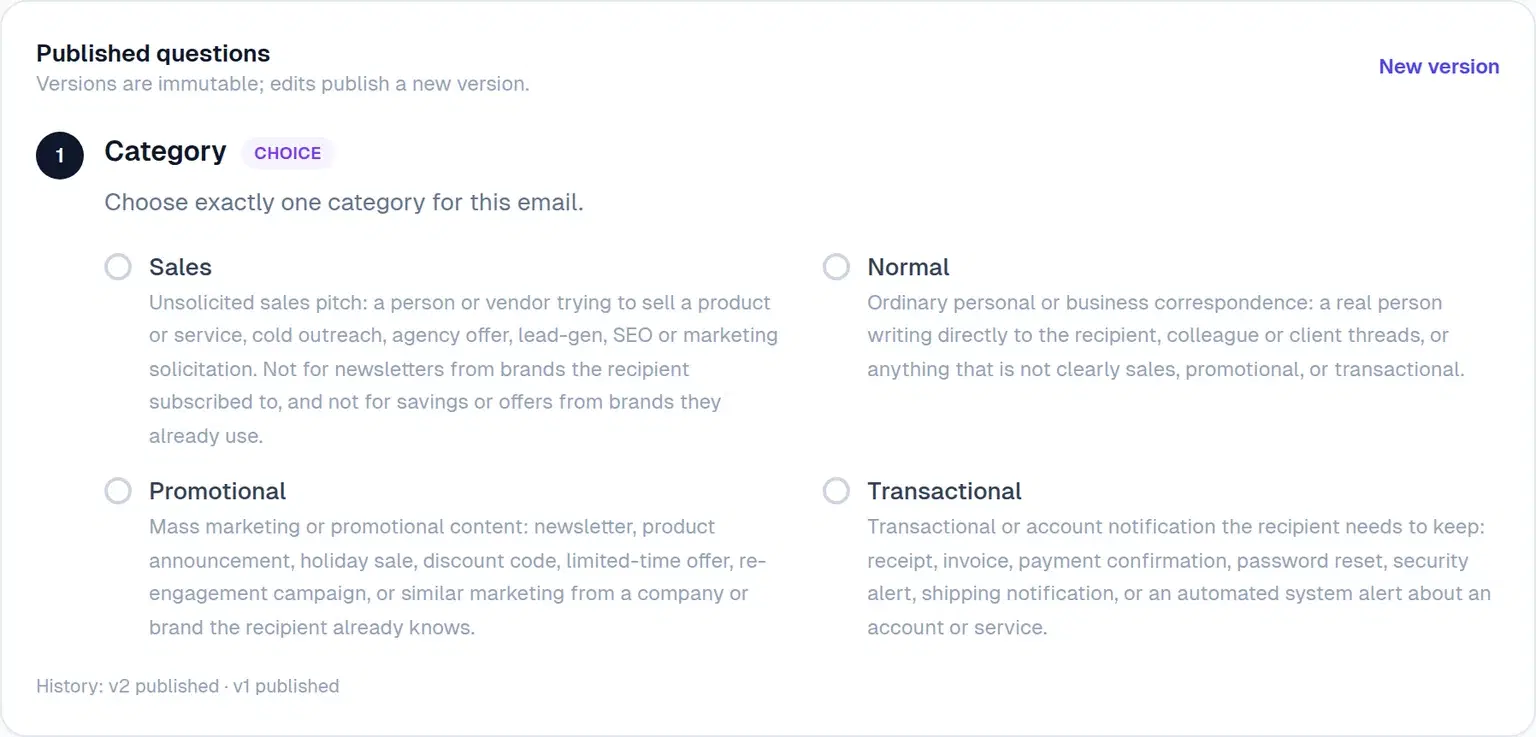
- Published questions / Published v2
- The version your agents are using right now. Published versions never change.
- New version
- Edits create a new version, which becomes the published one. Results already produced keep the version they were made with, shown under History.
- Test recipe
- Paste a real example and run it. It creates a real, recorded run with the published version.
- Recent runs
- Every classification: which classifier, the item, status, credits used, how long it took and when. Click a row for the details.
- Run details
- What was classified, the answer to each question with how confident the classifier was, and the tokens and credits used.
Frequently asked questions
+Why not just ask my agent to sort things?
You can, but a classifier is cheaper, faster and more consistent. It answers only the questions you defined, with the options you defined, so the same email always gets the same label. That matters when it runs hundreds of times a day.
+Can a classifier write replies or summaries?
No. Classifiers only decide: they pick an option, place the item on a scale or answer yes or no. Your agent does the writing, using those decisions.
+How much does it cost?
Usually less than one credit per item, which is why classifiers suit large volumes such as every incoming email. Each run’s cost is shown in Recent runs.